Getting null reference exception when try to open list settings (Listedit.aspx) for Sharepoint 2010

This is a typical  error scenario that you have if you move or copy some sharepoint core dll’s which is referenced fr0m another folder.There is common mistake when developing custom applications that moving and copying sharepoint core dll’s to where is not in original folder (for example coping Microsoft.Sharepoint.dll to BIN folder of web application)  or unnecesserly register in GAC (for example registering Microsoft.Sharepoint.ApplicationPages.dll to GAC).

Why is this dangerous ? i can simply say when you upgrade or install any patch on sharepoint , the copied dlls form original location  can not be upgraded  by default .So this cause a huge anomality in your system. DLL version integrity is very important issue for every Microsoft product. So be careful for this operations , after all if you still need to copy or move operation, that upgrading copied dlls is your responsibility.

So lets keep going with our error :

when you click the one of list’s list settings (listedit.aspx) you can probably getting fallowing error in application event logs:

Exception information:
Exception type: NullReferenceException
Exception message: Object reference not set to an instance of an object.

Stack trace:    at Microsoft.SharePoint.ApplicationPages.ListEditPage.SetSectionLinks()
at Microsoft.SharePoint.ApplicationPages.ListEditPage.OnLoad(EventArgs e)
at ASP._layouts_listedit_aspx.OnLoad(EventArgs e) in c:\Program Files\Common Files\Microsoft Shared\Web Server Extensions\14\TEMPLATE\LAYOUTS\listedit.aspx:line 25
at System.Web.UI.Control.LoadRecursive()
at System.Web.UI.Page.ProcessRequestMain(Boolean includeStagesBeforeAsyncPoint, Boolean includeStagesAfterAsyncPoint)

And if you enable custom errors from  in your web.config which is in Layouts folder.You can see the error in browser:

NullReferenceException: Object reference not set to an instance of an object.]
Microsoft.SharePoint.ApplicationPages.ListEditPage.SetSectionLinks() +426
Microsoft.SharePoint.ApplicationPages.ListEditPage.OnLoad(EventArgs e) +896
ASP._layouts_listedit_aspx.OnLoad(EventArgs e) +290
System.Web.UI.Control.LoadRecursive() +65
System.Web.UI.Page.ProcessRequestMain(Boolean includeStagesBeforeAsyncPoint, Boolean includeStagesAfterAsyncPoint) +2427

For resolving this issue you should find the related copied assembly files which according this scenario is Microsoft.Sharepoint.ApplicationPages.dll in use for unfamiliar locations.

the orginal location for this dll is  Drive:\Program Files\Common Files\Microsoft Shared\Web Server Extensions\14\CONFIG\BIN

1) First Check the GAC this dll should not be added to GAC if it is upgrade latest correct version or delete the dll.
2) Check other possible existance may it be used in BIN folders of web applications. For getting all list of any dll location you can use this script:
https://blog.bugrapostaci.com/2011/12/26/powershell-find-files-with-versions/ this powershell command gives you a list that defined dll locations and versions.

For best practise if you need any reference to Sharepoint DLL’s use and reference them in original locations .if not you always remember to upgrade latest versions where it have been that is your resposibility.

See you next time.


Sharepoint 2010 DistributedCOM error in system event logs.

If you getting DistributedCOM errors like:


The application-specific permission settings do not grant Local Activation permission for the COM Server application with CLSID
{61738644-F196-11D0-9953-00C04FD919C1} and APPID
{61738644-F196-11D0-9953-00C04FD919C1} to the user <DOMAIN\user> SID (<ID>) from address LocalHost (Using LRPC). This security permission can be modified using the Component Services administrative tool.

For solution:
http://social.msdn.microsoft.com/Forums/da-DK/tfsadmin/thread/883b5f1c-1718-4b9a-a6c8-bf32c5d4d6d2


Does Sharepoint 2010 support classic-mode for application pool ?

The Answer is No.
If you set your sharepoint web application’s application pool mode as classic mode you get the fallowing error :
“This operation requires IIS integrated pipeline mode.”

For more information about Sharepoint 2010 Architecture please read fallowing article :
http://msdn.microsoft.com/en-us/library/gg552610.aspx

For more information about Integrated-Pipeline:
http://learn.iis.net/page.aspx/243/aspnet-integration-with-iis/

Solutions for InfoPath web service connection problems behind SSL enabled TMG or hardware Load Balancer in Sharepoint 2010

Hi Everyone,

In this article i will explain a well known problem about web service connection problem on your sharepoint servers behind SSL offload Load Balancer or TMG reverse proxy enabled topologies.

What is SSL Offload and Acceleration:
Depending on the workload, processing the encryption and authentication requirements of an SSL request can become a major part of the demand on the Web Server’s CPU and as the demand increases the users will see slower response times. To remove this demand from the Web Server a Load Balancer may be used to terminate the SSL at the Load Balancer. Some Load Balancer appliances include specialized hardware to process SSL. When a Load Balancer terminates the SSL connections the requests are converted from HTTPS to HTTP in the Load Balancer before being passed to the Web Server. So long as the Load Balancer itself is not overloaded this feature will not noticeably degrade the performance perceived by the end users.

For More information about Reverse proxy publishing: http://technet.microsoft.com/en-us/library/cc261814(office.12).aspx
So lets explain our topology. We have 2 WFE server and a Hardware Load Balancer.

WFE01 : Sharepoint Web Front End Server  which serving blog.bugrapostaci.com and our custom web service
/_layouts/CustomWebService/myservice.asmx
IP: 192.168.10.2

WFE02: Sharepoint Web Front End Server  which serving blog.bugrapostaci.com and our custom web service
/_layouts/CustomWebService/myservice.asmx
IP:192.168.10.3

HLB : Hardware load balacer device which is configured SSL Offload.

for this topology needed configuration fallowing Alternate Access Mappings …

Internal URL:  https://blog.bugrapostaci.com
Zone: Default
Public URL for zone:
https://blog.bugrapostaci.com  

Internal UR: http://blog.bugrapostaci.com  
Zone: Default
Public URL for zone: https://blog.bugrapostaci.com  

For more information about How do I configure a load balancer to accept only SSL requests please read fallowing article:
http://www.sharepointpromag.com/article/sharepoint/configure-a-load-balancer-to-accept-only-ssl-requests
Ok. If you establish your AAM correctly, you can able to browse our sharepoint site well. First of all all client computer in your domain must use HTTPS protocol for browsing
our portal even if they write http://blog.bugrapostaci.com it will redirected to SSL httpS://blog.bugrapostaci.com according AAM configuration. But on the server’s browsers i mean if you connect to WFE1 or WFE2 you can not browse the site with using SSL because there is not any SSL implementation configured on your sharepoint servers.(also this is which we want for performace) unless redirect to outside port of HLB which is mostly prohibited for security. So you can browse your portal using HTTP protocol only on WFE server’s browsers reversly client action.

Ok so far so good What is the problem ?
You have a developer machine outside of the server farm and can able to create Infopath Web Forms using Sharepoint Designer or Infopath 2010  .And they can publish their form to sharepoint and see all forms are working correctly by instead of SSL communication. But what if one of the InfoPath form needs to connect a web service which is already publishing on our sharepoint portal “/_layouts/CustomWebService/myservice.asmx” it can be built in sharepoint web service too but in this scenario is customized asmx file.

You will get the 5566 connection problem when you try to open this infopath form after publish to server.

Why ?
Because when you working with your infopath form in InfoPath2010 (in client machine) you can able to configure your web service connection with HTTPS.
For example https://blog.bugrapostaci.com/_layouts/CustomWebService/myservice.asmx
if you test form your client computer’s browser you can see WSDL without any problem.
yes on client machine you can able to reach this service without any error and develop your form as you want.But After you deploy/publish it to sharepoint server the form
(also publish ends successfully)  and assume that the user request this form ,wfe server process the pipeline and requests to connect webservice for getting data not the client !!! So as i told you before there is not any SSL connection can be done in server network but your published web service url is starting with https , and all requestes are redirected HTTPS according Alternate Access Mappings. You got the problem 🙂

So what we could do for resolving this issue

The first solution 

you can configure a rule for HLB (if it is configurable) that server request can over through directly load balancer by using https .mean you should allow the server requests pass through HLB even if requester machine itself. (But this time you may encounter with double-hop scenario).But somehow if you can not configure your LB or prohibited by security reson or faced with double hop  you need second solution which is a little complicated.

The Second Solution

1)  You can add another Host header to your site from IIS console which is using protocol of HTTP
http://myblogserviceDo not add any AAM record for it. If you create an AAM record it will rewrite your service url as https again.

2) Adding host file record of all request can be redirected to same machine (for preventing double hop)
For WFE1  ->   192.168.10.2    wfe1
For WFE2  ->  192.168.10.3    wfe2

3) Give only the developer machines to direct access http://myblogservice for able to create their infopath form correctly.

4) Enable Cross Domain options for InfoPath Services.
Central Administration –> General Application Settings –> InfoPath Forms Services –> Configure InfoPath Forms Services:
Note :If this is an administrator-approved form template, the security level of the form must be set to full trustAbout  InfoPath Security Model:
http://msdn.microsoft.com/en-us/library/bb251020(v=office.12).aspx

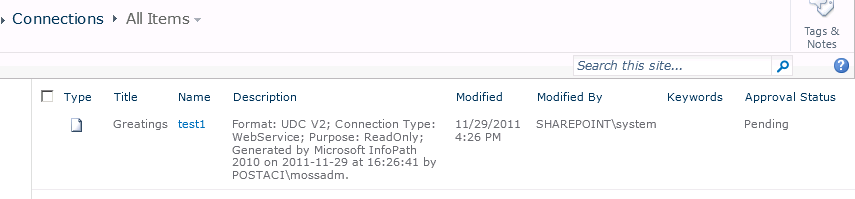
5) Create and use Data Connection Library for storing infopath connection information
How to: Create and Use a Data Connection Library
http://msdn.microsoft.com/en-us/library/ms772101.aspx

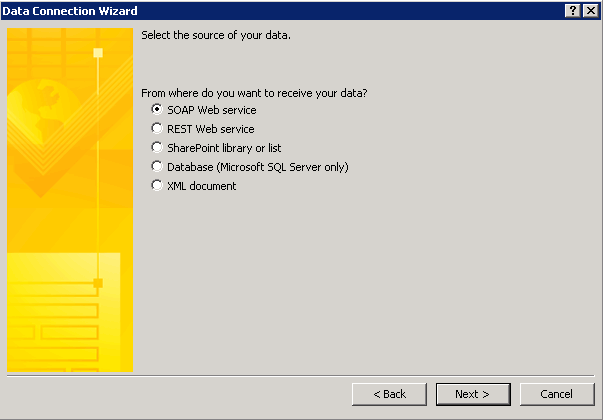
6) Configure your InfoPath forms as use connections udcx files. And use your new host header for connecting web service like
http://myblogservice/_Layouts/CustomWebService/myservice.asmx

7) And publish your forms.

If you completed all steps correctly, when a user browse an infopath form from your site one of wfe server handle the request by using https when the server need to connect
web service it will use http protocol which can be used by servers and you can able to browse your infopath for correctly without any connection error.

Update for MyMasters Solution -16th Nov 2011

Hi Everyone recently i uploaded a new version (1.1) of MyMasters solution.

the solution now covering fallowing questions’ answers :

* How to deploy a custom wellcome page to Personal Site ?
* How to add custom webparts to a page ?
* How to use XsltListViewWebPart and add a document library as a webpart ?

You can download new version from CodePlex site of MyMasters solution:
http://mymasters.codeplex.com/

Please visit related post about MyMasters:
https://blog.bugrapostaci.com/2011/10/24/attach-custom-master-page-to-personal-site-with-featurestabling-for-sharepoint-2010/

Here is a code sample for above questions :
as you guess CreateWellcomePage function has been calling in Feature Reciever class of MyMasters Feature.

  1. private void CreateWellcomePage(SPFeatureReceiverProperties properties)
  2.         {
  3.             SPSite site = (SPSite)properties.Feature.Parent;
  4.             SPWeb web = site.OpenWeb();
  5.             PublishingSite pSite = new PublishingSite(site); //Get Publishing Site Object
  6.             SPContentType ctype = pSite.ContentTypes[“Welcome Page”]; //Get builtin “Wellcome Page” content type
  7.             PageLayoutCollection pageLayouts = pSite.GetPageLayouts(ctype, true); //Get builtin pagelayouts for this content type
  8.             PageLayout pageLayout = pageLayouts[0]; //Select first one which is BlankWebPartPage pagelayout
  9.             PublishingWeb pWeb = PublishingWeb.GetPublishingWeb(web); //Get Publishing Web.
  10.             PublishingPageCollection pPages = pWeb.GetPublishingPages(); // Get Page Collection
  11.             //TempFile for changing default page
  12.             string tempFileName = “TempFileForChangeWellcomePage.aspx”;
  13.             PublishingPage tempPage = null;
  14.             try
  15.             {
  16.                 //Get if there is an existing wellcome.aspx
  17.                 PublishingPage pPageExist = pPages[pWeb.Url + “/Pages/Wellcome.aspx”];
  18.                 if (pPageExist != null)
  19.                 {
  20.                     //Check wellcome.aspx is default page
  21.                     if (pWeb.DefaultPage.UniqueId == pPageExist.ListItem.File.UniqueId)
  22.                     {
  23.                         //if it is a default page we have to create a template page because the default page is not deleted.
  24.                         //Create a temporary page
  25.                         tempPage = pPages.Add(tempFileName, pageLayout);
  26.                         tempPage.ListItem.File.CheckIn(“Chk”);
  27.                         tempPage.ListItem.File.Publish(“Pub”);
  28.                         //Set this temporary file as default page so we can able to delete existing wellcome.aspx
  29.                         pWeb.DefaultPage = tempPage.ListItem.File;
  30.                         pWeb.Update();
  31.                     }
  32.                     //Delete Existing Wellcome.aspx
  33.                     if (pPageExist.ListItem.File.CheckedOutByUser != null)
  34.                     {
  35.                         pPageExist.ListItem.File.UndoCheckOut();
  36.                     }
  37.                     pPageExist.CheckOut();
  38.                     pPageExist.ListItem.Delete();
  39.                     pWeb.Update();
  40.                 }
  41.             }
  42.             catch(Exception ex)
  43.             {
  44.             }
  45.             //Create a new Wellcome.aspx file
  46.             PublishingPage pPage = pPages.Add(“Wellcome.aspx”, pageLayout);
  47.             SPListItem newpage = pPage.ListItem;
  48.             newpage[“Title”] = “Wellcome to my personal site”;
  49.             //Add need webparts to page.
  50.             using (SPLimitedWebPartManager wpMgr = web.GetLimitedWebPartManager(pPage.Url, PersonalizationScope.Shared))
  51.             {
  52.                 //Get WebPart Catalog
  53.                 SPList webPartCatalog = web.GetCatalog(SPListTemplateType.WebPartCatalog);
  54.                 foreach (SPListItem item in webPartCatalog.Items)
  55.                 {
  56.                     if (item.DisplayName == “LatestBlogPostsPublic”)
  57.                     {
  58.                         string fileName = string.Format(“{0}/{1}”, item.Web.Url, item.File.Url);
  59.                         XmlTextReader reader = new XmlTextReader(new StringReader(item.Web.GetFileAsString(fileName)));
  60.                         string error;
  61.                         System.Web.UI.WebControls.WebParts.WebPart wx = wpMgr.ImportWebPart(reader, out error);
  62.                         wpMgr.AddWebPart(wx, “Header”, Convert.ToInt32(0));
  63.                     }
  64.                 }
  65.                 //Add existing Document Library views
  66.                 SPList SharedDocumentsList = web.Lists[“Shared Documents”];
  67.                 SPView SharedDocumentsListView = SharedDocumentsList.Views[0];
  68.                 SPList PersonalDocumentsList = web.Lists[“Personal Documents”];
  69.                 SPView PersonalDocumentsListView = PersonalDocumentsList.Views[0];
  70.                 XsltListViewWebPart wp = new XsltListViewWebPart();
  71.                 wp.ListId = SharedDocumentsList.ID;
  72.                 wp.Title = “Shared Documents”;
  73.                 wp.ChromeType = PartChromeType.TitleOnly;
  74.                 wp.ViewGuid = SharedDocumentsListView.ID.ToString();
  75.                 wp.XmlDefinition = SharedDocumentsListView.GetViewXml();
  76.                 wpMgr.AddWebPart(wp, “Header”, Convert.ToInt32(1));
  77.                 XsltListViewWebPart wp2 = new XsltListViewWebPart();
  78.                 wp2.ListId = PersonalDocumentsList.ID;
  79.                 wp2.Title = “Personal Documents”;
  80.                 wp2.ChromeType = PartChromeType.TitleOnly;
  81.                 wp2.ViewGuid = PersonalDocumentsListView.ID.ToString();
  82.                 wp2.XmlDefinition = PersonalDocumentsListView.GetViewXml();
  83.                 wpMgr.AddWebPart(wp2, “Header”, Convert.ToInt32(2));
  84.             }
  85.             newpage.File.CheckIn(“Administravily Check in”);
  86.             newpage.File.Publish(“Administravily Published”);
  87.             //set wellcome.aspx as default page.
  88.             pWeb.DefaultPage = newpage.File;
  89.             pWeb.Update();
  90.             //delete if tempfile is exists.
  91.             if (tempPage != null)
  92.             {
  93.                 tempPage.ListItem.Delete();
  94.             }
  95.             pWeb.Update();
  96.         }