Move Sharepoint 2010 server to another domain

If once you need to move your sharepoint server to another farm you have to know this is not an easy process. In this article i am telling you a way of doing migration via using domain trusts.

  1. Upgrade Current farm lastest SP (Service Pack 1) and lasted CU
    Sharepoint SP1 and June CU information
    http://blogs.msdn.com/b/joerg_sinemus/archive/2011/06/29/sharepoint-2010-sp1-and-post-sp1-june-2011-cu.aspx
    https://blog.bugrapostaci.com/2011/06/29/sharepoint-2010-service-pack-1-sp1-and-june-2011-cu-released/
  2. Estabilish two way domain trust between Domain A (old) and Domain B
    http://technet.microsoft.com/en-us/library/cc773178(WS.10).aspx
    http://technet.microsoft.com/en-us/library/cc816837(WS.10).aspx
    http://technet.microsoft.com/en-us/library/cc816590(WS.10).aspx
  3. Setup and Install new Sharepoint Server on Domain B and Upgrade this server lastest SP and Lastest CU
    Prepare to deploy software updates (SharePoint Server 2010)
    http://technet.microsoft.com/hi-in/library/ff806331(en-us).aspx
  4. Join new server to farm using configuration wizard.
  5. Migrate all roles and service applications to new server and stop the domain A server services.
    Server and Site Architecture
    http://msdn.microsoft.com/en-us/library/ms473633.aspx
    Service Applications and Topologies in SharePoint Server 2010
    http://technet.microsoft.com/en-us/sharepoint/ff686757
  6. Update all service accounts and farm admin account with new Domain users.
    Initial deployment administrative and service accounts
    http://technet.microsoft.com/en-us/library/ee662513.aspx
    http://blogs.msdn.com/b/russmax/archive/2010/01/08/changing-sharepoint-2010-service-accounts.aspx
  7. Migrate all other needed users and groups using stsadm.
    http://technet.microsoft.com/en-us/sharepoint/ee517214
    Verify that you meet the following minimum requirements: See Add-SPShellAdmin.
    On the Start menu, click All Programs.
    Click Microsoft SharePoint 2010 Products.
    Click SharePoint 2010 Management Shell.
    From the Windows PowerShell command prompt, type the following:
    $w = Get-SPWebApplication “http://<server>/&#8221;
    $w.MigrateUsers($True)
  8. Check if needed Equalize all custom solutions, and web.config files and make a complete test of your custom solutions
    http://technet.microsoft.com/en-us/library/cc262995.aspx
  9. Stop all services on Domain A sharepoint servers and test your all application for any problem .(broken links , content redirections, posible errors)
  10. If Everything is ok at step 9 .Disconnect old servers (domian A servers) from farm
  11. Stop All Sharepoint servers on Domian B
  12. Stop SQL Server and change domain of SQL Server .
  13. Start SQL server services.
  14. Start Sharepoint Servers.
  15. Remove Domain Trusts.

I hope this helps 🙂

Think twice for installing September Security Bulletin (MS11-074) KB2560890 on Sharepoint 2010

We have getting more problem after installing September Security Bulletin (MS11-074) if you not have sp1 .So i decided to write an article for that.

we have two known issue:

Issue #1- Users unable to browse Publishing sites
Actually i didnt face this problem yet but for this in Tehnoon Raza blog says:
This issue affects the ability of users to browse to and use SharePoint Publishing sites. When browsing to the site, users may experience the following error:
“An Unexpected error has occurred”
Following error is reported in the ULS logs or on the SharePoint page if the “CallStack” attribute of set to “true” in the web.config file:

Method not found: ‘Void Microsoft.Office.Server.WebControls.AudienceLoader.GetAudiencesFetchedDuringPageRequest(System.Collections.Generic.Dictionary`2<System.Guid,Boolean> ByRef, System.Collections.Generic.Dictionary`2<System.String,Boolean> ByRef, System.Collections.Generic.Dictionary`2<System.String,Boolean> ByRef)’.

Issue #2- Unable to Manage User Profile Service Application
the main problem is when you try to open User Profile Service Application , you are getting a “File Not Found” error :

System.IO.FileNotFoundException: Could not load file or assembly ‘Microsoft.ResourceManagement, Version=4.0.2450.34, Culture=neutral, PublicKeyToken=65bf2559ag374f77’ or one of its dependencies. The system cannot find the file specified.    at Microsoft.Office.Server.UserProfiles.UserProfileConfigManager.InitializeIlmClient(String ILMMachineName, Int32 FIMWebClientTimeOut)     at Microsoft.Office.Server.UserProfiles.UserProfileConfigManager..ctor(UserProfileApplicationProxy userProfileApplicationProxy, Guid partitionID)     at Microsoft.SharePoint.Portal.UserProfiles.AdminUI.ProfileAdminPage.IsProfileSynchronizationRunning() 

For resolving this problem you can apply the KB article action plan (but this is not solve the problem) :
To do this, follow these steps:

  1. Open Central Administration.
  2. In the System Settings section, click Manage Services
  3. Find User Profile Synchronization Service in the list of services. If its status is Started, click Stop. Click Start, and then provide the credentials to start the User Profile Synchronization service.

After do that may be you need a full reset for Sharepoint Machine. i could say this not resolve your problem even if the problem “file not found” has gone. If you try full syncronization you will notice that FIM service gonna hang on MOSS_EXPORT step with an error of “ma-extention-error” and your users not synced at all.
And you can see the error on your Event Viewer Application Log:

System.Reflection.TargetInvocationException: Exception has been thrown by the target of an invocation. —> System.MissingMethodException: Method not found: ‘Void Microsoft.Office.Server.UserProfiles.ProfileManagerBase.UpdateProfileWithBulkProperties(Int64, System.String, System.String, System.Collections.Hashtable)’. at Microsoft.Office.Server.UserProfiles.ProfileImportExportService.UpdateWithProfileChangeData(Int64 importExportId, ProfileChangeData[] profileChangeData) — End of inner exception stack trace — at System.RuntimeMethodHandle._InvokeMethodFast(Object target, Object[] arguments, SignatureStruct& sig, MethodAttributes methodAttributes, RuntimeTypeHandle typeOwner) at System.Reflection.RuntimeMethodInfo.Invoke(Object obj, BindingFlags invokeAttr, Binder binder, Object[] parameters, CultureInfo culture, Boolean skipVisibilityChecks) at System.Reflection.RuntimeMethodInfo.Invoke(Object obj, BindingFlags invokeAttr, Binder binder, Object[] parameters, CultureInfo culture) at Microsoft.Office.Server.WebServiceDirectProxy.WebMethodInfo.Invoke(Object webServiceInstance, Object[] args) at Microsoft.Office.Server.WebServiceDirectProxy.Invoke(String methodName, Object[] args) at Microsoft.Office.Server.UserProfiles.ManagementAgent.ProfileImportExportDirect.UpdateWithProfileChangeData(Int64 importExportId, ProfileChangeData[] profileChangeData) at Microsoft.Office.Server.UserProfiles.ManagementAgent.ProfileImportExportExtension.Microsoft.MetadirectoryServices.IMAExtensibleCallExport.ExportEntry(ModificationType modificationType, String[] changedAttributes, CSEntry csentry) Forefront Identity Manager 4.0.2450.34

Root Cause:
The problem has been caused due to inconsistent assembly versions on the SharePoint servers after the installation of the package KB2560890. Multiple packages were released as part of the security bulletin that affect SharePoint 2010 and all applicable packages must be installed on SharePoint servers to ensure that version inconsistencies are not created in the environment.  However, it has been observed that only KB2560890 was pushed to servers via WSUS, resulting in the SharePoint assemblies being in an inconsistent state and creating dependency issues

Resolution:
Only known resolution yet:
Install SP1 and Lasted CU.
iSP1 + June Cu there are lots of fixes over all included in it, and also from June Cu we have new bits for the FIM agent and some performance improvements.
Anyway, after applying the udpates and patches, you should recreate the UPA as well to gain full functionality of all added fixes.
But don’t forget that the SP1 and Lasted CU has also some known issues . For preventing problems please check the microsoft release documents and blogs in Technet.

Prepare to deploy software updates (SharePoint Server 2010)
http://technet.microsoft.com/hi-in/library/ff806331(en-us).aspx

Sharepoint SP1 and June CU information
http://blogs.msdn.com/b/joerg_sinemus/archive/2011/06/29/sharepoint-2010-sp1-and-post-sp1-june-2011-cu.aspx
https://blog.bugrapostaci.com/2011/06/29/sharepoint-2010-service-pack-1-sp1-and-june-2011-cu-released/

Resources:
http://blogs.msdn.com/b/tehnoonr/archive/2011/09/19/september-security-bulletin-ms11-074-and-sharepoint-2010-issues.aspx
http://support.microsoft.com/kb/2560890
http://social.msdn.microsoft.com/Forums/en-AU/sharepoint2010general/thread/8b4d64ed-5f7b-473b-8121-d7f5b0bb5902

Have a nice patching.
How to enable verbose log mode on Sharepoint 2010

First Method: Using Central Administration

1) Open your Central Administration
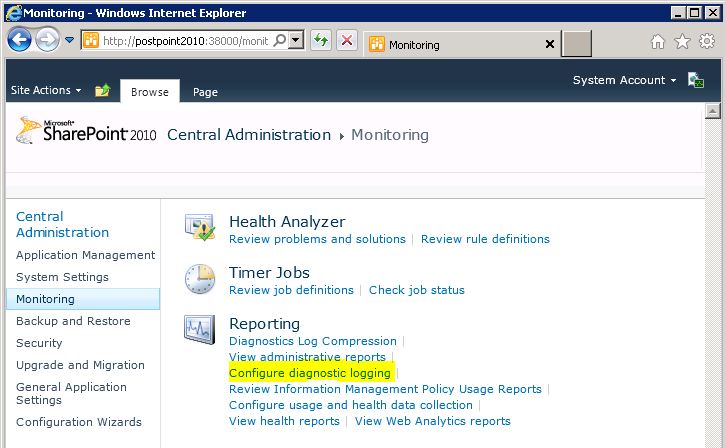
2) Click Monitoring and Click “Configure Diagnostic Logging”

3) Select “All Categories” and
Select “Verbose” for “Least critical event to report to the event log”
Select “Verbose” for “Least critical event to report to the trace log”

4) Click Ok.

Important!:Please don’t forget change mode to default after collecting needed verbose mode logging. Because in verbose mode log files grows rapidly and if you are not enough storage your sharepoint server would be crashed.

Important!:Before enabling verbose mode ensure you have enough hdd space on ALL your servers. Because this is a farm configuration and all servers has been affected by this change.

For more information about levels :
http://technet.microsoft.com/en-us/library/ee748656.aspx

Second Method: Using PowerShell

  1. Verify that you meet the following minimum requirements: See Add-SPShellAdmin.
  2. On the Start menu, click All Programs.
  3. Click Microsoft SharePoint 2010 Products.
  4. Click SharePoint 2010 Management Shell.
  5. At the Windows PowerShell command prompt (that is, PS C:\>), type the following command, and then press ENTER:Set-SPLogLevel -TraceSeverity {None | Unexpected | Monitorable | Medium | High | Verbose} -EventSeverity {None | Information | Warning | Error | Critical | Verbose} [-Identity <Category name…>]  -VerboseYou can use the Identity parameter to specify one or more categories to change — for example, Administration. If you do not specify the value for the Identityparameter, all categories are changed.To view the current settings, type Get-SPLogLevel, and then press ENTER.To set all categories back to default levels, type Clear-SPLogLevel, and then press ENTER.

For Example set all logs to verbose use fallowing command:
Set-SPLogLevel  -TraceSeverity Verbose -EventSeverty Verbose

You can find Sharepoint logs in folder: (Default folder)
Drive:\Program Files\Common Files\Microsoft Shared\Web Server Extentions\14\LOGS
NOTE: If you need to transfer these files to Microsoft File Services , please compress files in zip file. If zip file size is bigger than  5GB please spearate multiple files that lower than 5GB.

Please read Logging Best Practices from MSDN

The SharePoint Server 2010 environment might require configuration of the diagnostic loggings settings after initial deployment or upgrade and possibly throughout the system’s life cycle. The guidelines in the following list can help you form best practices for the specific environment.

  • Change the drive that logging writes to. By default, diagnostic logging is configured to write logs to the same drive and partition that SharePoint Server 2010 was installed on. Because diagnostic logging can use lots of drive space and writing to the logs can affect drive performance, you should configure logging to write to a drive that is different from the drive on whichSharePoint Server 2010 was installed. You should also consider the connection speed to the drive that logs are written to. If verbose-level logging is configured, lots of log data is recorded. Therefore, a slow connection might result in poor log performance.
  • Restrict log disk space usage. By default, the amount of disk space that diagnostic logging can use is not limited. Therefore, limit the disk space that logging uses to make sure that the disk does not fill up, especially if you configure logging to write verbose-level events. When the disk restriction is used up, the oldest logs are removed and new logging data information is recorded.
  • Use the Verbose setting sparingly. You can configure diagnostic logging to record verbose-level events. This means that the system will log every action that SharePoint Server 2010 takes. Verbose-level logging can quickly use drive space and affect drive and server performance. You can use verbose-level logging to record a greater level of detail when you are making critical changes and then re-configure logging to record only higher-level events after you make the change.
  • Regularly back up logs. The diagnostic logs contain important data. Therefore, back them up regularly to make sure that this data is preserved. When you restrict log drive space usage, or if you keep logs for only a few days, log files are automatically deleted, starting with the oldest files first, when the threshold is met.
  • Enable event log flooding protection. Enabling this setting configures the system to detect repeating events in the Windows event log. When the same event is logged repeatedly, the repeating events are detected and suppressed until conditions return to a typical state.

Unable to create system performance counter with error code PDH_CSTATUS_NO_MACHINE

One of our case we faced with annoying ULS log errors about performace counters. Multiple errors like below filling ULS logs and keep inflated rapidly.

Unable to create system performance counter ComputerName\Memory\Available Mbytes\. The following exception was thrown: System.ComponentModel.Win32Exception: Unknown error (0x800007d0) at Microsoft.SharePoint.Win32.SPPdh.CheckReturnValue(PDH_STATUS status, Boolean throwOnError) at Microsoft.SharePoint.Utilities.SPPerformanceCounter.Initialize() at Microsoft.SharePoint.Utilities.SPPerformanceCounter.NextValue(Int32 retry, Int32 retryInterval) at Microsoft.SharePoint.Utilities.SPPerformanceCounterMonitorInternal.UpdateValue() at Microsoft.SharePoint.Utilities.SPPerformanceCounterMonitorInternal.Create(String computer, String category, String counter, String instance)
Performance Counter OS (pdh) call failed with error code PDH_CSTATUS_NO_MACHINE.

Cause:
Microsoft Sharepoint Timer Service’s account does not have the necessary permissions to access the performance counters on the server.

Resolution:
Find Microsoft Sharepoint Timer Service account and set the account as local admin on all machines in farm.

Multiple file upload and Drag and Drop file feature on Sharepoint 2010

When using multiple file upload if you are facing problem of  Some of client computers shows Drag and Drop feature and some of are not ,you like this article. First of all Multiple File upload is not a sharepoint feature.It is a Microsoft Office feature and working with just only IE8(+) and Office installed machines.This feature is not supported by other browsers like firefox and chrome. Sharepoint provide an ActiveX control named “STSupld.UploadCtl” via interacting with Microsoft Office’s dll of STSUPLD.DLL at background. And the version of this dll is define that you have Drag and Drop option or not. we e.g see that ActiveX control and there isnt any Silverlight in this issue.


More clearly if your client computer have installed Office 2010 than you have drag drop  option if only have office 2007/2003 installed than you see  old version of dialog with CheckBoxes. There isn’t any way to use this option on office 2007 installed computers except installing or upgrading office 2010 according to Microsoft Licence agreements .

Sometimes we are getting problem with this feature even if we are using that Office 2010. The possible problem is here the old version of dll still remain in background. You can able to check the activeX control dll from your IE -> Tools -> “Manage Add ons”


The versions below show us which office is in use.
11.0.xxxx   Office 2003 
12.0.xxxx   Office 2007
14.0.xxxx   Office 2010 

Also you can find the assemblies defined folders

C:\Program Files (x86)\Microsoft Office\Office14\STSUPLD.DLL
C:\Program Files (x86)\Microsoft Office\Office12\STSUPLD.DLL
C:\Program Files (x86)\Microsoft Office\Office11\STSUPLD.DLL

If you somehow remove or currupt this dll you could not be use Multiple File Upload feature anymore.