PeoplePicker – Double Users and Diacritic issue

Well, it is an another well know issue by Microsoft.
Here you can find some definitions:

* Experiencing inconsistencies with some user profiles where the user Account name attribute is observed to vary between e.g. Domain\aloş and Domain\alos . This is observed in SharePoint Central Administration > User Profile Service Application > Manage User Profiles and Edit User Profile sections and therefore impacting approval workflows where they are using InfoPath Forms .

*Connecting local domain to Sharepoint server, in domain are login with diacritics, in sharepoint there are login of users with diacritics – wrongly displayed .Also when search for the user in people picker we get two users account one with account name with diacritics and second without it.
In UPA profile contains correct account name (without diacritics)

Issue Reproduce:
Add a user in Active Directory. In example we are adding TESTMOSS2010T\Berkc user.

Diacritic1

For first time login the SharePoint as a Site collection administrator (which should be different that our test account)
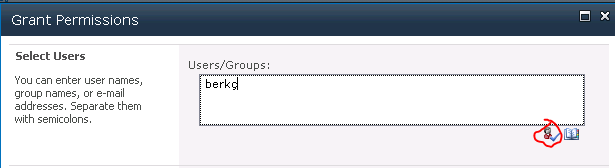
And try to grant permission the user but use diacritic as berkç (use ‘ç’ instead of ‘c’)
Diacritics2

When you check and verify the user, move and keep Mouse over the validated user text , that will Show us the account
As you can see it is “TESTMOSS2010T\berkç” . Well so far so good . SharePoint accept it without any problem when you click the OK.
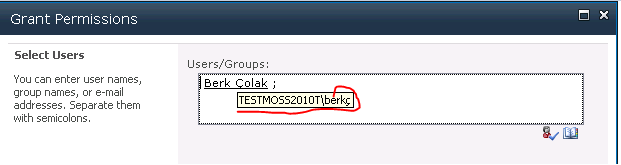
Diacritics3

If you search from user it will Show you just one with “berkç”

Diacritics4

If we try without diacritics like “berkc” it is also accepted .
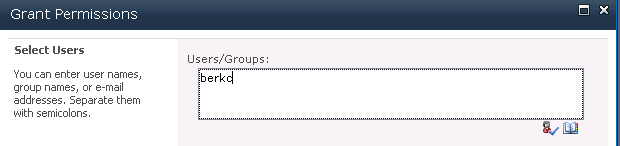
Diacritics5

But wait a minute , If you keep Mouse over the validated user text , that still show us the account as
“TESTMOSS2010T\berkç” .
Diacritics3
Hmm , thats looks strange . (Well actually SharePoint has already saved the data in UserInfo table & UserInformation List as ‘berkç’) and SharePoint is clever enough to understand this is same user.
(because they have same SID) PS: If the SIDs are different well it is tottally different problem and out of scope for this article 🙂

Diacritics6

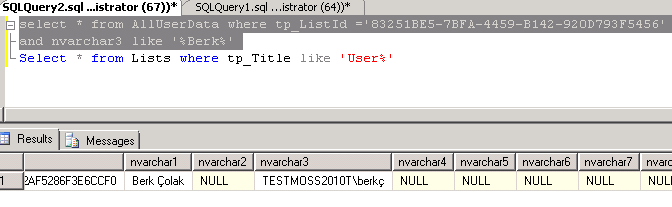
You can see in UserInfo table

Diacritics7

And User Information List

Diacritics8

Well , I dont want to use it like this. This user should be “TESTMOSS2010T\berkc” so how can i change it .
Move-SPUser will helps here.

Diacritics9

$user = get-spuser -Identity “TESTMOSS2010T\berkç” – web <web Url>
Move-SPUser -identity $user -NewAlias “TESTMOSS2010T\berkc” -IgnoreSID
(In some scenarios it doesn’t work , so in that condition you may need to delete user from SharePoint and add again )
After i changed that user account , hmm i can see now 2 account if i search from people-picker .

Diacritics10

Why ? The reason is LSA cache . Because very first time we make a query to AD as “berkç” and AD accepted it (Well the configuration of AD user resolution for diacritics is a different issue so i don’t mention here) and Server LSA cache has stored as “berkç” . So PeoplePicker has uses both SharePoint DBs and AD Resources to Show results . In that condition SharePoint DB (User Information List) returns “berkc” and AD query bypassed by LSA – Show us “berkç

The LSA maintains a SID cache on domain member computers. This cache stores mappings between SIDs and user names. If the SID information exists in the local cache, the LSA returns the cached user name information instead of checking whether the user name has changed.
The local SID cache helps reduce domain controller workload and network traffic. However, inconsistency may occur between the local cache and the domain controllers.

If you want to get rid-off this behavour ; disable LSA cache: http://support.microsoft.com/kb/946358.

To work around this issue, disable the local SID cache on the domain member computer. To do this, follow these steps:

  1. Open Registry Editor.To do this in Windows XP or in Windows Server 2003, click Start, click Run, type regedit, and then click OK.

    To do this in Windows Vista and newer, Click Start, type regedit in the Start Search box, and then press ENTER.

  2. Locate and then right-click the following registry subkey:
    HKEY_LOCAL_MACHINE\SYSTEM\CurrentControlSet\Control\Lsa
  3. Point to New, and then click DWORD Value.
  4. Type LsaLookupCacheMaxSize, and then press ENTER.
  5. Right-click LsaLookupCacheMaxSize, and then click Modify.
  6. In the Value data box, type 0, and then click OK.
  7. Exit Registry Editor.

Note The LsaLookupCacheMaxSize registry entry sets the maximum number of cached mappings that can be saved in the local SID cache. The default maximum number is 128. When the LsaLookupCacheMaxSize registry entry is set to 0, the local SID cache is disabled.

Unfortunately there is no other resolution for this design.


When using Lookup Column facing exceed list view threshold

Recently faced following issue ; To clarify that i want to share how i reproduce it ;
This issue can be reproducable SPO, SharePoint 2013 and 2010

+Create a list named “LargeOne” with 2100 item
+Set the list view threshold limit 2000 for this list
+Create another list for lookup named “LookupOne”
+Add some data in LookUp List
+Add a Lookup column to “LargeOne” list as pointing the “LookupOne” List (For example title)
+Index that column in LargeOne List
+Create a view named “testview” by filtering related LookupColumn and set row limit 100

Occurence :
View not show items and facing following error
“The view can not be displayed because it exceeds the list view threshold(5000 items) enforced be the administrator”

Expected :
View shows items

What you will see in ULS Logs
01.06.2015 14:15:07.70 w3wp.exe (0x3978) 0x1694 SharePoint Foundation Health 46ri High
Throttled:Big list slow query. List item query elapsed time: 0 milliseconds, Additional data (if available): Query HRESULT: 80070024 List internal name, flags, and URL: {976E4B58-476A-4B5F-A4D5-7AB44279BD71}, flags=0x0000000020801080, URL=”https://blog.bugrapostaci.com/Lists/Largeone/testview.aspx&#8221; Current User: 2110 Query XML: “<Query><Where><Eq><FieldRef Name=”SiteID”/><Value Type=”Text”>999</Value></Eq></Where></Query>” SQL Query: “N/A”

01.06.2015 14:15:07.70 w3wp.exe (0x3978) 0x1694 SharePoint Foundation General xxpm High
Unable to execute query: Error 0x80070024

01.06.2015 14:15:07.74 w3wp.exe (0x3978) 0x1694 SharePoint Foundation Web Parts 89a1 High
Error while executing web part: Microsoft.SharePoint.SPQueryThrottledException:
The view can not be displayed because it exceeds the list view threshold(5000 items) enforced be the administrator
—> System.Runtime.InteropServices.COMException (0x80070024):
The view can not be displayed because it exceeds the list view threshold(5000 items) enforced be the administrator.

Well this issue is “By Design” . The throttling limit is enforced in order to protect the health of the SharePoint server. Looking up the value of the lookup list causes the throttling limit to be enforced.  When making a query to SQL, we limit our queries to less than 5000 items.   There is a hard coded functionality on SQL that will lock the entire table if the query exceeds 5000 items.  In order to offset this we set the list threshold to a value equal or less than this to avoid such actions.

And documented following article.
https://support.office.com/en-us/article/Manage-lists-and-libraries-with-many-items-b8588dae-9387-48c2-9248-c24122f07c59?ui=en-US&rs=en-US&ad=US#_Toc346115857
“Although you can index a lookup column to improve performance, using an indexed lookup column to prevent exceeding the List View Threshold does not work. Use another type of column as the primary or secondary index.”

And more extra info: Indexing the column in the other list or library does not improve performance of the lookup operation

For a workaround you think that you may be  disable throttling ,  but this time for a big possibility you will face performance issues.

$weburl=”http://<URL>&#8221;
$listname=”NameOftheList”
$web=Get-SPWeb $weburl
$list=$web.lists[$listname]
$list.enablethrottling = $false
$list.update()

On this manner we suggest make a good planing for handle large lists when you are using SharePoint otherwise that could create a real pain and lots of jobs to do.

Microsoft.Workflow.Client.AuthenticationException “Authentication Failed”

When attempting to publish a workflow in SharePoint 2013 . you may facing following problem.

System.InvalidOperationException: Operation failed with error Microsoft.Workflow.Client.AuthenticationException: Authentication Failed. Valid credentials must be provided for one of the following protocols: Bearer, Negotiate. HTTP headers received from the server – ActivityId: 440bd264-3528-4880-91c9-03247a2e5e10. NodeId: WFSERVER01. Scope: /SharePoint/default/e72269ca-0e8c-4bd6-800a-9499da19f233. WWW-Authenticate: Bearer realm=”22a5da47-566b-4e0b-90f9-76752903b68e”, client_id=”00000005-0000-000

TroubleShooting Steps
1) First you have to check installation and upgrades:
It is important that any Cumulative Updates (CU) for SharePoint Server 2013 and Workflow Manager are installed in a coordinated fashion. After an update has been performed, several Windows PowerShell cmdlets must be run in order to maintain the connection between the SharePoint Server 2013 farm and the Workflow Manager farm.
Check that you have Service Bus 1.1
Check that you have Workflow Manager 1.0 Refresh installed
Check that you have Workflow Manager 1.0 Refresh Client (must installed all SharePoint Servers)
Check that you have at least SharePoint 2013 SP1.
(Article Date: 24/12/2014)

If you want to use Workflows with Microsoft supportability you need to have latest bits is running.

2) Check Network connections. (Dont miss this step is very important , Even Some Scenarios it looks working while you can save workflows and Worflow Manager Service looks connected but this issue can happen)
SharePoint Servers (WFEs) must able to reach Workflow Manager web site
And also it is a requirement that from Worflow Manager Machine (if it is a different machine) must able to browse the site url which you use to register-spworkflowservice.
Ping both machines that have ip communication
And also Check Proxies

3) Check all host file entries on every server that is there something preventing network communication .

4) Check Firewall rules and communications.

5) Test your credentials are correct or not .

7) Check Workflow Services are running , Workflow Manager Web Site is up and Application pool is alive.

8) If workflow manager is hosted on a different machine check IIS configuration that you have Windows Authentication is enabled.

9) Try re-register workflow service by scopename;
Register-SPWorkflowService -SPSite ‘http://mywebsite&#8217; -WorkflowHostUri ‘https://workflowhost&#8217; -AllowOAuthHttp -scopename “SharePoint”  -Force

10) If it doesnt work ; unregister the Workflow manager from the sharepoint farm
Get-SPWorkflowServiceApplicationProxy | Remove-SPServiceApplicationProxy
and run
Register-SPWorkflowService -SPSite ‘http://mywebsite&#8217; -WorkflowHostUri ‘https://workflowhost&#8217; -AllowOAuthHttp -scopename “SharePoint”  -Force
this will recreate the SPWorkflowServiceApplication Proxy.

(Dont Forget make an iisreset after use “Register-SPWorkflowService”)

11) Verify you have using latest activities are updated through the Workflow Manager.

$credential = [System.Net.CredentialCache]::DefaultNetworkCredentials
$site = Get-SPSite(<siteUri>)
$proxy = Get-SPWorkflowServiceApplicationProxy
$svcAddress = $proxy.GetWorkflowServiceAddress($site)
Copy-SPActivitiesToWorkflowService -WorkflowServiceAddress $svcAddress -Credential $credential -Force $true

Make your test with creating a new workflow and publish.


Avoid using SPFolder.Item cause performance issue on large lists

When you call an “SPFolder.Item” Property ; it  executes below code once on Its parent Folder (if Parent Folder is not empty). this is a kind of Caching & Indexing mechanizm .Then returning related item from index of parent folder.

….
m_FileRefDict = new Hashtable(
StringComparer.Create(CultureInfo.InvariantCulture, true /*ignoreCase*/));

foreach (SPListItem item in items) *** Thats where we creating the long SQL query.
{
m_FileRefDict[item[SPGlobal.FieldNames.strFileRef].ToString()] = item;
}
….

And the code has to be like that . For Large lists ; in the Sitiuation has getting worse and it brings all items and makes sense of slow query for large lists specially over threshold paths.

SharePoint Supports 30,000,000 Item per list But max item count should not be exceed 5000 in a folder including root folder of the list. DocumentSets are also considered as Folder. http://technet.microsoft.com/en-us/library/cc262787(v=office.15).aspx
http://technet.microsoft.com/en-us/library/ff603637(v=office.15).aspx

In that condition our suggestions , Don’t use “SPFolder.Item” property ! which is creating performance degradation.

Instead of that :

Use “SPQuery” if you want to get the item of a SPFolder (or DocumentSet)

 For Querying a DocumentSet item you can use following query;
SPList list = Site.RootWeb.Lists["Documents"];
// Or
// SPList = Site.RootWeb.GetList(“<List URL>”)


var query = new SPQuery();
query.RowLimit = 1;
//query.Folder = Library; //if it is present in a Folder.
query.ViewFields = "<FieldRef Name='ID' /><FieldRef Name='Title' />";//Limit the returning field count for gain performance.
query.ViewFieldsOnly = true;
 query.Query = string.Format(“<Where><And><Eq><FieldRef Name=’ContentType’ /><Value Type=’Computed’>Document Set</Value></Eq><Eq><FieldRef Name=’Title’ /><Value Type=’Text’>{0}</Value></Eq></And></Where>”, documentSetName);

var itemcollection = list.GetItems(query);

foreach(SPListItem item in itemcollection)
{
Console.WriteLine(item.ID + " " + item.Title);
}