Unable to delete a content type from a List (TroubleShooting)
02/07/2014 Leave a comment
I accept that sometimes deleting a content type is a real pain . But it has to be , because if it is still referencing an item , it should not be deleted for preserving data integrity .
In this article I will explain some scenarios and strange conditions explains why you are not able to delete a content type and how to detect and resolve this problems.
Before starting to explain scenarios , I would like to give a brief definition that SharePoint how to check an item reference is present or not for a content type in a list .
If you want to delete a contenttype from a document library or list we have a stored procedure named (proc_IsContentTypeInUseInList) which is resposible to checks all lists items including versions if any reference to old contentype If that stored procedure finds a version of an item is still referencing the old content-type it prevents the deletion of the content type .
I have created a sample SQLs based on this stored procedure that you can figure out the items still refencing the content types ;
Following query will groups all items in a list referenced by content type usage.
SELECT tp_ContentTypeId, count(*) FROM
TVF_UserData_List(‘<GUID OF LIST ID’) AS UD
WHERE
‘<GUID OF SITE ID>’= UD.tp_SiteId
Group By tp_ContentTypeId

Ok. Now you need to find out the IDs for parameters and understand the results .
You can list all content types ids and names by following powershell
$site = get-spsite http://blog.bugrapostaci.com
$web = $site.OpenWeb()
$list = $web[“Shared Documents”]
$list.ContentTypes | ft id,name -Wrap

Other parameters for the SQL Commands can be reach like below.
For getting a list id : $list.ID For getting a web id : $web.ID
For getting a site id: $site.ID
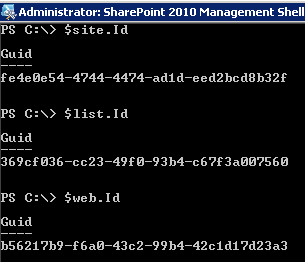
By following Query you can see all items in a list by given content type id ;
SELECT * FROM
TVF_UserData_List(‘<GUID OF LIST ID>’) AS UD
WHERE
‘<GUID OF SITE ID>’= UD.tp_SiteId
UD.tp_ContentTypeId = <HEX ContentTypeID >
Note: ContentTypeId must not have quots like guids.

By Following Query you can see all list items in a list .
SELECT * FROM
TVF_UserData_List(‘<GUID OF LIST ID>’) AS UD
WHERE
‘<GUID OF SITE ID>’= UD.tp_SiteId
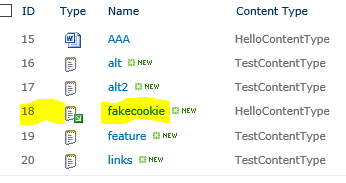

As you may notice if we want to delete “Document” Content-type from this library ,( ContentTypeID: 0x01010011D07005A6F3F6419CCC58B996B33DC3)
It is still referencing to item 18.
Scenario 1: Check-Out
In that scenario we assume that we have a list versioning and approval is not activated
What happens if you Check-Out a document and change its content-type by UI to “HelloContentType”
(ContentTypeID:0x0101000661D1E419F908438CD1787888A9D4F0005A3C0BD18064074BB08DE73AE92D1B24)
*What happens if you have a check out a document ;
1) SharePoint will create another version (row in database) until the check-out document be checked-in or discard Check-out
2) Check-out version of record marked in database as Current Version . (tp_IsCurrent =1) -> Tp_CheckoutUserId set WHO is checked-out.
3) tp_UIStringVersion is increased to next majör version.
4) Both for the records tp_IsCurrentVersion set =1
In that scenario you can not delete the “Document” Content Type
******************************
Behaviour for discart-checkout
1) Create a “TestContentType” in Site content types
2) Create a document Library and added this newly created content type to this library
3) Uploaded a document to this document library which default content-type is “Document”
,( ContentTypeID: 0x01010011D07005A6F3F6419CCC58B996B33DC3)
4) Checked-out this document
5) After checked-out this document i changed the content type as “TestContentType”
6) When i discard the checkout of this document
7) It will revert-back to again “Document” content type
So basically ,
For a document , if it has checked-out we have creating another version of this document even versioning is not enabled until the document checked-in back again .
If you want to delete a contenttype from a document library we have a stored procedure named (proc_IsContentTypeInUseInList) which is resposible to checks all lists items including versions if any reference to old contentype . If that stored procedure finds a version of an item is still referencing the old content-type it prevents the deletion of the content type .
Scenario 2: If we have a list previously versioning and approval activated but deactivated now.
Repro Steps
1) Created document Library
2) Created and added a new Content Type “HelloContentType” to this library
3) Add a document by setting “HelloContentType”
4) Enabled Versioning and Approval
5) Changed the content-Type as “document” , That caused the item is draft
6) Disabled the Versioninng and Approval.
In browser we see the content type as “Document” for the record But in content database
We see as 2 record .
“1.0” version is pointing the “HelloContentType”
“1.1” version is pointing the “Document” Type
In this scenario , in some point, we have a minor version of a document and than we have changing library setting for not use approval and versioning.
if we do this , By design SharePoint will not clear minor document records and it remains. (Version format as you know “Major.Minor” exp 1.2 , 1.4 )
(Why ? because what if you did it unintentionally .we able to revert back)
Again “by design” For all minor versions belong to The Last Major version are considered “Current Version” that we can see in Database “tp_IsCurrentVersion” column data set as “1” and in powershell if we list the versions we can see the last major version’s all minors are considered IsCurrentVersion equals true. (Don’t confuse with “tp_IsCurrent” it is a different column. )
Stored Procedure named “proc_IsContentTypeInUseInList” for checking the list’s items references for content type which we want to delete . In that procedure we are only validate and retrive the items which are tp_IsCurrentVersion = 1 ; thats mean if we want to delete a content type , The ContentType dependency is not checked for all versions but just for the current item’s Last Major versions .
For example ;
Assume that you have following item versions for an item in a list.
1.0 -> ContentType : TestContentType
1.1-> ContentType : TestContentType
2.0 -> ContentType : TestContentType
2.1 -> ContentType : DocumentContentType


As i told the last major version is 2 -> so 2.0 and 2.1 is marked for isCurrentVersion =1
So basically you could not delete the TestContentType because it is refrenced 2.0 version .
For following scenario
1.0 -> ContentType : TestContentType , IsCurrentVersion = 0
1.1-> ContentType : TestContentType, IsCurrentVersion = 0
2.0 -> ContentType : DocumentContentType IsCurrentVersion = 1
2.1 -> ContentType : DocumentContentType IsCurrentVersion = 1
You able to get delete “TestContentType” without any error.
As you may ask what happen if i restore a version like “1.0“ which is refencing “TestContentType” and that content type is already deleted from List.
In that scenario , SharePoint will automatically assign the default content type of the list to this item if you restore “1.0” version .
What happen to data ? you will not be able to see the data for the deleted content type but it has still present in database . If you add the deleted contenttype back to this list.
and change again the item content type to the deleted but added again one , you will see the data still there.
Resolution:
- If you open this kind of an item (Edit Item Properties) in SharePoint by Browser and Save again without any change. The Minor version will be overrided by a Major version
- Or in Powershell you can use “SPItem.SystemUpdate()” without change anything exp:
$site = get-spsite http://blog.bugrapostaci.com
$web = $site.OpenWeb()
$list = $web.Lists[“<The List Name>”]
$item = $list.GetItemById(<Item ID>)
$item.SystemUpdate()
What happen if you do this : Below record will be marked as IsCurrentVersion = 0
“1.0” version is pointing the “HelloContentType”
This record will be updated “1.1” version is pointing the “Document” Type As “2.0” version is pointing the “Document” Type -> and marked as Current Version =1 Why because major version changed.
If you have more that one minor version like ;
1.0 -> marked as IsCurrentVersion = 0
1.1 -> marked as IsCurrentVersion = 0
1.2 -> the latest one will be updated; “2.0” version and marked as Current Version
And you are now able to delete the “HelloContentType” without any problem .
Q: Can i change a previous version of an item’s data for example contenttype ?
Unfortunately there is no OOB feature that you can change or update data for SPListItemVersion object. It is not permitted by SharePoint design .
Scenario 3: If Only Approval is enabled but versioning disabled for a list.
In That scenario , if you change someting on an added item in a list .SharePoint will behave like this.
“1.0” Version Approved “TestContentType” IsCurrentVersion = 1
“2.0” Version Pending “Document” Content Type IsCurrentVersion=1
So you count not able to delete “TestContentType” because it will be considered as current version until you have to approve the pending one .
When you approved it .
“1.0” will be deleted . and you can delete “TestContentType” without problem .
Scenario 4: Previously Approval enabled but now is disabled for the list
1) Created document Library
2) Created and added a new Content Type “HelloContentType” to this library
3) Add a document by setting “HelloContentType”
4) Enabled Approval but not versioning.
5) Changed the content-Type as “document” , That caused the item is pending
6) Disabled Approval.
That remains 2 items versions behind.
“1.0” Version Approved “HelloContentType” IsCurrentVersion = 1
“2.0” Version Pending “DocumentContentType” IsCurrentVersion=1
Resolution same;
- If you open this kind of an item (Edit Item Properties) in SharePoint by Browser and Save again without any change. The Minor version will be overrided by a Major version
- Or in Powershell you can use “SPItem.SystemUpdate()” without change anything exp:
$site = get-spsite http://blog.bugrapostaci.com
$web = $site.OpenWeb()
$list = $web.Lists[“<The List Title>”]
$item = $list.GetItemById()
$item.SystemUpdate()
Scenario 5:
Assume that you have a library that versioning (Major and Minor) and Approval enabled for this library
- Unless you create a new approved major version , there is no possible to delete content type for “Current Major Version”’ scope. Unfortunately this is not possible by SharePoint design.
Exp:
2.0 -> ContentTypeA , Approved ,
2.1 -> ContentTypeB , draft
2.2 -> ContentTypeB , draft
2.3 -> ContentTypeB , dfaft
3.0-> ContentTypeB, Pending -> You can not delete the content type A .
After you approved 3.0
3.0 -> ContentTypeB , Approved .
Now .You can delete the ContentType A. Because the approval provides that all 2 majors will be set as IsCurrentVersion = 0
APPENDIX 1:
How to Change a content-type by powershell
$site = get-spsite http://blog.bugrapostaci.com #get the site
$web = $site.OpenWeb(“posts”) #open the SPWeb object
$list = $web[“Shared Documents”] #Get the library.
$ct = $list.ContentTypes[“Document”] #Get the content type which we will set for the item
$item = $list.GetItemById(<ITEM ID>) # Item ID as integer
$item[“ContentTypeId”] = $ct.ID #set the new content type
$item.SystemUpdate() #run systemupdate()
APPENDIX 2:
How to see item versions in powershell :
$site = get-spsite http://blog.bugrapostaci.com #get the site
$web = $site.OpenWeb(“posts”) #open the SPWeb object
$list = $web[“Shared Documents”] #Get the library.
$item = $list.GetItemById(<ITEM ID>) # Item ID as integer
$item.Versions
Unfortunately there is no OOB feature that you can change or update data for SPListItemVersion object. It is not permitted by SharePoint design .


 Bugra Postaci's Blog