Working With Microsoft Support Series: How to find correct ULS Logs
This artcile will answer fallowing questions :
*Where can i find the SharePoint Logs?
*What are the SharePoint Logs ?
*How can i find the correct ones ?
Where can i find the SharePoint Logs?
For SharePoint 2010 :
The ULS Logs are stored in %CommonProgramFiles%\Microsoft Shared\Web Server Extensions\14\LOGS\ Folder by default.
But what is the folder has customized and changed for another path . How could you find correct path ?
You can check from Central Administration
1) Open Start-> All Programs -> Microsoft Sharepoint 2010 Products -> SharePoint 2010 Central Administration
2) Click the “Monitoring”
3) Select the “Configure Diagnostics Logging” under reporting section
You can find the log location path under “Trace Log” section in Path Text Box.

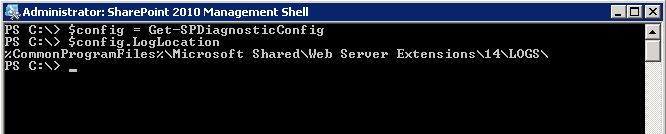
You can use SharePoint Management Shell (Powershell) to define log location path
1) Open Start-> All Programs -> Microsoft Sharepoint 2010 Products -> SharePoint 2010 Management Shell
2) And type fallowing commands:
$config = Get-SPDiagnosticConfig
$config.LogLocation
and press enter .

For SharePoint 2007 :
The ULS Logs are stored in %CommonProgramFiles%\Microsoft Shared\Web Server Extensions\12\LOGS\ Folder by default.
But what is the folder has customized and changed for another path . How could you find correct path ?
You can check from Central Administration
1) Open Start-> All Programs -> Microsoft Office Server -> SharePoint 3.0 Central Administration
2) Click the “Operations” tab
3) Select the “Diagnostics Logging” under “Logging and Reporting” Section
You can find the log location path under “Trace Log” section in Path Text Box.

When you open this folder you may face with different type of files are stored in.
What are the SharePoint Logs ?
The LOGS folder contains log files (.log), data files (.txt), and usage files (.usage). The file naming convention for a SharePoint trace log is the server name followed by a date and time stamp. SharePoint trace logs are created at regular intervals and whenever there is an IISRESET. It is common to have many trace logs within a 24 hour period.
The Usage Logs:
Usage data is initially stored in Usage Log file (.USAGE ) on SharePoint Server under logging directory which is later processed by Microsoft SharePoint Foundation Usage Data Import Timer job that runs every 30 min into Usage Database.
There is another timer job Microsoft SharePoint Foundation Usage Data Processing, this job checks for expired usage data at the farm level and deletes data.
Expired usage data consists of records in the central usage data collection database that are older than 30 days.
For more information please check:
http://blogs.technet.com/b/sharepoint_quick_reads/archive/2012/03/10/3482072.aspx
Logs are in MACHINE NAME-DATE[YYYYMMDD]-TIME[HHMM].usage format.
For example:
WFE1Server-121024-1230.usage
Sharepoint ULS Logs:
The Unified Logging Services (ULS) provides a single, centralized location for logging error and informational message related to SharePoint Server and SharePoint solutions.SharePoint 2010 includes improvements that are related to the management of the ULS and that make it easier for Administrator to troubleshoot issues.
Logs are in MACHINE NAME-DATE[YYYYMMDD]-TIME[HHMM].log format.
Example
WFE1Server-121024-1705.log
WFE1Server-121024-1725.log
WFE1Server-121024-1755.log
….
These logs are very important when troubleshooting issues on your system. And reqested usually by support engineers so do not delete this logs before getting backup .
You can open ULS Logs with ULSViewer program:
http://archive.msdn.microsoft.com/ULSViewer/Release/ProjectReleases.aspx?ReleaseId=3308
Post-Setup-Configuration Diagnostics Logs (PSCDiagnostics):
PSCDiagnostics files are post-setup configuration files. Each time that you open SharePoint’s central administration page, a new PSCDiagnostics file is created. These files are always stored in the same directory as the trace logs. So, if you change the trace log location, these logs will follow.You also have a very fine degree of control over the types of events to log. The following is a comprehensive list of event types.For each event, you can set the least critical event to report to the event log and you can report the least critical event to report to the trace log
Logs are in PSCDiagnostics_MM_DD_YYYY_HH_MM_SS_SSS_randomnumber.log format.
Example:
PSCDiagnostics_9_28_2012_11_50_27_548_1425714660.log
These logs are used by support engineer that defining installation,pacthing,upgrade and SharePoint Configuration Wizard problems. ,
The Upgrade and Upgrade Error logs:
Upgrade status indicators and log files should give you an indication of what went wrong during the upgrade process. We recommend that you carefully review all the errors that were logged in the upgrade log files. Warnings might not always indicate an issue, but you should review them all to determine whether any of them are likely to cause even more issues.
Logs are in Upgrade-DATE[YYYYMMDD]-TIME[HHMMSS-SSS].log format
The upgrade error log file combines all errors and warnings into a shorter file
and is named Upgrade-DATE[YYYYMMDD]-TIME[HHMMSS-SSS]-error.logs
Example:
Upgrade-20120928-115041-392.log
Upgrade-20120928-115041-392-error.log
How could you find correct SharePoint ULS Log files ?
When working with Microsoft , the support engineer may request that logs from you. But sometimes the log size can be huge. For example you have 8 server and 1 day logs for all servers can be tens of gigabytes .the important part in that log files that your issue’s reproduced time slice. So How could you find correct log files.
For example scenario :
you have 8 server farm and facing with incremental crawl problem . The crawl has taken 30 minutes and SE requested that ULS logs for all your servers.
And you know that the crawl start time is 11:25 and finish time is 11:55 . the correct files are highlighted.
SERVER-20121016-11:00.log
SERVER-20121016-11:20.log ***->first log should be before 11:25
SERVER-20121016-11:40.log ***-> first logs should be before 11:55
SERVER-20121016-12:00.log
SERVER-20121016-12:20.log
you should get all ULS logs with explained method from all required servers (in this scenario for all servers) and it would be better to compress these files to a single zip file and than you can upload these logs to workspace that provided by Microsoft.
For Best Practices about Logging please read fallowing article
http://technet.microsoft.com/en-us/library/ee748656.aspx



 Bugra Postaci's Blog