How to collect IIS Logs for a SharePoint Web Application

Hello All,

When working with Microsoft Support for some cases the support engineers ( like me ) may request IIS Logs for investigation.
So in this article i am going to tell how you can collect IIS Logs correctly.

1) You have to detect your IIS Web site on IIS Console because your site url and your web application name can be different.
First connect your Central Administration and click “Managed Web Application”‘s link .

but my Web Application Name is SharePoint – 8080

2) Open your IIS Manager and find and click your webapplication name

3) Click the “Advanced Settings” in Action pane.

4) Please not your IISsite ID for this example is 1442344892

5) Click “Logging” icon

6) Detect where the IIS logs are kept in which folder

7) Open this folder in Windows Explorer and find your related folder in it according your IISSite ID. In this scenario the folder is W3SVC1442344892
You can open windows explorer by “Start” -> “Run” and copy paste highlighted path on above screenshot and press enter.

8) Open that folder and order by “Modified Date” as descending order

9) Collect your files according to occurrance time of your problem or issue. If you have a workspace opened by Microsoft and your file size are big , you can compress the files with a compression program.

Notes: IIS buffers the logs in memory for a while before write to the log file (until log buffer chuck size has reached its max size). If you want to catch latest records you may need to do an iisreset or open a command prompt and type  “netsh http flush logbuffer” (this command will provide http.sys to flush logs.)
to force iis write cached log chunk to log file. If you are searching for old records that “Modifed Date” earlier than last log date you dont need this operation.

Have a nice log hunting 🙂

If you are getting “Method not found” (MissingMethodException) error in SharePoint 2010

“Method not found” error i admit its my favorite 🙂 If you get this MissingMethodException from any of your build in SharePoint assembly for example below “Microsoft.SharePoint.Library” the first place you may check the dlls versions. This error usually caused by some version mismatch between your related dll version and SharePoint version.

You can see the error samples below:
Exception information:
Exception type: MissingMethodException
Exception message: Method not found: ‘Void Microsoft.SharePoint.Library.SPRequestInternalClass.AddOrUpdateItem(System.String, System.String, Boolean, Boolean, Boolean, Boolean, Boolean, Int32 ByRef, System.String ByRef, System.Guid, Boolean, System.String, System.Object ByRef, System.Object ByRef, System.Object ByRef, Boolean, Boolean, Boolean, Boolean, System.String, Microsoft.SharePoint.Library.ISP2DSafeArrayWriter, Microsoft.SharePoint.Library.ISP2DSafeArrayWriter, Microsoft.SharePoint.Library.ISP2DSafeArrayWriter)’.

Stack trace:    at Microsoft.SharePoint.Library.SPRequest.AddOrUpdateItem(String bstrUrl, String bstrListName, Boolean bAdd, Boolean bSystemUpdate, Boolean bPreserveItemVersion, Boolean bPreserveItemUIVersion, Boolean bUpdateNoVersion, Int32& plID, String& pbstrGuid, Guid pbstrNewDocId, Boolean bHasNewDocId, String bstrVersion, Object& pvarAttachmentNames, Object& pvarAttachmentContents, Object& pvarProperties, Boolean bCheckOut, Boolean bCheckin, Boolean bMigration, Boolean bPublish, String bstrFileName, ISP2DSafeArrayWriter pListDataValidationCallback, ISP2DSafeArrayWriter pRestrictInsertCallback, ISP2DSafeArrayWriter pUniqueFieldCallback)
   at Microsoft.SharePoint.SPListItem.AddOrUpdateItem(Boolean bAdd, Boolean bSystem, Boolean bPreserveItemVersion, Boolean bNoVersion, Boolean bMigration, Boolean bPublish, Boolean bCheckOut, Boolean bCheckin, Guid newGuidOnAdd, Int32& ulID, Object& objAttachmentNames, Object& objAttachmentContents, Boolean suppressAfterEvents, String filename, Boolean bPreserveItemUIVersion)
   at Microsoft.SharePoint.SPListItem.UpdateInternal(Boolean bSystem, Boolean bPreserveItemVersion, Guid newGuidOnAdd, Boolean bMigration, Boolean bPublish, Boolean bNoVersion, Boolean bCheckOut, Boolean bCheckin, Boolean suppressAfterEvents, String filename, Boolean bPreserveItemUIVersion)
   at Microsoft.SharePoint.SPListItem.Update()
   at Microsoft.SharePoint.WebControls.SaveButton.SaveItem(SPContext itemContext, Boolean uploadMode, String checkInComment)
   at Microsoft.SharePoint.WebControls.SaveButton.OnBubbleEvent(Object source, EventArgs e)
   at System.Web.UI.Control.RaiseBubbleEvent(Object source, EventArgs args)
   at System.Web.UI.Page.RaisePostBackEvent(IPostBackEventHandler sourceControl, String eventArgument)
   at System.Web.UI.Page.ProcessRequestMain(Boolean includeStagesBeforeAsyncPoint, Boolean includeStagesAfterAsyncPoint)

So what could cause this issue
1) Unsuccessful upgrade or a corrupted installation.
2) Custom solutions that referenced old dlls
3) Deploying SharePoint solutions which is accidentally overwriting old dll on new version.
4) Unnecessery GAC registrations for build-in SharePoint DLLs

In this scenario we don’t have any custom solutions . So we may facing with first issue above, so how to fix the issue:
1) Define that which dll in use and this exception has thrown up. Answer for this scenario is “Microsoft.SharePoint.Library.dll”
2) Check the all dll versions in your system and compare with your SharePoint Build Number from Central Administration- > Migration and Upgrade -> Check product installation and patch status.
Here you can find powershell commands for searching versions of specific file in your system.
https://blog.bugrapostaci.com/2011/12/26/powershell-find-files-with-versions/
3) Correct dll version if you have orginal version of this old dll.
or
4) Upgrade your SharePoint for  newer version of Cumulative Update than your build will solve this issue.

By the way if you are thinking the problem caused by a Custom Solution you may check fallowing article:
https://blog.bugrapostaci.com/2011/12/28/getting-null-reference-exception-when-try-to-open-list-settings-listedit-aspx-for-sharepoint-2010/

Have a nice day.


MOSS 2007 – Search “The gatherer is shutting down” error

When try to open search setting page if you are getting fallowing error :
The gatherer is shutting down. at Microsoft.SharePoint.Portal.Search.Admin.Pages.SearchAdminPageBase.ErrorHandler(Object sender, EventArgs e)
at Microsoft.SharePoint.Portal.Search.Admin.Pages.SearchSSPAdminPageBase.OnError(EventArgs e)
at System.Web.UI.Page.HandleError(Exception e)
at System.Web.UI.Page.ProcessRequestMain(Boolean includeStagesBeforeAsyncPoint, Boolean includeStagesAfterAsyncPoint)
at System.Web.UI.Page.ProcessRequest(Boolean includeStagesBeforeAsyncPoint, Boolean includeStagesAfterAsyncPoint)
at System.Web.UI.Page.ProcessRequest()
at System.Web.UI.Page.ProcessRequestWithNoAssert(HttpContext context)
at System.Web.UI.Page.ProcessRequest(HttpContext context)
at ASP._layouts_searchsspsettings_aspx.ProcessRequest(HttpContext context)
at System.Web.HttpApplication.CallHandlerExecutionStep.System.Web.HttpApplication.IExecutionStep.Execute()
at System.Web.HttpApplication.ExecuteStep(IExecutionStep step, Boolean& completedSynchronously

Possibly you have a hang issue on one of your WFE server’s Office Server Search service.
1) Check your topology from Central Administration – > Servers in Farm section and define which SharePoint servers responsible for running search.
2) Connect all that machines and open services.msc and check status of Office Server Search Service.
3) If you find a service in “stopping” state open a task manager
4) kill the mssearch.exe process .after killing this process your Office Server Search service should go “stop” state.
5) Restart the service and check does your problem has been fixed.

Also restarting server can fix this problem but if you don’t want to restart you can fallow up above solution.

SharePoint 2010 restoring content database manually from sharepoint backup folder

Hello Everyone ,

In this article i am going to tell you how could you extract and restore a specific content database from backed up Sharepoint Full-Farm backup.
First lets have look our target content database which we want to restore . In my example the database name is “WSS_Content_5050” .

1) Open your Sharepoint Full Farm Backup folder. If you don’t know the backup folder  you can find  from Central Administration web site.

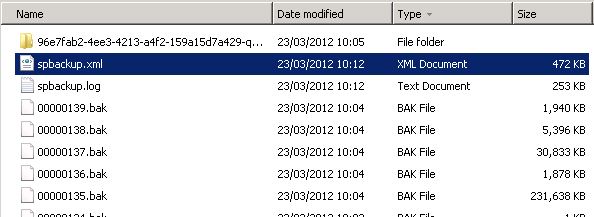
2) As you noticed when we order items by size in Sharepoint Full-Backup folder ( “spdbr0000”) you can see the biggest files . That files as usually  SQL backup files of sharepoint databases but which file is our content database ?

3) If you order items by Type you can find the file which we are looking for  named “spbackup.xml” .this file our backups index file in xml format.

4) than open this xml file in any editor and search your content database name in this file .

5) as you notices that “0000012A.Bak file . This is our content database’s backup file.
6) Copy this file to your SQL Server and now you can restore this file (if it is not corrupted)   via Sql Server Management Studio .