Sharepoint 2010 – Basic Authentication and Php .net web service connection.

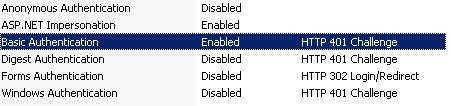
A few days ago i have faced a problem that an application which coded with php try to connect sharepoint web services. And it didnt not succeed because of authentication of sharepoint system was windows authentication. PHP application support basic authentication so sharepoint does also. But the problem is when change authentication to basic or enable basic authenticaition for production site cause a security risk . So  SSL should be use but in our case it is one of out of issue.

so what we did , extending current site to new web application from Central Administration and enable basic authentication for extended site. Secure this extended site for specific application server that running php via Firewall rules and voila . Also suggested for external connection for this site using vpn or also able to use ssl if they able to change their code for it.

For Enabling Basic Authentication fallowing defined above senario :

1)  Extend your sharepoint site from Central Administration .

2) Enable basic authentication from IIS management console for extend web application. 

3) Select Authentication Provider for your newly extended site.

4) Enable Basic Authentication from configuration.


its done 🙂

Moss 2007 web enabled Infopath form timeout troubleshooting

This is an old problem but lastly i handle a case and fallowed below troubleshooting.

1) Check the InfoPath service timeout configuration. Central Administration -> (InforPath Form Services Section) Configure Infopath forms service.
Check “Data Connection Timeouts” as milliseconds.

Check “Form Session State” Active session should be terminated after option

2) Check your web application timeouts from IIS by open IIS mmc and right click your sharepoint site.

3) Check your sharepoint web.config file for HttpRuntime.executionTimeout value :

<httpruntime maxRequestLength=”51200″ executionTimeout=”7200” />

Optional Int32 attribute.
Specifies the maximum number of seconds that a request is allowed to execute before being automatically shut down by ASP.NET.This time-out applies only if the debug attribute in the compilation element is False. If the debug attribute is True, to help avoiding application shut-down while you are debugging, do not set this time-out to a large value.The default is 110. In the .NET Framework 1.0 and 1.1, the default is 90 seconds.


Sharepoint 2010 Service Pack 1 (SP1) and June 2011 CU released

Here is the download links.

Service Pack 1 for Microsoft Sharepoint Server 2010 (KB2460045)
http://www.microsoft.com/download/en/confirmation.aspx?id=26623

Service Pack 1 for SharePoint Foundation 2010 (KB2460058)
http://www.microsoft.com/download/en/details.aspx?displaylang=en&id=26640

SharePoint Foundation 2010 Language Pack SP1
http://support.microsoft.com/kb/2460059

Sharepoint Designer 2010 SP1
http://support.microsoft.com/kb/2460057

List of all SharePoint 2010 and Office Server 2010 SP1 packages
http://support.microsoft.com/kb/2510766

For SharePoint customers planning to deploy Service Pack 1, it is also recommended to install the June 2011 Cumulative Update for SharePoint.

SharePoint Server 2010 cumulative update package (SharePoint server-package): June 28, 2011
http://support.microsoft.com/kb/2536599

SharePoint Foundation 2010 cumulative update package (SharePoint Foundation server-package): June 28, 2011
http://support.microsoft.com/default.aspx?scid=kb;EN-US;2536601

Service Pack 1 does not contain June 2011 CU fixes means if you would like to install last CU you should better first install SP1 than patched with June 2011 CU  . And also sp1 is not mandatory thats mean you can able to install only June 2011 CU but Microsoft recommend to install sp1 . Sp1 contains new feature packs if you dont install it you could not able to use new features.

!!! UPDATE 12.07.2011
June 2011 CU for SharePoint 2010 has been re-released
Because of some side effects of June 2011 has been re-released.

Issue 1
If you install the earlier build of this hotfix package on a SharePoint server that has .NET 4.0 installed, you cannot synchronize user profiles from AD and LDAP into the SharePoint User Profile Service application database. The user profile synchronization export process fails. Additionally, the System.PlatformNotSupportedException exception shows in Event Viewer.

Issue 2
After you install the earlier build of this hotfix package, the following services may fail at either runtime or the provision process if you run these services by using a user account other than the farm administrator account:

  • Session State Service
  • Secure Store Service
  • Business Data Connectivity (BDC) Service

The rereleased CU has build 14.0.6106.5002. The KB articles have been updated and the binaries on our hotfix server have been replaced with the updated version.

Source article:
http://blogs.technet.com/b/stefan_gossner/archive/2011/07/12/june-2011-cu-for-sharepoint-2010-has-been-re-released.aspx

!!!

Important for all Server Applications listed above:
After applying the preceding updates, run the SharePoint Products and Technologies Configuration Wizard or “psconfig –cmd upgrade –inplace b2b -wait” in command line. This needs to be done on all servers in the farm with SharePoint installed. You can run psconfig in parallel on all SharePoint machines.

The recommended order of installation is as follows:

Update Foundation first:
SharePoint Foundation 2010 Service Pack 1
Service Pack 1 for SharePoint Foundation 2010 Language Pack
June 2011 CU for SharePoint Foundation 2010

Then SharePoint Server:
SharePoint Server 2010 Service Pack 1
Service Pack 1 for Server Language Pack 2010
June 2011 CU for SharePoint Server 2010

Frequently Asked
Questions

Q: Can I install Service Pack 1 on RTM builds of
SharePoint 2010 Products?

A: Yes,
Service Pack 1 can be installed directly on RTM builds; however, we suggest you
install Service Pack 1 then apply the June 2011 Cumulative Update.

Q: Do I need to run psconfig after the install
of every package?

A: No, apply all of the available packages then
run psconfig – the database will only be updated once, to the newest version.

Q: Do I need to run psconfig on every machine in
the farm?

A: Yes. Although database is already updated,
the binaries on each server need to be set and permissioned using psconfig.

Q: Will there be a slipstream build including
Service Pack 1 available for download?

A: At this time a slipstream build including
Service Pack 1 is not available.

Have a nice patching…

Sharepoint 2010 Alerts not working

If you have a managed data fields on your library , your lovely sharepoint alerts does’nt work with Feb 11 CU. 
April 11 CU will fix the issue
http://support.microsoft.com/kb/2516472/en-us

Sharepoint 2010 Change your display of wellcome name

Instead of configure user profile syncronization and getting full dump some of users shown name has not able to change and still show user’s account name.Some scenarios it should be possible and if you want to change it manually there is a way to do it using powershell script on one site.

Set-SPuser -identity “DOMAIN\accountname” -DisplayName “Name Surname” -web <URL of Site>
Example:
Set-SPUser -identity “BLOG\admin” -DisplayName “Bugra POSTACI” -web http://blog.bugrapostaci.com

And also you can use by syncAD option .
Set-SPUser -Identity “DOMAIN\accountname”  -SyncFromAD  -web <URL of Site>
Example:
Set-SPUser -identity “BLOG\admin” -SyncFromAD -web http://blog.bugrapostaci.com

But what if your boss want you to add extra necessity to join your name with your title.
Like:
Bugra POSTACI ( Senior Sharepoint Support Engineer)

you can use this powershell script:

#Add SharePoint PowerShell SnapIn if not already added
if ((Get-PSSnapin "Microsoft.SharePoint.PowerShell" -ErrorAction SilentlyContinue) -eq $null) {
Add-PSSnapin "Microsoft.SharePoint.PowerShell"
}

$site = new-object Microsoft.SharePoint.SPSite("http://blog.bugrapostaci.com");
$ServiceContext = [Microsoft.SharePoint.SPServiceContext]::GetContext($site);

$ProfileManager = new-object Microsoft.Office.Server.UserProfiles.UserProfileManager($ServiceContext)
$AllProfiles = $ProfileManager.GetEnumerator()

foreach($profile in $AllProfiles)
{
     $Title = $profile[[Microsoft.Office.Server.UserProfiles.PropertyConstants]::Title].Value
     $AccountName= $profile[[Microsoft.Office.Server.UserProfiles.PropertyConstants]::AccountName].Value
     $PreferredName = $profile[[Microsoft.Office.Server.UserProfiles.PropertyConstants]::PreferredName].Value

     if( $PreferredName -ne "None" -and $Title -ne $null )
     {
          write-host "Profile: ", $PreferredName,"(",$Title,")"
          $dName = $PreferredName + " (" + $Title + ")"
          #you can add update your users displayname like below
          Set-SPUser -identity $AccountName -Displayname $dName -web http://blog.bugrapostaci.com
     }
}

write-host "Finished."
$site.Dispose()

If you just want to update all content database userinfo table with profile user names . You can use fallowing script.

#Add SharePoint PowerShell SnapIn if not already added
 if ((Get-PSSnapin "Microsoft.SharePoint.PowerShell" -ErrorAction SilentlyContinue) -eq $null) {
 Add-PSSnapin "Microsoft.SharePoint.PowerShell"
}

if( $args.Length -eq 0) {
write-host "Usage : Missing <URL>"
exit
}

$site = new-object Microsoft.SharePoint.SPSite($args[0]);
$ServiceContext = [Microsoft.SharePoint.SPServiceContext]::GetContext($site);
$ProfileManager = new-object Microsoft.Office.Server.UserProfiles.UserProfileManager($ServiceContext)
$AllProfiles = $ProfileManager.GetEnumerator()

foreach($profile in $AllProfiles)
{
    $AccountName= $profile[[Microsoft.Office.Server.UserProfiles.PropertyConstants]::AccountName].Value
    $PreferredName = $profile[[Microsoft.Office.Server.UserProfiles.PropertyConstants]::PreferredName].Value

    if( $PreferredName -ne "NONE" )
    {  
         write-host "Profile: ", $PreferredName , $Accountname
         Set-SPUser -identity $AccountName -Displayname $PreferredName -web $args[0]
         write-host "OK"
    } 
}
write-host "Finished."
$site.Dispose()

Have a nice scripting …