Date format is not correct in the DataFormWebPart SharePoint 2010

Ok there is some problem when formatting date’s which is different than US format when using XsltListViewWebPart has defined by Microsoft. This happens because the ddwrt:FormatDate function expects the data format to be in UTC and the XSLTListViewWebPart returns the date preformatted to the Web Locale or Locale Date/Time .

To fixing this issue Microsoft has released a new feature ,A new Property, EnableOriginalValue, has been added to the XlstListViewWebPart that unblocks this scenario by February CU 2012.

You can check fallowing article for more information:
http://support.microsoft.com/kb/2580994

For DataFormWebPart;the option is to use the DataFormWebPart with the following property set to false on the <SPDataSource> tag: UseServerDataFormat.
Make UseServerDataFormat property set to false the DataFormWebPart will receive the Date/Time in UTC format and then the ddwrt:FormatDate function will work accurately.

Or you can use power of xslt to format date as you wish:
Fallowing example will help you to how to do it.

Add fallowing codes in DataFormWebPart for suitable place for xsl:template

<xsl:template name=”FormatCorrectDate”>
<xsl:param name=”dateValue” />
<xsl:param name=”monthFormat” />

<!– Sperater is important here it should be “.” or “/” according your current language settings –>
<xsl:variable name=”day” select=”substring-before($dateValue, ‘.’)” />
<xsl:variable name=”month” select=”substring(substring-after($dateValue, ‘.’), 1, 2)” />
<xsl:variable name=”year” select=”substring(substring-after(substring-after($dateValue, ‘.’), ‘.’), 1, 4)” />

<!– Create US Date Format –>
<xsl:variable name=”USDate”>
<xsl:value-of select=”$month” />/<xsl:value-of select=”$day” />/<xsl:value-of select=”$year” />
</xsl:variable>

<!– Month Notation –>
<xsl:variable name=”monthString”>
<xsl:choose>
<xsl:when test=”$monthFormat=’M1′”>
<xsl:value-of select=”$month” />
</xsl:when>

<xsl:when test=”$monthFormat=’M2′”>
<xsl:value-of select=”ddwrt:FormatDateTime(string($USDate), 1055, ‘MMM’)” />
</xsl:when>
<xsl:otherwise>
<xsl:value-of select=”ddwrt:FormatDateTime(string($USDate), 1055, ‘MMMM’)” />
</xsl:otherwise>

</xsl:choose>
</xsl:variable>

<!– Create Date –>
<xsl:choose>
<xsl:when
test=”string-length($day) = 1″>0</xsl:when>
</xsl:choose>

<xsl:value-of select=”$day” />-<xsl:value-of select=”$monthString” />-<xsl:value-of select=”$year” />
</xsl:template>

Call formatting template where you can needed in code :

<xsl:call-template name=”FormatCorrectDate”>
<xsl:with-param name=”dateValue” select=”string(@Created)” />
<xsl:with-param name=”monthFormat”>M2</xsl:with-param>
</xsl:call-template>

Resources:
https://www.nothingbutsharepoint.com/sites/eusp/Pages/Bug-With-SharePoint-2010-XSLT-DateFormat-Function.aspx
http://social.msdn.microsoft.com/forums/en-US/sharepointcustomization/thread/7a636804-1ff1-4bb8-8bcd-9ef713d15680
http://support.microsoft.com/kb/2580994
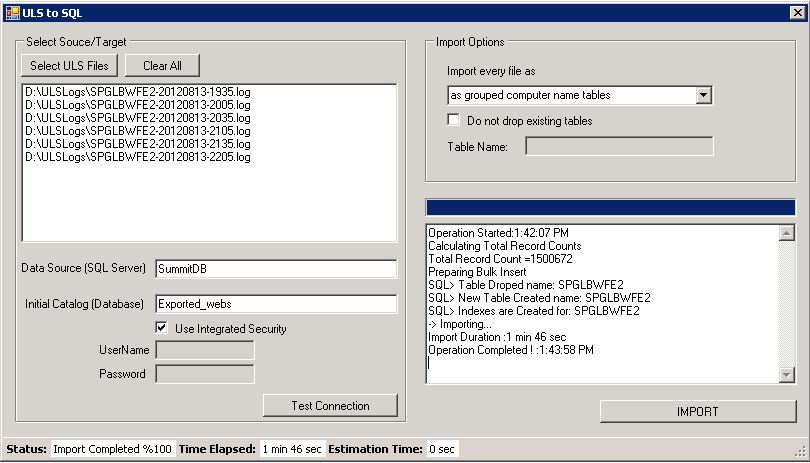
Import ULS log files to SQL Server database for Sharepoint 2010

Sometime you may need to import ULS log files to SQL server . It can be done with several ways by using SQL Server import tools or import from an Excel file to SQL  server. Or you can use fallowing free open source windows application tool. With this tool it can be done with more quickly . By multy-threading and bulk insert architecture feature provides you that ULS logs contains total 1.500.000 row  can be upload in  apprx. 2 minutes. (as you know it depends on your configuration and hardware)

Than you can query SQL tables as you wish : Fallowing query will return execution time over 1 sec for SPMonitoring event records.

select * from WFE1
where [ExecutionTime] > 1000 and [Eventid] =’b4ly’
order by [ExecutionTime] desc

“All These source codes are freeware and is provided on an “as is” basis without warranties of any kind, whether express or implied, including without limitation warranties that the code is free of defect, fit for a particular purpose or non-infringing. The entire risk as to the quality and performance of the code is with the end user

For Download  ULStoSQLImporter v1.0  for Sharepoint 2010:
http://spstools.codeplex.com/releases/view/93135

Unable to create DataSource with using Excel Service in DashBoard Designer

The symptoms are when you lunch PerformancePoint DashBoard Designer and try to create a new Data Connection like
Right Click Data Connections and select “New DataSource” -> Excel Services and Click Ok. you should have get an error like
“An unexpected system error has occured.Additional details have been logged for your administrator.”

In ULS Logs you can see the fallowing error:

An unexpected error occurred.  Error 8205.  Exception details: System.Web.Services.Protocols.SoapException: You do not have permissions to open this file.
at System.Web.Services.Protocols.SoapHttpClientProtocol.ReadResponse(SoapClientMessage message, WebResponse response, Stream responseStream, Boolean asyncCall)
at System.Web.Services.Protocols.SoapHttpClientProtocol.Invoke(String methodName, Object[] parameters)
at Microsoft.PerformancePoint.Scorecards.Client.ExcelService.OpenWorkbook(String workbookPath, String uiCultureName, String dataCultureName, Status[]& status)
at Microsoft.PerformancePoint.Scorecards.DataSourceProviders.ExcelServicesDataSourceProvider.GetCubeMetaData(Boolean extendedMetadata)
at Microsoft.PerformancePoint.Scorecards.Server.PmServer.GetCubeMetaDataForDataSourceHelper(DataSource dataSource, Boolean extendedMetadata)
at Microsoft.PerformancePoint.Scorecards.Server.PmServer.GetCubeMetaDataForDataSource(DataSource dataSource)

The cause is Anonymous Authentication is not supported if you need to connect Excel Services by DashBoard Designer.

“You cannot connect to an Excel Services data source when the site or library containing the workbook you are trying to connect to is set to Anonymous Access.” http://technet.microsoft.com/en-us/library/ff191193.aspx

For solution
1) Disable “Anonymous Authentication” from IIS Management Console -> Authentication -> Anonymous Authentication

2) If you still need anonymous authentication than extend the site without Anonymous Authentication.

Using Distribution Groups in SharePoint for securing SharePoint securables is not possible.

Using Distribution Groups in SharePoint for securing SharePoint securables is not supported. So if you checked fallowing article on SharePoint side,

http://technet.microsoft.com/en-us/library/cc261972.aspx

“In Active Directory Domain Services (ADDS), the following groups are commonly used to organize users:

  • Distribution group A group that is used only for  e-mail distribution and that is not security-enabled. Distribution groups cannot be listed in discretionary access control lists (DACLs), which are used to define permissions on resources and objects.
  • Security group A group that can be listed in DACLs. A security      group can also be used as an e-mail entity.

You can use security groups to control permissions for your site by adding security groups to SharePoint groups and granting permissions to the SharePoint groups. You cannot add distribution groups to SharePoint groups, but you can expand a distribution group and add the individual members to a SharePoint group. If you use this method, you must manually keep the SharePoint group synchronized with the distribution group. If you use security groups, you do not need to manage the individual users in the SharePoint application. Because you included the security group instead of the individual members of the group, ADDS manages the users for you.”

You can not use any Distribution Group for providing  permission on SharePoint securables. Because distribution groups cannot be listed in discretionary access control lists (DACLs), which are used to define permissions on resources and objects.SharePoint is using this ACL objects to make security operations. There is no way or workaround for using Distribution Groups in SharePoint for securing SharePoint objects.

So we have some other options.

1)      As mentioned in above article :  you can expand a distribution group and add the individual members to a SharePoint group and using this SharePoint groups for securing objects.

2)      Changing Distribution Groups as Security Group in AD and use it in SharePoint. (I am suggesting this step because AD Groups will provide more gain on performance issues)

SharePoint 2010 and Lync Integration different email address problem.

You wish to implement a custom webpart for SharePoint that integrates with OCS(Lync) to display user information such as presence
You’ve developed a custom code or webpart that using the javascript described here
http://blogs.msdn.com/b/uksharepoint/archive/2010/05/07/office-communicator-integration-presence-in-a-custom-webpart-for-sharepoint-2010.aspx
But you have faced that presence/pawn information look incorrect. Email adress are different. Like real  bugra@sip.blog.bugrapostaci.com shown instead of real email address of bugra@blog.bugrapostaci.com .

So this is a bydesign issue. Let explain how it is working:

Inside SharePoint we have a javascript library that resposible to show “presence” information named “INIT.JS” . It is a localized javascript file you can find this file
in SharePoint hive C:\program files\common files\microsoft shared\web  server extentions\14\TEMPLATE\Layouts\<your LCID code>\INIT.JS 
If you examine inside that code you will find that we are using an Office ActiveX control named NameCtrl . At the background the assembly of C:\Program Files\Microsoft Office\Office14\Name.dll which is loaded by browsers when you install office.
This ActiveX has responsible for communication and gather “Presence” information.
Users must have Office 2010, Office 2007, or Microsoft Office 2003 with the latest service pack installed to view extended presence information on a SharePoint Server page.
To display the presence indicator and its associated contact card (in Office 2010) or menu (in Office 2007 and Office 2003), SharePoint uses the Microsoft ActiveX control name.dll. The ActiveX control makes calls directly to the Microsoft Lync 2010 API, and then Lync makes MAPI or Exchange calls to supply the requested information.” http://technet.microsoft.com/en-us/library/gg398806.aspx

Presence is enabled in SharePoint by default; there are no configuration steps for the SharePoint administrator to perform. Each SharePoint page includes Microsoft JScript® code, which enables presence for that site. JScript uses name.dll to call the Lync API and pull presence for users names who appear on the site. JScript uses the users’ SIP URI to pull presence for names that are listed on the site. The following JScript code is an example of presence being pulled for a user named Bob Kelly, whose SIP URI is bobkelly@contoso.net. The SIP URI is added by using variables to the JScript when the script is loaded and presence is being pulled.

<a href=’jscript:;’ onclick=’IMNImageOnClick(event);return false;’ class=’ms-imnlink’><img name=’imnmark’ class=’ms-imnImg’ title=” border=’0′ height=’12’ width=’12’ src=’/_layouts/images/blank.gif’ alt=’No presence information’ sip=’bobkelly@contoso.net’ id=’imn_74,type=smtp’/></a><a onclick=”GoToLink(this);return false;” </a>

Please Check Resource Kit Book: SharePoint Integration
http://go.microsoft.com/fwlink/?LinkId=210991

it is not only bordered by SharePoint. You can easely develop a small ASP.Net application and can able to show Presence information.
Look for belowed code.

<%@ Page Language="C#" AutoEventWireup="true" CodeBehind="Default.aspx.cs" Inherits="TestIM._Default" %>
<!DOCTYPE html PUBLIC "-//W3C//DTD XHTML 1.0 Transitional//EN" "http://www.w3.org/TR/xhtml1/DTD/xhtml1-transitional.dtd">
<html xmlns="http://www.w3.org/1999/xhtml">
<head runat="server">
<title></title>
<script type="text/javascript">

var sipUri = "bugra@blog.bugrapostaci.com";
var nameCtrl = new ActiveXObject('Name.NameCtrl.1');
if (nameCtrl.PresenceEnabled)
{
  nameCtrl.OnStatusChange = onStatusChange;
  nameCtrl.GetStatus(sipUri, "1");
}

function onStatusChange(name, status, id)
{ 
   alert(name + ", " + status + ", " + id);
}
function ShowOOUI()
{
   nameCtrl.ShowOOUI(sipUri, 0, 15, 15);
}
function HideOOUI()
{
   nameCtrl.HideOOUI();
}
</script>
</head>
<body>
 <form id="form1" runat="server">
   <div>
    <span onmouseover="ShowOOUI()" onmouseout="HideOOUI()" style="border-style:solid">Here is the contact info</span>
   </div>
 </form>
</body>
</html>

Also within the blog mentioned in the issue description http://blogs.msdn.com/b/uksharepoint/archive/2010/05/07/office-communicator-integration-presence-in-a-custom-webpart-for-sharepoint-2010.aspx

The key piece of information to make the presence work is the user’s SIP Address which is basically their IM address (This is not always the same as email address). When a users is either added to a site in SharePoint or has their profile imported, the SIP Address will be drawn from Active Directory which is where OCS stores it and placed into the SIP address field in either the user’s profile which will in turn synchronise down to the site’s local ‘User Information’ page.”

The problem is if your SIP address and default email address are different that you will see sip address on presence information by design:
So you can do:

1. To be sure for preventing other problems by Installing latest office pathces. For Today it is SP1 for Office 2010 + the hotfix 2553112 2553112 Description of the Office 2010 hotfix package (name-x-none.msp): August 30, 2011 http://support.microsoft.com/kb/2553112/EN-US

2. If a user’s SIP proxy address and the user’s default e-mail address are different the presence information cannot be shown.Make sure the user’s SIP proxy address and the user’s default e-mail address are the same.Make them same.
http://support.microsoft.com/kb/2006610