Solutions for InfoPath web service connection problems behind SSL enabled TMG or hardware Load Balancer in Sharepoint 2010

Hi Everyone,

In this article i will explain a well known problem about web service connection problem on your sharepoint servers behind SSL offload Load Balancer or TMG reverse proxy enabled topologies.

What is SSL Offload and Acceleration:
Depending on the workload, processing the encryption and authentication requirements of an SSL request can become a major part of the demand on the Web Server’s CPU and as the demand increases the users will see slower response times. To remove this demand from the Web Server a Load Balancer may be used to terminate the SSL at the Load Balancer. Some Load Balancer appliances include specialized hardware to process SSL. When a Load Balancer terminates the SSL connections the requests are converted from HTTPS to HTTP in the Load Balancer before being passed to the Web Server. So long as the Load Balancer itself is not overloaded this feature will not noticeably degrade the performance perceived by the end users.

For More information about Reverse proxy publishing: http://technet.microsoft.com/en-us/library/cc261814(office.12).aspx
So lets explain our topology. We have 2 WFE server and a Hardware Load Balancer.

WFE01 : Sharepoint Web Front End Server  which serving blog.bugrapostaci.com and our custom web service
/_layouts/CustomWebService/myservice.asmx
IP: 192.168.10.2

WFE02: Sharepoint Web Front End Server  which serving blog.bugrapostaci.com and our custom web service
/_layouts/CustomWebService/myservice.asmx
IP:192.168.10.3

HLB : Hardware load balacer device which is configured SSL Offload.

for this topology needed configuration fallowing Alternate Access Mappings …

Internal URL:  https://blog.bugrapostaci.com
Zone: Default
Public URL for zone:
https://blog.bugrapostaci.com  

Internal UR: http://blog.bugrapostaci.com  
Zone: Default
Public URL for zone: https://blog.bugrapostaci.com  

For more information about How do I configure a load balancer to accept only SSL requests please read fallowing article:
http://www.sharepointpromag.com/article/sharepoint/configure-a-load-balancer-to-accept-only-ssl-requests
Ok. If you establish your AAM correctly, you can able to browse our sharepoint site well. First of all all client computer in your domain must use HTTPS protocol for browsing
our portal even if they write http://blog.bugrapostaci.com it will redirected to SSL httpS://blog.bugrapostaci.com according AAM configuration. But on the server’s browsers i mean if you connect to WFE1 or WFE2 you can not browse the site with using SSL because there is not any SSL implementation configured on your sharepoint servers.(also this is which we want for performace) unless redirect to outside port of HLB which is mostly prohibited for security. So you can browse your portal using HTTP protocol only on WFE server’s browsers reversly client action.

Ok so far so good What is the problem ?
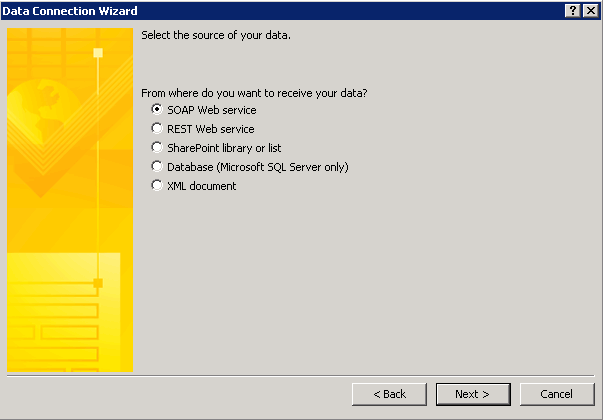
You have a developer machine outside of the server farm and can able to create Infopath Web Forms using Sharepoint Designer or Infopath 2010  .And they can publish their form to sharepoint and see all forms are working correctly by instead of SSL communication. But what if one of the InfoPath form needs to connect a web service which is already publishing on our sharepoint portal “/_layouts/CustomWebService/myservice.asmx” it can be built in sharepoint web service too but in this scenario is customized asmx file.

You will get the 5566 connection problem when you try to open this infopath form after publish to server.

Why ?
Because when you working with your infopath form in InfoPath2010 (in client machine) you can able to configure your web service connection with HTTPS.
For example https://blog.bugrapostaci.com/_layouts/CustomWebService/myservice.asmx
if you test form your client computer’s browser you can see WSDL without any problem.
yes on client machine you can able to reach this service without any error and develop your form as you want.But After you deploy/publish it to sharepoint server the form
(also publish ends successfully)  and assume that the user request this form ,wfe server process the pipeline and requests to connect webservice for getting data not the client !!! So as i told you before there is not any SSL connection can be done in server network but your published web service url is starting with https , and all requestes are redirected HTTPS according Alternate Access Mappings. You got the problem 🙂

So what we could do for resolving this issue

The first solution 

you can configure a rule for HLB (if it is configurable) that server request can over through directly load balancer by using https .mean you should allow the server requests pass through HLB even if requester machine itself. (But this time you may encounter with double-hop scenario).But somehow if you can not configure your LB or prohibited by security reson or faced with double hop  you need second solution which is a little complicated.

The Second Solution

1)  You can add another Host header to your site from IIS console which is using protocol of HTTP
http://myblogserviceDo not add any AAM record for it. If you create an AAM record it will rewrite your service url as https again.

2) Adding host file record of all request can be redirected to same machine (for preventing double hop)
For WFE1  ->   192.168.10.2    wfe1
For WFE2  ->  192.168.10.3    wfe2

3) Give only the developer machines to direct access http://myblogservice for able to create their infopath form correctly.

4) Enable Cross Domain options for InfoPath Services.
Central Administration –> General Application Settings –> InfoPath Forms Services –> Configure InfoPath Forms Services:
Note :If this is an administrator-approved form template, the security level of the form must be set to full trustAbout  InfoPath Security Model:
http://msdn.microsoft.com/en-us/library/bb251020(v=office.12).aspx

5) Create and use Data Connection Library for storing infopath connection information
How to: Create and Use a Data Connection Library
http://msdn.microsoft.com/en-us/library/ms772101.aspx
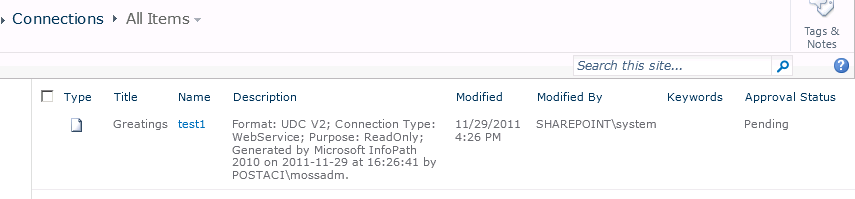
6) Configure your InfoPath forms as use connections udcx files. And use your new host header for connecting web service like
http://myblogservice/_Layouts/CustomWebService/myservice.asmx

7) And publish your forms.

If you completed all steps correctly, when a user browse an infopath form from your site one of wfe server handle the request by using https when the server need to connect
web service it will use http protocol which can be used by servers and you can able to browse your infopath for correctly without any connection error.

Istanbul Sharepoint Summit 2011

Hello Everyone,

Istanbul Sharepoint Summit 2011 is starting at 6th of December .I will introduce 300 level “Developing and Managing SharePoint Solutions with Visual Studio ” session:

Want to know how to best take advantage of Visual Studio 2010’s built in support for SharePoint?  In this demo heavy session we will explore Visual Studio 2010’s tightly integrated SharePoint development tools.  You will see Visual Studio’s built in support for creating the most common customizations including custom web parts, event receivers, Workflows and more.  We will also see how Visual Studio’s ALM capabilities available in Visual Studio Ultimate and Team Foundation Server can be applied when working with SharePoint.

For more information about event please visit :
http://www.sharepointsummitistanbul.com/en/Pages/default.aspx

See you in the event 🙂

How to enable verbose log mode on Sharepoint 2010

First Method: Using Central Administration

1) Open your Central Administration
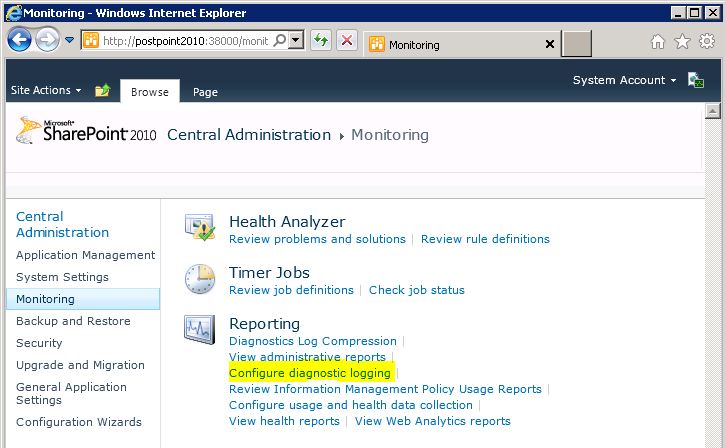
2) Click Monitoring and Click “Configure Diagnostic Logging”

3) Select “All Categories” and
Select “Verbose” for “Least critical event to report to the event log”
Select “Verbose” for “Least critical event to report to the trace log”

4) Click Ok.

Important!:Please don’t forget change mode to default after collecting needed verbose mode logging. Because in verbose mode log files grows rapidly and if you are not enough storage your sharepoint server would be crashed.

Important!:Before enabling verbose mode ensure you have enough hdd space on ALL your servers. Because this is a farm configuration and all servers has been affected by this change.

For more information about levels :
http://technet.microsoft.com/en-us/library/ee748656.aspx

Second Method: Using PowerShell

  1. Verify that you meet the following minimum requirements: See Add-SPShellAdmin.
  2. On the Start menu, click All Programs.
  3. Click Microsoft SharePoint 2010 Products.
  4. Click SharePoint 2010 Management Shell.
  5. At the Windows PowerShell command prompt (that is, PS C:\>), type the following command, and then press ENTER:Set-SPLogLevel -TraceSeverity {None | Unexpected | Monitorable | Medium | High | Verbose} -EventSeverity {None | Information | Warning | Error | Critical | Verbose} [-Identity <Category name…>]  -VerboseYou can use the Identity parameter to specify one or more categories to change — for example, Administration. If you do not specify the value for the Identityparameter, all categories are changed.To view the current settings, type Get-SPLogLevel, and then press ENTER.To set all categories back to default levels, type Clear-SPLogLevel, and then press ENTER.

For Example set all logs to verbose use fallowing command:
Set-SPLogLevel  -TraceSeverity Verbose -EventSeverty Verbose

You can find Sharepoint logs in folder: (Default folder)
Drive:\Program Files\Common Files\Microsoft Shared\Web Server Extentions\14\LOGS
NOTE: If you need to transfer these files to Microsoft File Services , please compress files in zip file. If zip file size is bigger than  5GB please spearate multiple files that lower than 5GB.

Please read Logging Best Practices from MSDN

The SharePoint Server 2010 environment might require configuration of the diagnostic loggings settings after initial deployment or upgrade and possibly throughout the system’s life cycle. The guidelines in the following list can help you form best practices for the specific environment.

  • Change the drive that logging writes to. By default, diagnostic logging is configured to write logs to the same drive and partition that SharePoint Server 2010 was installed on. Because diagnostic logging can use lots of drive space and writing to the logs can affect drive performance, you should configure logging to write to a drive that is different from the drive on whichSharePoint Server 2010 was installed. You should also consider the connection speed to the drive that logs are written to. If verbose-level logging is configured, lots of log data is recorded. Therefore, a slow connection might result in poor log performance.
  • Restrict log disk space usage. By default, the amount of disk space that diagnostic logging can use is not limited. Therefore, limit the disk space that logging uses to make sure that the disk does not fill up, especially if you configure logging to write verbose-level events. When the disk restriction is used up, the oldest logs are removed and new logging data information is recorded.
  • Use the Verbose setting sparingly. You can configure diagnostic logging to record verbose-level events. This means that the system will log every action that SharePoint Server 2010 takes. Verbose-level logging can quickly use drive space and affect drive and server performance. You can use verbose-level logging to record a greater level of detail when you are making critical changes and then re-configure logging to record only higher-level events after you make the change.
  • Regularly back up logs. The diagnostic logs contain important data. Therefore, back them up regularly to make sure that this data is preserved. When you restrict log drive space usage, or if you keep logs for only a few days, log files are automatically deleted, starting with the oldest files first, when the threshold is met.
  • Enable event log flooding protection. Enabling this setting configures the system to detect repeating events in the Windows event log. When the same event is logged repeatedly, the repeating events are detected and suppressed until conditions return to a typical state.

Updating Excel Server Properties from content with Moss2007 and Office 2010 – Part 2

In first aticle i have told about how to update Excel Server Properties and integration of Moss 2007 for old Excel 97 and 2003 format. As explained before its not able to do that with new xlxs file formats without using some visual basic code.

Part 2 – Using VBA for Excel 2007 , 2010 format:

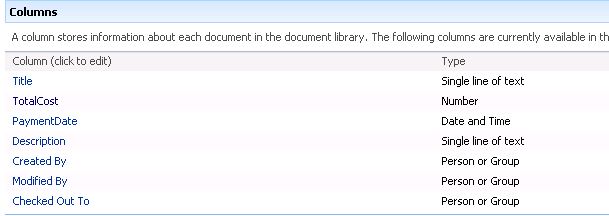
I have created a document library named TestExcel on my Sharepoint and select document file template for excel file. After do that i have created 3 column on list.

TotalCost as  Number 
Note: In my envoriment i create a column name is Total than i changed the column name as ”TotalCost” so keep in your mind. i will explain it later becuase when you change the column name on a document libarary actual name on db can not changes and this  causes very common misunderstanding. )
PaymentDate as  DateTime
Description as  Single Line of Text

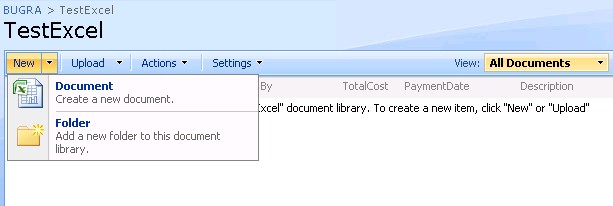
So far so good Lets go to Document Library and create a new Excel Document form library by clicking New-> Document.

If everything is ok you will see familier Excel 2010 open your document. And notice that Document Properties panel is opened for you. If you are getting problem with to open Excel document by clicking Sharepoint Document Library ->New-> Document you have possible owssupp.dll registration problem.
see kb article for more information:
http://support.microsoft.com/kb/833714

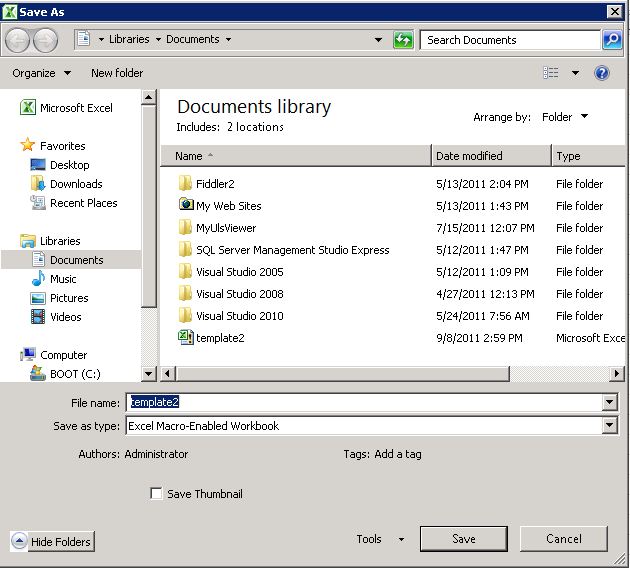
!!!Dont forget to save this excel file as “Excel Macro-Enabled Workbook” for other users can able to use this file correctly.

I have created a sample excel content see bellowed screenshot. And notice that i have give cells names which i want to map with server properties .

!Important : Sharepoint uses  ISO8601 format (YYYY-MM-DDTHH:MM:SSZ) for saving dates so you should make changes on date format for sharepoint understanding.
i use for that another cell and formul like =TEXT(B3,”yyyy-mm-ddThh:mm:ssZ”)

Now we have to enable Developer Tab on office ribbon . For do that.

1)Click File Menu -> Options

And Check “Developer” check box. and click ok.

Select Developer Tab -> Click Visual Basic.

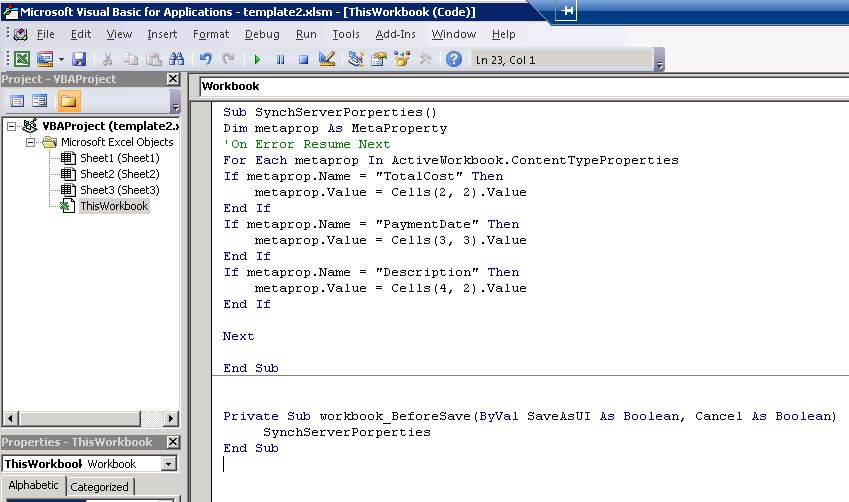
type  codes to VBA IDE

//This function is updates server properties.
Sub SynchServerPorperties()
Dim metaprop As MetaProperty
‘On Error Resume Next

For Each metaprop In ActiveWorkbook.ContentTypeProperties
If metaprop.Name = “TotalCost” Then
metaprop.Value = Cells(2, 2).Value
End If
If metaprop.Name = “PaymentDate” Then
metaprop.Value = Cells(3, 3).Value
End If
If metaprop.Name = “Description” Then
metaprop.Value = Cells(4, 2).Value
End If

Next

End Sub

‘We are updating Server Properties before save the file.
Private Sub workbook_BeforeSave(ByVal SaveAsUI As Boolean, Cancel As Boolean)
SynchServerPorperties
End Sub

*This code provide us when user save file , server properties would be updated.

Click “Save” on excel and test server properties updated.

Update xlms file to sharepoint.

When everytime you click “Save” If you are annoyed a “Privacy Warning” message like me you can get rid of it bellowed way.


Privacy warning : “This document contains macros, ActiveX controls, XML expansion pack information, or web components. These may include personal information that cannot be removed by the Document Inspector.

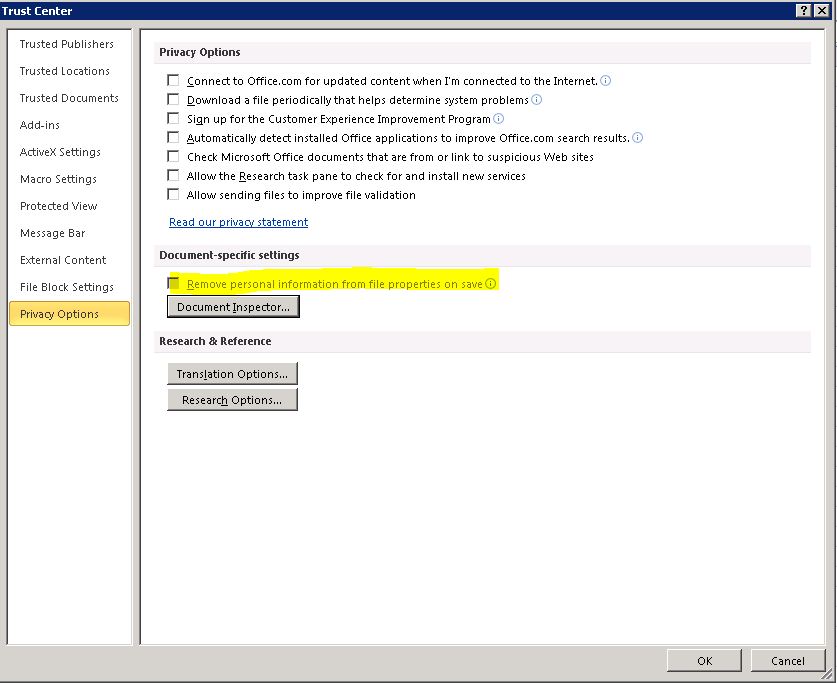
Click Developer Tab-> Macro Security

Select “Privacy Options” and remove check on “Remove personel information from file properties on save”

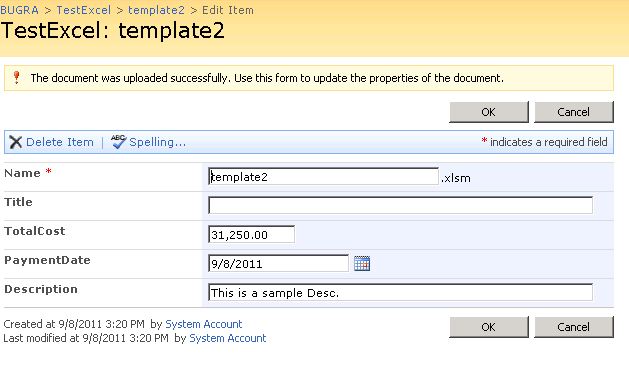
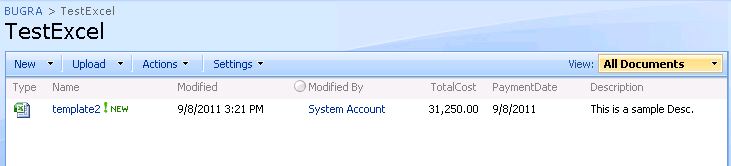
Upload “xlsm” File to Sharepoint and notice that metadata form filled automatically.

If everything is ok. you have to see bellowed screen 🙂

End of Article…
See you next time.

Sharepoint August 2011 CU released

Sharepoint August CU released
http://blogs.technet.com/b/stefan_gossner/archive/2010/09/02/august-2010-cumulative-update-for-sharepoint-has-been-released.aspx
http://blogs.msdn.com/b/joerg_sinemus/archive/2011/09/07/sharepoint-2010-and-august-2011-cu.aspx