SharePoint Slow Warm-Up Problem

It is a well known issue that  if you have a SharePoint and after you recycle the application pool of site or make an iisreset or any movement that force to recycle (web.config modifications etc.),When the first request send to the server , the response of the server is very slow for the first time like 2 minutes. After this first slow reponse ,your server begins responding very quickly. We are calling this duration as warm up state.
So what’s happening in warm up ? In warm up state basically your worker process are getting up, while a worker process is getting up, the necessary assemblies are compiled and loaded , and needed configuration files are read and prepare the process for serving  the requests. If your web site has integrated with other sites in same server also may need to warm up sequence for other worker process and the process of our site can wait other process’s warmup to create a reliable response to you. And expected that all this operations could take some time that is depended on your assembly count, configuration, hardware etc.

But what if it is taking more than usual ? For example assume  that you have identical sharepoint site hosting in identical two farm and the warm up times are different like first instace of the site hosted server A have 20-30sec warm up and second instance of the site hosted in Server B it takes 180seconds.. So there should be a problem here.

This problem occurs because a .NET Framework 2.0 managed assembly that has an authenticode signature takes longer than usual to load.when loading signed assemblies the .net Framework 2.0 checks the Internet based Certificate Revocation list for verifing these signatures and the signatures is always verified when the .NET Framework 2.0 managed assembly that has an authenticode signature is loaded .And SharePoint has lots of signed assemblies.For some environment if does not have any Access to internet it causes a delay like 2 minutes to respond .

If you collect a process monitor log from your worker process , you may face the time gap bettween fallowing context.

14:57:39,6298324 w3wp.exe 3648 TCP Reconnect SERVERB.postman.local:63017 -> 80-239-149-10.customer.teliacarrier.com:http SUCCESS Length: 0, seqnum: 0, connid: 0 14:57:46,6170930 w3wp.exe 3648 RegCloseKey HKU\S-1-5-21-220523389-842925246-682003330-29313\Software\Microsoft\Windows\CurrentVersion\Internet Settings\Connections SUCCESS

0 ntoskrnl.exe CmpCallCallBacks + 0x1c0 0xfffff80001a25fc0 C:\Windows\system32\ntoskrnl.exe
1 ntoskrnl.exe  ?? ::NNGAKEGL::`string’ + 0x364df 0xfffff800019c28f6 C:\Windows\system32\ntoskrnl.exe
2 ntoskrnl.exe ObfDereferenceObject + 0xd4 0xfffff8000168a3d4 C:\Windows\system32\ntoskrnl.exe
3 ntoskrnl.exe ObpCloseHandleTableEntry + 0xc4 0xfffff80001973b94 C:\Windows\system32\ntoskrnl.exe
4 ntoskrnl.exe ObpCloseHandle + 0x94 0xfffff80001974144 C:\Windows\system32\ntoskrnl.exe
5 ntoskrnl.exe KiSystemServiceCopyEnd + 0x13 0xfffff80001680453 C:\Windows\system32\ntoskrnl.exe
6 ntdll.dll ZwClose + 0xa 0x7748140a C:\Windows\System32\ntdll.dll
7 kernel32.dll RegCloseKey + 0xbc 0x77324cd0 C:\Windows\System32\kernel32.dll
8 winhttp.dll CRegBlob::~CRegBlob + 0x1c 0x7fef98fb768 C:\Windows\System32\winhttp.dll
9 winhttp.dll ReadWinInetProxySettings + 0x1fb 0x7fef990a9f7 C:\Windows\System32\winhttp.dll
10 winhttp.dll WinHttpGetIEProxyConfigForCurrentUser + 0x28a 0x7fef990a674 C:\Windows\System32\winhttp.dll
11 cryptnet.dll InetGetProxy + 0x11e 0x7fef69eae42 C:\Windows\System32\cryptnet.dll
12 cryptnet.dll InetSendAuthenticatedRequestAndReceiveResponse + 0x190 0x7fef69e9237 C:\Windows\System32\cryptnet.dll
13 cryptnet.dll InetSendReceiveUrlRequest + 0x57e 0x7fef69e983d C:\Windows\System32\cryptnet.dll
14 cryptnet.dll CInetSynchronousRetriever::RetrieveObjectByUrl + 0xc4 0x7fef69e9d9c C:\Windows\System32\cryptnet.dll
15 cryptnet.dll InetRetrieveEncodedObject + 0xbf 0x7fef69e29c5 C:\Windows\System32\cryptnet.dll
16 cryptnet.dll CObjectRetrievalManager::RetrieveObjectByUrl + 0x15c 0x7fef69e2ef0 C:\Windows\System32\cryptnet.dll
17 cryptnet.dll CryptRetrieveObjectByUrlWithTimeoutThreadProc + 0xc1 0x7fef69e9acc C:\Windows\System32\cryptnet.dll
18 kernel32.dll BaseThreadInitThunk + 0xd 0x7732652d C:\Windows\System32\kernel32.dll
19 ntdll.dll RtlUserThreadStart + 0x1d 0x7745c521 C:\Windows\System32\ntdll.dll


This proves that the CRL check causes delay. For a resolution you can disable CRL check on .net level

You can find more detail and how to fix it this problem in following KB Article. http://support.microsoft.com/kb/936707

This hotfix adds the generatePublisherEvidence configuration setting to the .NET Framework 2.0. After you apply this hotfix, you can use this configuration setting to disable signature verification in a .NET Framework 2.0 managed application.  You can use this configuration setting in an application configuration file.  To do this, add the following code to the <ApplicationName>.exe.config file for the .NET Framework 2.0 managed application:

<configuration>
	<runtime>
		<generatePublisherEvidence enabled="false"/>
	</runtime>
</configuration>

If your application is hosted in IIS, change one of the following:

  • C:\Windows\Microsoft.NET\Framework\v2.0.50727\aspnet.config
  • C:\Windows\Microsoft.NET\Framework\v2.0.50727\CONFIG\machine.config

NoteOn x64 machines, you must also change one of the following:

  • C:\Windows\Microsoft.NET\Framework64\v2.0.50727\aspnet.config
  • C:\Windows\Microsoft.NET\Framework64\v2.0.50727\CONFIG\machine.config

Not Supported Microsoft SharePoint Server 2013 installation scenarios

Fallowing scenarios are not supported.

  • installing SharePoint Server 2013 on a drive that is formatted by using Resilient File System (ReFS).
  • installing SharePoint Server 2013 in a workgroup.
  • installing SharePoint Server 2013 on a domain controller. This scenario is supported only for development configurations and not for production configurations.
  • installing SharePoint Server 2013 on Windows Web Server.
  • installing SharePoint Server 2013 on a virtual machine (VM) that uses Dynamic Memory

For More information:
http://support.microsoft.com/kb/2764086/en-us

Working With Microsoft Support Series: How to find correct ULS Logs

Working With Microsoft Support Series: How to find correct ULS Logs

This artcile will answer fallowing questions :

*Where can i find the SharePoint Logs?
*What are the SharePoint Logs ?
*How can i find the correct ones ?

Where can i find the SharePoint Logs?

For SharePoint 2010 :
The ULS Logs are stored in %CommonProgramFiles%\Microsoft Shared\Web Server Extensions\14\LOGS\ Folder by default.

But what is the folder has customized and changed for another path . How could you find correct path ?

You can check from Central Administration
1) Open Start-> All Programs -> Microsoft Sharepoint 2010 Products -> SharePoint 2010 Central Administration
2) Click the “Monitoring”
3) Select the “Configure Diagnostics Logging” under reporting section
You can find the log location path under “Trace Log” section in Path Text Box.

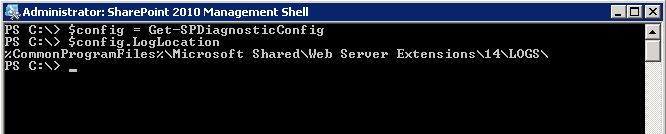
You can use SharePoint Management Shell (Powershell) to define log location path

1) Open Start-> All Programs -> Microsoft Sharepoint 2010 Products -> SharePoint 2010 Management Shell

2) And type fallowing commands:
$config = Get-SPDiagnosticConfig
$config.LogLocation

and press enter .

For SharePoint 2007 :
The ULS Logs are stored in %CommonProgramFiles%\Microsoft Shared\Web Server Extensions\12\LOGS\ Folder by default.

But what is the folder has customized and changed for another path . How could you find correct path ?
You can check from Central Administration
1) Open Start-> All Programs -> Microsoft Office Server -> SharePoint 3.0 Central Administration
2) Click the “Operations” tab
3) Select the “Diagnostics Logging” under “Logging and Reporting” Section
You can find the log location path under “Trace Log” section in Path Text Box.

When you open this folder you may face with different type of files are stored in.

What are the SharePoint Logs ?

The LOGS folder contains log files (.log), data files (.txt), and usage files (.usage). The file naming convention for a SharePoint trace log is the server name followed by a date and time stamp. SharePoint trace logs are created at regular intervals and whenever there is an IISRESET. It is common to have many trace logs within a 24 hour period.

The Usage Logs:
Usage data is initially stored in Usage Log file (.USAGE ) on SharePoint Server under logging directory which is later processed by Microsoft SharePoint Foundation Usage Data Import Timer job that runs every 30 min into Usage Database.
There is another timer job Microsoft SharePoint Foundation Usage Data Processing, this job checks for expired usage data at the farm level and deletes data.
Expired usage data consists of records in the central usage data collection database that are older than 30 days.
For more information please check:
http://blogs.technet.com/b/sharepoint_quick_reads/archive/2012/03/10/3482072.aspx
Logs are in MACHINE NAME-DATE[YYYYMMDD]-TIME[HHMM].usage format.
For example:
WFE1Server-121024-1230.usage

Sharepoint ULS Logs:
The Unified Logging Services (ULS) provides a single, centralized location for logging error and informational message related to SharePoint Server and SharePoint solutions.SharePoint 2010 includes improvements that are related to the management of the ULS and that make it easier for Administrator to troubleshoot issues.

Logs are in MACHINE NAME-DATE[YYYYMMDD]-TIME[HHMM].log format.
Example

WFE1Server-121024-1705.log
WFE1Server-121024-1725.log
WFE1Server-121024-1755.log
….

These logs are very important when troubleshooting issues on your system. And reqested usually by support engineers so do not delete this logs before getting backup .

You can open ULS Logs with ULSViewer program:
http://archive.msdn.microsoft.com/ULSViewer/Release/ProjectReleases.aspx?ReleaseId=3308

Post-Setup-Configuration Diagnostics Logs (PSCDiagnostics):
PSCDiagnostics files are post-setup configuration files. Each time that you open SharePoint’s central administration page, a new PSCDiagnostics file is created. These files are always stored in the same directory as the trace logs. So, if you change the trace log location, these logs will follow.You also have a very fine degree of control over the types of events to log. The following is a comprehensive list of event types.For each event, you can set the least critical event to report to the event log and you can report the least critical event to report to the trace log

Logs are in PSCDiagnostics_MM_DD_YYYY_HH_MM_SS_SSS_randomnumber.log  format.
Example:
PSCDiagnostics_9_28_2012_11_50_27_548_1425714660.log

These logs are used by support engineer that defining installation,pacthing,upgrade and SharePoint Configuration Wizard problems. ,

The Upgrade and Upgrade Error logs:
Upgrade status indicators and log files should give you an indication of what went wrong during the upgrade process. We recommend that you carefully review all the errors that were logged in the upgrade log files. Warnings might not always indicate an issue, but you should review them all to determine whether any of them are likely to cause even more issues.
Logs are in Upgrade-DATE[YYYYMMDD]-TIME[HHMMSS-SSS].log format
The upgrade error log file combines all errors and warnings into a shorter file
and is named Upgrade-DATE[YYYYMMDD]-TIME[HHMMSS-SSS]-error.logs
Example:
Upgrade-20120928-115041-392.log
Upgrade-20120928-115041-392-error.log

How could you find correct SharePoint ULS Log files ?

When working with Microsoft , the support engineer may request that logs from you. But sometimes the log size can be huge. For example you have 8 server and 1 day logs for all servers can be tens of gigabytes .the important part in that log files that your issue’s reproduced time slice. So How could you find correct log files.

For example scenario :
you have 8 server farm and facing with incremental crawl problem . The crawl has taken 30 minutes and SE requested that ULS logs for all your servers.
And you know that the crawl start time is 11:25 and finish time is 11:55 . the correct files are highlighted.

SERVER-20121016-11:00.log
SERVER-20121016-11:20.log ***->first log should be before 11:25
SERVER-20121016-11:40.log ***-> first logs should be before 11:55
SERVER-20121016-12:00.log
SERVER-20121016-12:20.log

you should get all ULS logs with explained method from all required servers (in this scenario for all servers) and it would be better to compress these files to a single zip file and than you can upload these logs to workspace that provided by Microsoft.

For Best Practices about Logging please read fallowing article
http://technet.microsoft.com/en-us/library/ee748656.aspx

Office 2013 & SharePoint 2013 is RTM now

For more detail:
http://blogs.msdn.com/b/microsoft_business_intelligence1/archive/2012/10/11/time-to-celebrate-office-2013-amp-sharepoint-2013-released-to-manufacturing.aspx

How to trim Audit Logs in SharePoint 2007&2010

Auditing enables administrators to keep a reliable log of what is happening with important content on a site collection. Administrators are able to retrieve the entire history of actions taken by a particular user and can also retrieve the entire history of actions taken during a particular date range.In SharePoint Content Database we have a table named  AuditData. This table  stores audit logs when “Auditing” enabled in Site or List Libraries. But once you enabled “Auditing” this table size will growth continously and  it will consume your storage space in your SQL Server quickly.At that point you’ll need to delete older audit logs which is stored in your content database

For SharePoint 2007 we have a STSADM command for clearing audit data for maintanence purporse (but it is depreciated in SharePoint 2010)

So clearing old auditlogs you may fallow

1)      Open a Command Prompt as Administrator Privilegdes in your one of SharePoint Server
2)      Change path to
cd c:\program files\common files\microsoft shared\web server extensions\12\Bin
3)  Run fallowing command change it as your content database name
stsadm –o trimauditlog –date 20120822 –databasename MyContentDatabaseName
Important: The audit entries before given date are permanently deleted after this operation has run

This operation is not done automatically by SharePoint 2007 (it is by design) .This responsibility has assigned to System Administrators for maintenance and shoud be done manually by periodically.For more information about trimauditlog you can check: http://technet.microsoft.com/en-us/library/cc706879.aspx

For SharePoint 2010  we have a dedicated TimerJob for doing this operation .Default schedule is set by monthly.

1)      Go to your Central Administration -> Monitoring -> Review Job definitions

2)      You can see in picture every site has own Audit Log Trimming Job. Select correct job for your actual site
3)      Click “Run Now” button.

I would like to inform you about someting when you run this timer job it will use the value of retention (for example 3 )  which you set in Site Settings-> Site Collection Audit Settings .
Even you set the “Automatically trim the audit log for this site” yes and set retention for 3 days (like in example) . the logs will not be deleted from Content Database until “Audit Log Trimming” timer job is run.After timer job runs the logs until retention value ( 3 days in example) will be deleted.

What if you set “Automatically trim the audit log for this site” as No . How could you clear old logs ?

There is another way to do it by using PowerShell . you can able to give here a date as parameter like stsadm command.

1)      Run SharePoint 2010 Powershell Console by administrator priviledges .
2)      Type fallowing commands:
$site = Get-SPSite http://yoursitecollectionURL
$date = Get-Date “22/08/2012”
#(You need to check date format , type $date and press enter)
$date
#Result like:  22 August 2012 00:00:00
#(and check the date is correct because it can be changed by regional settings. if date is in correct format )
$site.Audit.DeleteEntries($date)

You can fallow whats happening in background by tracing ULS logs in real time. And you can learn how many records are deleted.

//See you next article .