Updating Excel Server Properties from content with Moss2007 and Office 2010 – Part 1

Hi everyone,

After a good vacation now the time to new article has came. In this article we talk about how to set Sharepoint Document Library metadata from Excel Content.
The problem is that if you are using Excel 2007 or Excel 2010 and you create a document library on Sharepoint with extra metadata columns and open an excel doc template from this Document Library -> new Excel Document. You can able to see server properties show us the needed metadata. After we change Document Properties and map it from excel content (I mean any mapped excel cell has changed we want mapped  server properties should to be changed) and save the document. and notice that the server properties is not updated. This actually is not a problem this issue is one of by design. Only way to do it  coding some visiual basic for Excel 2007 and Excel 2010(.xlsx file format). But if you use old format of Excel 97 or Excel 2003 (xls) you can still able to use custom properties like as i mentioned.

First Solution – Using old format xls files.

I have created a document library named TestExcel on my Sharepoint and select document file template for excel file. After do that i have created 3 column on list.

TotalCost as  Number 
Note: In my envoriment i create a column name is Total than i changed the column name as “TotalCost” so keep in your mind. i will explain it later becuase when you change the column name on a document libarary actual name on db can not changes and this  causes very common misunderstanding. )
PaymentDate as  DateTime
Description as  Single Line of Text
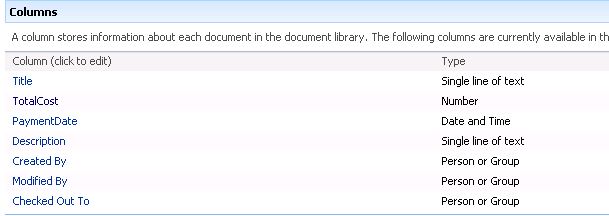
So far so good Lets go to Document Library and create a new Excel Document form library by clicking New-> Document.
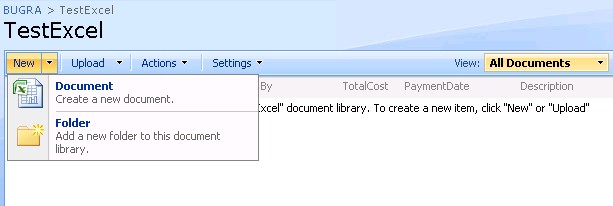
If everything is ok you will see familier Excel 2010 open your document. And notice that Document Properties panel is opened for you. If you are getting problem with to open Excel document by clicking Sharepoint Document Library ->New-> Document you have possible owssupp.dll registration problem.
see kb article for more information:
http://support.microsoft.com/kb/833714

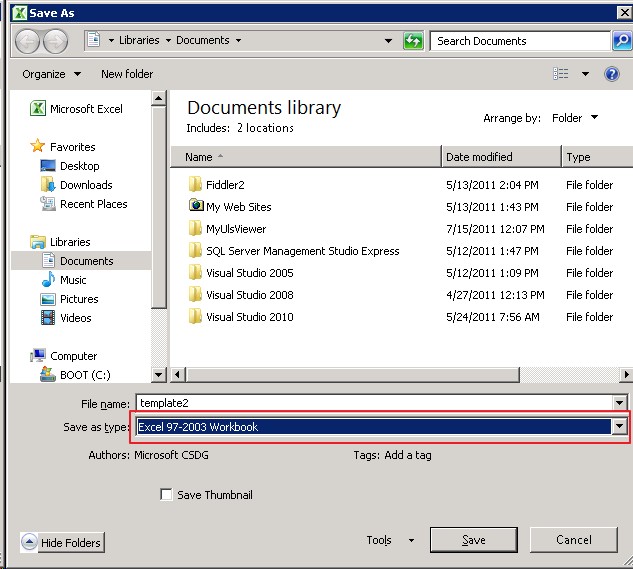
After opened this document i save as this document as Excel 97-2003 workbook type .
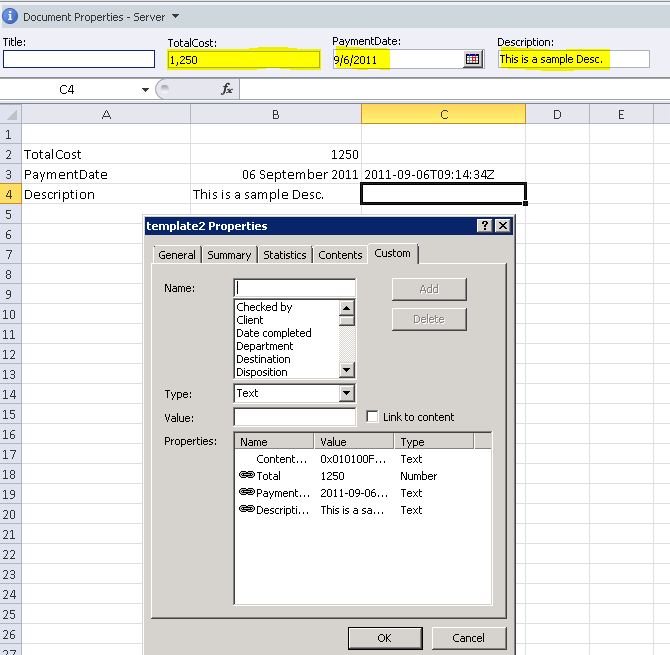
I have created a sample excel content see bellowed screenshot. And notice that i have give cells names which i want to map with server properties .

!Important : Sharepoint uses  ISO8601 format (YYYY-MM-DDTHH:MM:SSZ) for saving dates so you should make changes on date format for sharepoint understanding.
i use for that another cell and formul like =TEXT(B3,”yyyy-mm-ddThh:mm:ssZ”)

Notice that Document properties can not updated when you changes the cells in content. For automatically updating this properties we should make some bindings. So click Document Properties box and select Advanced Properties.

Select “Custom” tab.And Select Properties of Total .
Check “Link to Content” link this activates Source Combobox.
In combobox select named cell.
Note: Notice that in properities you see a line “Total” this is the actual sharepoint column name not “TotalCost” . Because i changed the column name from sharepoint list before i create a new document. So column name has changed on diplay but actual column name still is Total

After all binding done correctly. You have to see Document Properties has changed and updated.
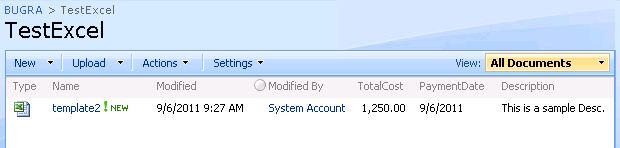
Save the Excel Document to your computer. Get back to sharepoint list and upload this excel document to library. While updating if you do it correctly , metadata fields should be filled automatically.

Click ok. and see All Document View show us document content data in view.
In next artcile we do it this via using some simple VBA script for Excel 2007-Excel 2010 formats.
See you now.

Sharepoint August 2011 CU released

Sharepoint August CU released
http://blogs.technet.com/b/stefan_gossner/archive/2010/09/02/august-2010-cumulative-update-for-sharepoint-has-been-released.aspx
http://blogs.msdn.com/b/joerg_sinemus/archive/2011/09/07/sharepoint-2010-and-august-2011-cu.aspx

Unable to create system performance counter with error code PDH_CSTATUS_NO_MACHINE

One of our case we faced with annoying ULS log errors about performace counters. Multiple errors like below filling ULS logs and keep inflated rapidly.

Unable to create system performance counter ComputerName\Memory\Available Mbytes\. The following exception was thrown: System.ComponentModel.Win32Exception: Unknown error (0x800007d0) at Microsoft.SharePoint.Win32.SPPdh.CheckReturnValue(PDH_STATUS status, Boolean throwOnError) at Microsoft.SharePoint.Utilities.SPPerformanceCounter.Initialize() at Microsoft.SharePoint.Utilities.SPPerformanceCounter.NextValue(Int32 retry, Int32 retryInterval) at Microsoft.SharePoint.Utilities.SPPerformanceCounterMonitorInternal.UpdateValue() at Microsoft.SharePoint.Utilities.SPPerformanceCounterMonitorInternal.Create(String computer, String category, String counter, String instance)
Performance Counter OS (pdh) call failed with error code PDH_CSTATUS_NO_MACHINE.

Cause:
Microsoft Sharepoint Timer Service’s account does not have the necessary permissions to access the performance counters on the server.

Resolution:
Find Microsoft Sharepoint Timer Service account and set the account as local admin on all machines in farm.

Backup Error on Moss2007: Object Shared Search Index failed in event OnPrepareBackup, The current operation timed-out after 3600 seconds

If you getting error in spbackup.log file when getting backup like:
Error: Object Shared Search Index failed in event OnPrepareBackup. For more information, see the error log located in the backup directory.
WebException: The current operation timed-out after 3600 seconds
Debug: at Microsoft.Office.Server.Search.Administration.SearchSharedApplication.Microsoft.SharePoint.Administration.Backup.IBackupRestore.OnPrepareBackup(Object sender, SPBackupInformation args) at Microsoft.SharePoint.Administration.Backup.SPBackup.RunPrepareBackup(SPBackupRestoreObject node)

Cause:
When performing a backup of a search application, sometimes the operation for pausing the search application fails. In this case, the backup of the search index cannot continue. In that case, the SSP backup is virtually useless. Pre-SP2, the process of backing up the search database will continue. Post-SP2, the failure to pause the search application during a backup process will also result in failure of backing up the search databases, and the search databases will be marked with the same error as the search index component.
For More info:
http://download.microsoft.com/download/4/1/F/41F3A698-55E8-40B4-A306-AD6CF1F95394/2007%20Office%20Servers%20Service%20Pack%202%20Changes.xlsx

Resolution:
Upgrade to Moss 2007 SP2

Multiple file upload and Drag and Drop file feature on Sharepoint 2010

When using multiple file upload if you are facing problem of  Some of client computers shows Drag and Drop feature and some of are not ,you like this article. First of all Multiple File upload is not a sharepoint feature.It is a Microsoft Office feature and working with just only IE8(+) and Office installed machines.This feature is not supported by other browsers like firefox and chrome. Sharepoint provide an ActiveX control named “STSupld.UploadCtl” via interacting with Microsoft Office’s dll of STSUPLD.DLL at background. And the version of this dll is define that you have Drag and Drop option or not. we e.g see that ActiveX control and there isnt any Silverlight in this issue.


More clearly if your client computer have installed Office 2010 than you have drag drop  option if only have office 2007/2003 installed than you see  old version of dialog with CheckBoxes. There isn’t any way to use this option on office 2007 installed computers except installing or upgrading office 2010 according to Microsoft Licence agreements .

Sometimes we are getting problem with this feature even if we are using that Office 2010. The possible problem is here the old version of dll still remain in background. You can able to check the activeX control dll from your IE -> Tools -> “Manage Add ons”


The versions below show us which office is in use.
11.0.xxxx   Office 2003 
12.0.xxxx   Office 2007
14.0.xxxx   Office 2010 

Also you can find the assemblies defined folders

C:\Program Files (x86)\Microsoft Office\Office14\STSUPLD.DLL
C:\Program Files (x86)\Microsoft Office\Office12\STSUPLD.DLL
C:\Program Files (x86)\Microsoft Office\Office11\STSUPLD.DLL

If you somehow remove or currupt this dll you could not be use Multiple File Upload feature anymore.