How to send Real Meeting Request From Sharepoint 2010 – Part 2

Hello Everyone ,

How to send Real Meeting Request From Sharepoint 2010 article continues with part2

Here is the links for How to send Real Meeting Request From Sharepoint 2010 Series:
https://blog.bugrapostaci.com/2012/02/17/how-to-send-real-meeting-request-from-sharepoint-2010-part-1/
https://blog.bugrapostaci.com/2012/02/17/how-to-send-real-meeting-request-from-sharepoint-2010-part-2/
https://blog.bugrapostaci.com/2012/02/17/how-to-send-real-meeting-request-from-sharepoint-2010-part-3-deployment/
https://blog.bugrapostaci.com/2012/02/17/how-to-send-real-meeting-requests-from-sharepoint-2010-part4-usage/
Lets have a look for internally whats happening in a Meeting Workspace.

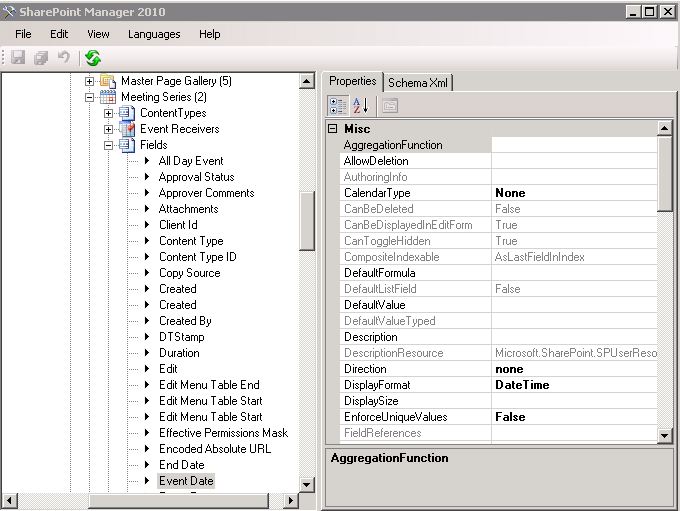
If you open a meeting workspace web with Sharepoint Manager 2010 you can brows all components in a basic meeting workspace template.
Some important list are Attendees , Meeting Serries , Workspace Pages ,

The Meeting Serries list contains Event information when you related a calender item with a meeting workspace instance. In this demo we have already attached two calender event this this meeting workpaced named “Scrum Meetings” . Every item has in Meeting Series an InstanceID so when you open a Event item and click linked workspace url
you can see this instanceID has been added end of this url . For example:
https://blog.bugrapostaci.com/scrummeetings?InstanceID=2

That means sharepoint sperates data according this Instance Parameter. As you noticed if you look carefully above image we have 6 attendees . This number is sum of all attendees count .But when you connect a workspace with an InstanceID  and if you compare fallowing properties for an Attendees list.
SPList attendeesList = web.Lists[“Attendees”];
attendeesList.ItemCount  is 6 : means all attendees count contains other meeting instances counts
attendeesList.Items.Count is 2 : meens this instance attendees count.

Sharepoint is differantiate the attendees data automatically and internally for which meeting workspace instance in use.

So be careful when you are working with in Meeting Workspaces on InstaceID property and differantiation of data according to this property.

Sharepoint Manager 2010 is a very useful tool when you programming with Sharepoint. You can use it with define Column Names and properties for serval objects in hiearchically.
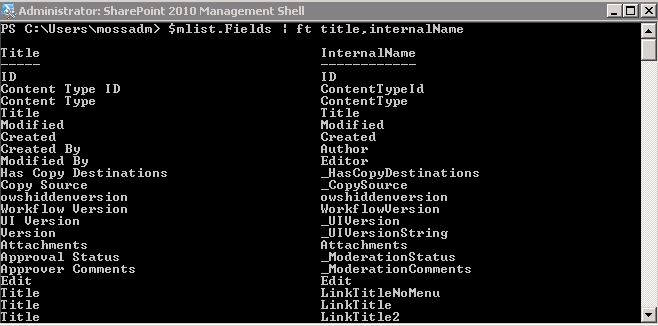
But what if you dont want to use it , the powershell can also makes some help in this issue. For example if you want to learn which internal columns of an Meeting Series List item . you can get this information via powershell and write in a file in your drive like:

$Site = Get-SPList http://blog.bugrapostaci.com
$web = $site.OpenWeb(“ScrumMeetings”)
$mList = $web.Lists[“Meeting Series”]
$mList.Fields |ft title , internalname > c:\MeetingSeriesFields.txt
One advantage of powershell that you can also check values of created properties which SPM2010 does not. For example you may wonder how sharepoint keeps EventURL of an Related Event item:
$Site = Get-SPList http://blog.bugrapostaci.com
$web = $site.OpenWeb(“ScrumMeetings”)
$mList = $web.Lists[“Meeting Series”]
$item = $mList.Items[1];
$item[“EventURL”] and press enter
Results is: [URL], [List Title] -> There is a space char after “,” so you should use trim() function when you parsing this data.
https://blog.bugrapostaci.com/lists/TestCalender, Meeting Calendar

After we complete understanding on Meeting Workspace  now contine with our project

MeetingRequestWebPart -> Page Load
  1. protected void Page_Load(object sender, EventArgs e)
  2. {
  3.     #region GUI operations
  4.     //Some GUI operations
  5.     #endregion
  6.     //This webpart is only usable for Meeting Workspace Sites.
  7.     if (!SPMeeting.IsMeetingWorkspaceWeb(SPContext.Current.Web))
  8.     {
  9.         InformationText.Text = “This webpart is only addable for a Meeting Workspace Web Site”;
  10.         AdminPanel.Visible = false;
  11.         return;
  12.     }
  13.     //Get Current Meeting information
  14.     SPMeeting currentMeeting = SPMeeting.GetMeetingInformation(SPContext.Current.Web);
  15.     MeetingInfo info = MeetingInfo.GetMeetingInfo(currentMeeting);
  16.     //Only the meeting organizer manage meetigs.
  17.     if (!info.OrgnaizerAccount.Equals(SPContext.Current.Web.CurrentUser.LoginName, StringComparison.InvariantCultureIgnoreCase))
  18.     {
  19.         InformationText.Text = “Only Organizer of this meeting \”” + info.OrganizerName + “\” can manage the requests”;
  20.         AdminPanel.Visible = false;
  21.     }
  22.     else
  23.     {
  24.         if (IsAppointmentExists(info.MeetingIdentifier)) //if Meeting request is already sent.
  25.         {
  26.             SavedMeetingInfo = LoadAppointment(info.MeetingIdentifier);
  27.             btnSendMeetingRequest.Visible = false;
  28.             btnReSendMeetingRequest.Visible = true;
  29.             btnCancelMeeting.Visible = true;
  30.             btnRefreshAttendeesStatus.Visible = true;
  31.             if(!_ByPassClearInfo)
  32.                 InformationText.Text = “Meeting requests have been send at” + SavedMeetingInfo.RequestSentDate.ToLongDateString() + ” “ + SavedMeetingInfo.RequestSentDate.ToLongTimeString();
  33.         }
  34.         else // if not sent before
  35.         {
  36.             btnSendMeetingRequest.Visible = true;
  37.             btnReSendMeetingRequest.Visible = false;
  38.             btnCancelMeeting.Visible = false;
  39.             btnRefreshAttendeesStatus.Visible = false;
  40.         }
  41.         //assign button events.
  42.         btnSendMeetingRequest.Click += new EventHandler(btnSendMeetingRequest_Click);
  43.         btnReSendMeetingRequest.Click += new EventHandler(btnReSendMeetingRequest_Click);
  44.         btnCancelMeeting.Click += new EventHandler(btnCancelMeeting_Click);
  45.         btnRefreshAttendeesStatus.Click += new EventHandler(btnRefreshAttendeesStatus_Click);
  46.     }
  47. }


In Page Load,

We are doing some gui operations.
Checking webpart added correct web site template , should be a meeting workspace template
Getting Current and latest meeting information
Checking the owner mean organizer beacuse only orginazer manages meetings.
Prepare GUI according to if meeting is already send or not.
Also we set here the SavedMeetinfo property of control via fallowing line
-> SavedMeetingInfo = LoadAppointment(info.MeetingIdentifier);
MeetingInfo LoadAppointment(string identifer)  helper function brings us the Saved MeetingInfo in previous state from web.Properies bag.
That information is imported because we are storing Exchange Appointment object’s ID in this object.

MeetingRequestWebPart -> Refresh Attendees Status
  1. public void RefreshAttendeesStatus()
  2. {
  3.     if (SavedMeetingInfo == null) return;
  4.     ExchangeServiceConnection conn = new ExchangeServiceConnection(SPContext.Current.Web.CurrentUser);
  5.     SPMeeting currentMeeting = SPMeeting.GetMeetingInformation(SPContext.Current.Web);
  6.     Appointment app = Appointment.Bind(conn.Service, SavedMeetingInfo.AppointmentID);
  7.     Dictionary<string, MeetingResponseType> aStatus = new Dictionary<string, MeetingResponseType>();
  8.     foreach (Attendee att in app.RequiredAttendees)
  9.     {
  10.         if (att.ResponseType != null)
  11.         {
  12.             aStatus.Add(att.Address, (MeetingResponseType)att.ResponseType);
  13.         }
  14.     }
  15.     foreach (Attendee att in app.OptionalAttendees)
  16.     {
  17.         if (att.ResponseType != null)
  18.         {
  19.             aStatus.Add(att.Address, (MeetingResponseType)att.ResponseType);
  20.         }
  21.     }
  22.     RunAsAdmin.Run((site, web) =>
  23.     {
  24.         SPList Attendees = web.Lists[“Attendees”];
  25.         foreach (SPListItem item in Attendees.Items)
  26.         {
  27.             SPUser user = web.EnsureUser(item.Title);
  28.             if (aStatus.ContainsKey(user.Email))
  29.             {
  30.                 MeetingResponseType rtype = aStatus[user.Email];
  31.                 item[“Response”] = ExchangeHelper.ConvertSPMeetingResponse(rtype);
  32.                 item.Update();
  33.             }
  34.         }
  35.     });
  36. }

In refresh attendees function,

We are getting current Meeting information and already created Appointment object. For updating attendees status a meeting request must already be created.
Collecting all Attedees and thier responses in a dictionary (considering performance )
Updating Attendees status in web.Lists[“Attendees”] list . We are converting Response type beacuse Exchange.MeetingResponseType has 6 option but Response (Choice)
Column in attendees list only 4 option that none,Accepted,Declined,Tentative

MeetingRequestWebPart -> Update Meeting Request
  1. public void UpdateMeetingRequest()
  2. {
  3.     if (SavedMeetingInfo == null) return;
  4.     ExchangeServiceConnection conn = new ExchangeServiceConnection(SPContext.Current.Web.CurrentUser);
  5.     SPMeeting currentMeeting = SPMeeting.GetMeetingInformation(SPContext.Current.Web);
  6.     Appointment app = Appointment.Bind(conn.Service, SavedMeetingInfo.AppointmentID);
  7.     MeetingInfo info = MeetingInfo.GetMeetingInfo(currentMeeting);
  8.     ExchangeHelper.UpdateAppointment(app, info);
  9.     //Clear All Attendees
  10.     app.RequiredAttendees.Clear();
  11.     app.OptionalAttendees.Clear();
  12.     //Add Atteendees from Workspace Attendees List.
  13.     AddAttendees(app);
  14.     try
  15.     {
  16.         app.Update(ConflictResolutionMode.AutoResolve);
  17.         info.AppointmentID = SavedMeetingInfo.AppointmentID;
  18.         InfoMessage = “Meeting Request sent successfully”;
  19.     }
  20.     catch (Exception ex)
  21.     {
  22.         ULSLoggingService.LogError(ULSLoggingService.SMR_ERROR, ex.Message + Environment.NewLine + ex.StackTrace);
  23.         InfoMessage = “An Error occured.Please contact your administrator”;
  24.     }
  25.     UpdateAppointment(info);
  26. }

In UpdateMeetingRequest Function ;
First we checking SavedMeetingInfo object is exists.
Creating an exchange connection.
Getting current meeting.
Appointment app = Appointment.Bind(conn.Service, SavedMeetingInfo.AppointmentID); // with this line we are binding already created Appointment object in Exchange. SavedMeetingInfo object contains AppointmentID which i mentioned above.
We are setting old Appointment object with new values by calling ExchangeHelper.UpdateAppointment(app, info);

(Basically we are doing in ExchangeHelper.UpdateAppointment something like below:
app.Subject = info.Title;
app.Start = info.EventDate;
app.End = info.EndDate;
app.Location = info.Location;
…. return app; )
Clearing All Attendeess
Add all attendees again

Update Appointment object that will resend all meeting request again via app.Update() command.
Set AppointmentID to new MeetingInfo class instance.
Update new MeetingInfo class via overriding old MeetingInfoClass (SavedMeetingInfo)

MeetingRequestWebPart -> Cancel Meeting Request
  1. public void CancelMeetingRequest()
  2. {
  3.     if (SavedMeetingInfo == null) return;
  4.     ExchangeServiceConnection conn = new ExchangeServiceConnection(SPContext.Current.Web.CurrentUser);
  5.     SPMeeting currentMeeting = SPMeeting.GetMeetingInformation(SPContext.Current.Web);
  6.     try
  7.     {
  8.         //Get existed appointment.
  9.         Appointment app = Appointment.Bind(conn.Service, SavedMeetingInfo.AppointmentID);
  10.         app.CancelMeeting();
  11.         ClearAppointment(SavedMeetingInfo);
  12.         InfoMessage = “Meeting has been canceled successfully.”;
  13.     }
  14.     catch (Exception ex)
  15.     {
  16.         ULSLoggingService.LogError(ULSLoggingService.SMR_ERROR, ex.Message + Environment.NewLine + ex.StackTrace);
  17.         InfoMessage = “An error occured.Please contact your administrator”;
  18.     }
  19. }

In CancelMeetingRequest function:
Like before we are checking SavedMeetInfo is exists , creating an exchange connection object and getting currentmeeting object.
Appointment app = Appointment.Bind(conn.Service, SavedMeetingInfo.AppointmentID); // with this line we are binding already created Appointment object in Exchange.
And Canceling Meeting via app.CancelMeeting() function.
Clearing previously saved MeetingInfo instance from web.properties.
PS: There is a trick when you try removing a property correctly from SPWeb object .Check the fallowing link:
https://blog.bugrapostaci.com/2012/02/17/clearing-or-removing-a-keyvalue-from-spweb-properties-tipstricks/

Next Article: Part 3 Deployment.
How to send Real Meeting Request from Sharepoint 2010 – part 1

Hello Everyone,

Recently I have faced with so many threads for sending meeting requests form Sharepoint .As you know there is not any out of the box feature that able to send real Meeting Request from Sharepoint. If you  ask me , i agree with Microsoft on their perspective about it is not needed to add this feature as build-in  and fallowing questions prove that implementation is a bit tricky and restricts flexibility of a global platform product like Sharepoint is not considerable.

  • How much sense it makes to have a “global” solution sending meeting invitations by SharePoint?
  • Does have each employee or user an Email/Exchange account and Outlook? What about versions , compatibility ?
  • What are the possible benefits not using Outlook to send invitations and create meeting workspaces?
  • How many people should create those meetings on the SharePoint platform?
  • Are there also outside/foreign people who should create those meetings?
  • Have a similar application like Outlook to use all sharepoint web services to do the job.

So in many forums contains solutions and workarounds for solving this issue . One of them is using Workflow and sending request emails . Nice and simple one.
you may see other options with fallowing link:
http://social.msdn.microsoft.com/Forums/en-US/sharepointdevelopment/thread/e18a7b4e-230e-41d4-84df-ba3fda17bec9

In this article i am going to tell you more complex but more real solution for this issue. the key point is “Microsoft Exchange Web Services (EWS) Managed API 1.1 ” . the solution is using EWS in Sharepoint 2010 and sending real meeting requests from sharepoint.

Here is the links for How to send Real Meeting Request From Sharepoint 2010 Series:

How to send Real Meeting Request from Sharepoint 2010 – part 1


https://blog.bugrapostaci.com/2012/02/17/how-to-send-real-meeting-request-from-sharepoint-2010-part-2/
https://blog.bugrapostaci.com/2012/02/17/how-to-send-real-meeting-request-from-sharepoint-2010-part-3-deployment/
https://blog.bugrapostaci.com/2012/02/17/how-to-send-real-meeting-requests-from-sharepoint-2010-part4-usage/

For apply this you need some prerequisites :

* Sharepoint Server 2010
* Exchange Server 2010
* Installing Exchange Web Services (EWS) Managed API 1.1 to Sharepoint servers.
* A service Account for Exchange impersonation.
* Visual Studio 2010 (optional)

First we should download EWS Managed API and install the api to sharepoint server 2010 that we are developing on it
For downloading Microsoft Exchange Web Services (EWS) Managed API 1.1 you can use fallowing link:
http://www.microsoft.com/download/en/details.aspx?id=13480

Note: I could not publish all code in the article .you can download full project and source code form fallowing link:
http://spssampleprojects.codeplex.com/releases/view/82359
http://spssampleprojects.codeplex.com/wikipage?title=Send%20Meeting%20Request%20Sample%20Project.&referringTitle=Home

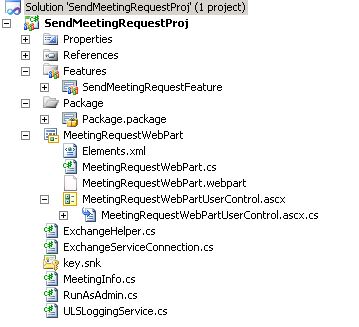
1) Open Visual Studio 2010 and  Create a new blank Sharepoint Project and add reference of newly installed api dll “Microsoft.Exchange.WebServices”
C:\Program Files\Microsoft\Exchange\Web Services\1.1\Microsoft.Exchange.WebServices.dll

2) Add a new VisualWebPart named “MeetingRequestWebPart” . We use this web parts only for Meeting Workspaces . in this demo we can only able to manage meeting requests for specific Events which are related to a Sharepoint Meeting Workspace web site.Also you can change the design according your business needs.
The webpart GUI is simple just contains 4 links and information label.

  • Send Meeting Requests (For First send)
  • ReSend Meeting Requests ( For Changes.)
  • Refresh Attendees Status
  • Cancel Meeting
<div>
    <asp:Panel ID="AdminPanel" runat="server" >
        <asp:LinkButton ID="btnSendMeetingRequest" runat="server">Send Meeting Request</asp:LinkButton>
        <br />
        <asp:LinkButton ID="btnReSendMeetingRequest" runat="server">ReSend Meeting Request</asp:LinkButton>
        <br />
            <asp:LinkButton ID="btnRefreshAttendeesStatus" runat="server">Refresh Attendees Status</asp:LinkButton>
        <br />
            <asp:LinkButton ID="btnCancelMeeting" runat="server">Cancel Meeting</asp:LinkButton>
        <br />
    </asp:Panel>
    <div>
        Information: 
        <asp:Label ID="InformationText" runat="server"></asp:Label>
    </div>
</div>

3) We need an account for impersonation.This account is resposible for connecting Exchange Server and manage operations like create,delete,update while impersonating less priviledged account means a user who can able to created an event. In my Example a have “Blog\MeetingService” account.

The following prerequisites are required to configure Exchange Impersonation:

  • Administrative credentials for the computer that is running Exchange 2010 that has the Client Access server role installed.
  • Domain Administrator credentials, or other credentials with the permission to create and assign roles and scopes.
  • Remote PowerShell installed on the computer from which you will run the commands.

Connect your Exchange 2010 server and Open the Exchange Management Shell.

  • Run the New-ManagementRoleAssignment cmdlet to add the permission to impersonate to the specified user. The following example shows how to configure Exchange Impersonation to enable a service account to impersonate all other users in an organization.
    New-ManagementRoleAssignment –Name:impersonationAssignmentName –Role:ApplicationImpersonation –User:Blog\MeetingService

For Configuring Exchange Imperonation you can get more info from fallowing article :
http://msdn.microsoft.com/en-us/library/bb204095%28v=EXCHG.140%29.aspx

4) Add a new Class named “ExchangeServiceConnection

ExchangeServiceConnection Class Constructor
  1. public ExchangeServiceConnection()
  2.       {
  3.           string ExchangeServiceURL = string.Empty;
  4.           string UserName = string.Empty;
  5.           string Password = string.Empty;
  6.           string Domain = string.Empty;
  7.           try
  8.           {
  9.               ExchangeServiceURL = WebConfigurationManager.AppSettings[“ExchangeServiceURL”];
  10.               UserName = WebConfigurationManager.AppSettings[“ExchangeServiceUserName”];
  11.               Password = WebConfigurationManager.AppSettings[“ExchangeServicePassword”];
  12.               Domain = WebConfigurationManager.AppSettings[“ExchangeServiceDomain”];
  13.           }
  14.           catch (Exception ex)
  15.           {
  16.               string message = “Please Add Fallowing records to your webapplication web.config file” + Environment.NewLine +
  17.                   “->ExchangeServiceURL : Connection url for exchange server exp:https://exchange.domain.local/EWS/Exchange.asmx&#8221; + Environment.NewLine +
  18.                   “->ExchangeServiceUserName: Username exp: exserviceadmin” + Environment.NewLine +
  19.                   “->ExchangeServicePassword: Password exp: Pass@Word” + Environment.NewLine +
  20.                   “->ExchangeServiceDomain: Domain exp: DOMAIN”;
  21.               ULSLoggingService.LogMonitorable(ULSLoggingService.SMR_MONITORABLE, message);
  22.               ULSLoggingService.LogError(ULSLoggingService.SMR_VERBOSE, ex.Message + Environment.NewLine + ex.StackTrace);
  23.           }
  24.           try
  25.           {
  26.               ServicePointManager.ServerCertificateValidationCallback =  new RemoteCertificateValidationCallback(RemoteCertificateValidation);
  27.               _service = new ExchangeService();
  28.               _service.Credentials = new NetworkCredential(UserName, Password, Domain);
  29.               _service.Url = new Uri(ExchangeServiceURL);
  30.           }
  31.           catch (Exception ex)
  32.           {
  33.               ULSLoggingService.LogError(ULSLoggingService.SMR_VERBOSE, ex.Message + Environment.NewLine + ex.StackTrace);
  34.           }
  35.       }

Before the begin to tell important part , we should add some AppSettings Keys to our webapplication’s web.config file.

    <add key="ExchangeServiceURL" value="https://exchange.blogbugrapostaci.com/EWS/Exchange.asmx" />
    <add key="ExchangeServiceUserName" value="MeetingService" />
    <add key="ExchangeServicePassword" value="the password is here" />
    <add key="ExchangeServiceDomain" value="BLOG" />

if you don’t know your exhcange service url you may get this via PowerShell:
https://blog.bugrapostaci.com/2012/02/17/getting-serivce-url-of-exchange-server-by-exchange-web-service-ews-api-using-autodiscoverurl/
ServicePointManager.ServerCertificateValidationCallback =  new RemoteCertificateValidationCallback(RemoteCertificateValidation);

_service = new ExchangeService();    // We are creating new Exchange Service
_service.Credentials = new NetworkCredential(UserName, Password, Domain);    //and set our MeetingService account for credentials.we get the information from web.config file .
_service.Url = new Uri(ExchangeServiceURL);   //I am using here manuel service url . For getting information about AutoResolve options you should check “Useful Resources” section.

Exhcange server need a certification configuration. In my test envoriment i havent any certificate so fallowing CallBack provides us bypass validation.

ServicePointManager.ServerCertificateValidationCallback =  new RemoteCertificateValidationCallback(RemoteCertificateValidation);

 public virtual bool RemoteCertificateValidation(Object obj, X509Certificate cert, X509Chain chain, SslPolicyErrors errors)
        {
            // Validate the certificate and return true or false as appropriate.
            // Note that it not a good practice to always return true because not
            // all certificates should be trusted.
            return true;
        }
ExchangeServiceConnection 2nd Constructor
  1.         public  ExchangeServiceConnection(SPUser ImpersonateUser):this()
  2.         {
  3.             if (ImpersonateUser == null)
  4.             {
  5.                 string message= “SMR -> Impersonation User is NULL”;
  6.                 ULSLoggingService.LogError(ULSLoggingService.SMR_ERROR, message);
  7.             }
  8.                 if (!string.IsNullOrEmpty(ImpersonateUser.Email))
  9.                 {
  10.                     _service.ImpersonatedUserId = new ImpersonatedUserId(ConnectingIdType.SmtpAddress, ImpersonateUser.Email);
  11.                 }
  12.                 else
  13.                 {
  14.                     string messageFormat = “SMR -> Incorrect email or user for Impersonation {0}”;
  15.                     string message = string.Format(messageFormat, ImpersonateUser.Name);
  16.                     ULSLoggingService.LogError(ULSLoggingService.SMR_ERROR, message);
  17.                     throw new Exception(message);
  18.                 }
  19.         }

For impersonation i have created a second constructor which getting a SPUser Prameter .
Impersonation operation is very simple

_service.ImpersonatedUserId = new ImpersonatedUserId(ConnectingIdType.SmtpAddress, ImpersonateUser.Email);

5) Add and use fallowing function in your Meeting Request webpart

In WebPart -> Sending Meeting Request
  1.         public void SendMeetingRequest()
  2.         {
  3.             SPMeeting currentMeeting = SPMeeting.GetMeetingInformation(SPContext.Current.Web);
  4.             MeetingInfo info = MeetingInfo.GetMeetingInfo(currentMeeting);
  5.             SPList attendeesList = SPContext.Current.Web.Lists[“Attendees”];
  6.             ExchangeServiceConnection conn = new ExchangeServiceConnection(SPContext.Current.Web.CurrentUser);
  7.             Appointment app = ExchangeHelper.CreateAppointment(conn.Service, info);
  8.             //Add Attendees from Meeting Workspace Attendees List.
  9.             AddAttendees(app);
  10.             try
  11.             {
  12.                 app.Save();
  13.                 info.AppointmentID = app.Id.UniqueId;
  14.                 InfoMessage = “Meeting Request sent successfully”;
  15.             }
  16.             catch (Exception ex)
  17.             {
  18.                 ULSLoggingService.LogError(ULSLoggingService.SMR_ERROR, ex.Message + Environment.NewLine + ex.StackTrace);
  19.                 InfoMessage = “An Error occured.Please contact your administrator”;
  20.             }
  21.             SaveAppointment(info);
  22.         }

The “MeetingInfo” class is a serializable data class that stores current meeting information like Meeting Title,Location ,EventDate,EndDate,OrganizerAccount etc. This class collects its data from 3 seperated data store 1) in Meeting Workspace “Meeting Series” List’s item data 2) related “Calendar” Event item data and 3) created Exchange AppointmentID and appointment created time.Why we are doing this or why we need another object to store all data ? Beacuse sharepoint objects are not able to serializable .You may need to keep changes and compare them .Also we have to store appointment object information which is created in Exchange Server for finding it when we need.

//Geting currentMeeting object form “Meeting Series” list.
SPMeeting currentMeeting = SPMeeting.GetMeetingInformation(SPContext.Current.Web);
//Creating a MeetingInfo object and filling it all needed information from currentMeeting object , related Event, !!Appointment data will be add later.
MeetingInfo info = MeetingInfo.GetMeetingInfo(currentMeeting);

//Creating a Exchange Service Connection and Impersonate with current user (By the way in WebPart Page_Load event we are restricting other users can can use this webpart except owner and orginazer of this meeting instance.So we are sure that the current user is owner this meeting.)
ExchangeServiceConnection conn = new ExchangeServiceConnection(SPContext.Current.Web.CurrentUser);

//Creating An Exchange Appointment object
Appointment app = ExchangeHelper.CreateAppointment(conn.Service, info);

(Basically we are doing in this function something like below:
Appointment app = new Appointment(service);
app.Subject = info.Title;             
app.Start = info.EventDate;             
app.End = info.EndDate;             
app.Location = info.Location;            
….
return app;
)

//Adding all attendees to newly created Appointment object from “Attendees” list which is defined in Meeting Workspace.
SPList attendeesList = SPContext.Current.Web.Lists[“Attendees”]
AddAttendees(app);

app.Save();  //Saving the appointment to Exchange.(this will creates a new appointment in Exchange server for current owner and sends meeting request to attendees)
info.AppointmentID = app.Id.UniqueId;  //We are storing the ID of the Appointment. ***

SaveAppointment(info); //Saving all information about this appointment to Sharepoint Meeting Workspace in SPWeb.Properties

(Basically we are doing in this function something like below:
       info.RequestSentDate = DateTime.Now;             
       web.Properties.Add(info.MeetingIdentifier, MeetingInfo.Serialize(info));                     
       web.Properties.Update(); )

PART 2:
How to send Real Meeting Request from Sharepoint 2010 – part 2

Here is the some useful resources:

Exchange Server Developer Center
http://msdn.microsoft.com/en-us/exchange/aa731543

Working with Authentication in Microsoft Exchange Online
http://msdn.microsoft.com/en-us/library/gg194011(v=exchg.140).aspx

MSDN SPMeeting Class definition
http://msdn.microsoft.com/en-us/library/microsoft.sharepoint.meetings.spmeeting.aspx

Could we create a second User Profile Service Application ?

Yes you can but ,
If you have only one server in your farm you can use just one User Profile Service Application (UPA) in this server because the windows Service of User Profile Syncronization Service just configurable only one UPA. So if you have more than one sharepoint server in your farm for example 3 server;  you can create more than 3 UPA but you can only syncronize 3 of them.

For Another scenario, i assume that you have only one server and already provisioned one UPA and configured the syncronization connection. After adding second UPA as you know you can not able to add any Sycronization connection for Second UPA . But if you stop CA-> Services On Server -> User Profile Syncronization Service and restart it will prompt you to select UPA options mean you can change the relation for specific UPA . Still only one UPA can able to sync for one server.

Excel Service can not display workbooks in Sharepoint 2010

Hi Everybody,

I have recently faced for a strange issue about displaying excel workbooks on Sharepoint 2010 .
When i checked the uls logs we have multiple exceptions like.

Stack trace: onetutil.dll: (unresolved symbol, module offset=00000000000A1A7D)
at 0x000007FEEFD71A7D onetutil.dll: (unresolved symbol, module offset=00000000000A2C3D)
at 0x000007FEEFD72C3D owssvr.dll: (unresolved symbol, module offset=0000000000008FA2)
at 0x000007FEE9A58FA2 owssvr.dll: (unresolved symbol, module offset=0000000000048C74)
at 0x000007FEE9A98C74 mscorwks.dll: (unresolved symbol, module offset=00000000002BF6D7)
at 0x000007FEF365F6D7 Microsoft.SharePoint.Library.ni.dll: (unresolved symbol, module offset=00000000000EC86B)
at 0x000007FEEB45C86B Microsoft.SharePoint.ni.dll: (unresolved symbol, module offset=0000000001AB6942)
at 0x000007FEED476942 Microsoft.SharePoint.ni.dll: (unresolved symbol, module offset=0000000001A7ADED)
at 0x000007FEED43ADED Microsoft.SharePoint.ni.dll: (unresolved symbol, module offset=0000000001A7CF66)
at 0x000007FEED43CF66 Microsoft.SharePoint.ni.dll: (unresolved symbol, module offset=0000000001A7FA31)
at 0x000007FEED43FA31

An internal error occurred.
at Microsoft.Office.Excel.WebUI.ExcelWebRendererControl.InternalPreRender()
at Microsoft.Office.Excel.WebUI.Utils.ExecuteWebEventHandler(CoreWebEventHandler coreWebEventHandler, CoreWebEventHandler baseClassHandler, Object param, IMainControl mainControl)

Utils.ExecuteWebEventHandler: unexpected exception System.NullReferenceException: Object reference not set to an instance of an object.
at Microsoft.Office.Excel.WebUI.ExcelWebRendererControl.InternalPreRender()
at Microsoft.Office.Excel.WebUI.Utils.ExecuteWebEventHandler(CoreWebEventHandler coreWebEventHandler, CoreWebEventHandler baseClassHandler, Object param, IMainControl mainControl)

Watson bucket parameters: SharePoint Server 2010, ULSException14, 5f9be61a “excel services application”, 0e00178d “14.0.6029.0”, 13ed43ce “microsoft.office.excel.webui.internal”, 0e00178b “14.0.6027.0”, 4da5bd73 “wed apr 13 18:12:51 2011”, 000009ca “000009ca”, 000000e9 “000000e9”, 4a6d3421 “nullreferenceexception”, 62646b69 “bdki”
The file that i want to open have url like http://blog.bugrapostaci.com:80/_layouts/xlviewer.aspx?id=/Shared%20Documents/CaseTest.xsls
But  the important one is in logs   in this correlation that unrelated information log not the exceptions. This info is about :
“There is no Web named “/SiteDirectory/BlogContent/Lists/Categories/AllCategories.aspx”. in first i ignored it quickly. Than i realized that article:

Excel Calculation Service cannot display workbooks if no root site collection is created for a web application.
http://support.microsoft.com/kb/2596582

The sharepoint version which i was working on it is before Oct 2011 CU . The Solution is simple install at least Oct 2011 CU for fixing these errors.

Sharepoint 2010 Character problem in Category Titles in Blog Site for different languages

Hello Everyone,

If you faced a character problem in Category Titles in Blog Site Template for different language , may be this article helps you. In my envoriment i am using Turkish Language Pack (1055) .
the repro is not tested on other languages but it  should be occurs for other languages which is contains specific characters .

I think this  problem is a minor bug .You can reproduce it easily .

Here the Repro steps.
1) Install or find SPS2010 + SP1Dec2011 CU + TR(1055) language pack installed machine.
2) Create a site collection in Turkish
3) Create a “Web Günlüğü”  (Blog Site Instance)
4) Add some categories that contains Turkish Characters.
5) Click one of this category titles in left navigation  and open category page

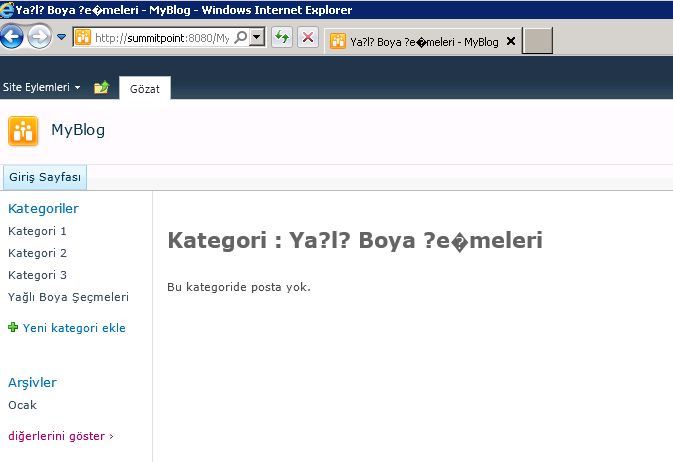
I have created a category named : “Yağlı Boya Seçmeleri”  You can see the problem bellowed screenshot.

The problem is when rendering left panel Categories web part (XSTLListView) not encode url of Link object correctly. I have tested with changing the link in browser’s address bar with correct encoding the titiles shown correctly on category page.

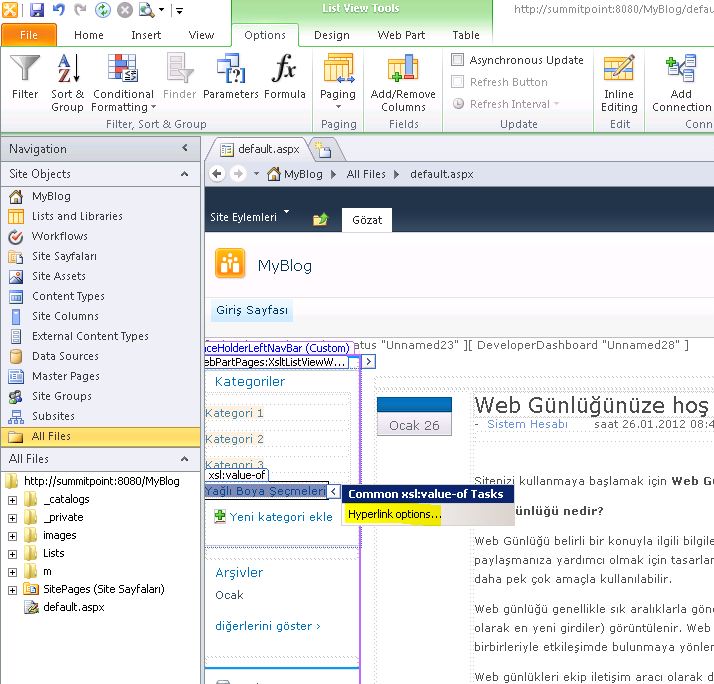
So There  is a workaround for fixing this issue with using Sharepoint Designer 2010 .

1) Open defauılt aspx and (any needed page) in Sharepoint Designer.

2) Select one of the link  in Categories  XsltListViewWebpart


3) Click the HyperLinkOptions button.

4) Change the default value of
{$HttpVDir}/{$thisNode/../@resource.wss.lists_Folder}/{$thisNode/../@resource.wss.blogcategories_Folder}/Category.aspx?CategoryId={$thisNode/@ID}&Name={$CategoryTitle} as
{$HttpVDir}/{$thisNode/../@resource.wss.lists_Folder}/{$thisNode/../@resource.wss.blogcategories_Folder}/Category.aspx?CategoryId={$thisNode/@ID}&Name={$thisNode/@Title}

5) Repeat same options for all needed pages.

And Open and Check  again your blog page :

(For who know Turkish the word of “Şeçme” have a little typo correct word is “Seçme” . Dont worry about it . i am not get all screenshot again for fixing this 🙂

See you next article.