Configuration of Sharepoint 2010 Diagnostic Log Compression (DLC) v1.0

Server Selection

You can select by checking  required servers from checklist for operations.DLC creates one timer job per selected server.

Move Folder

Define a network path or local path for move/copy your log files.You have three options

  • No Action : Log files can not copy/or move to another path but if compression is active the file which has “log” extention has to be compressed in default sharepoint log folder.
  • Copy Action: If this option is selected than the Compressed Log files or Log files are copied to defined path.
  • Move Action : if this option is selected than the compressed log files or log files moved to the defined path.

IMPORTANT :  Don’t forget to check your folder permissions that Sharepoint timer service account on each server has read/write rights to this folder for prevent an unnecessary access denied error.

Log Options

Compress Log Files: If this check is selected every file in default sharepoint log path will be compressed. And the orginal log file will be deleted. If move action is set to copy or move option this compressed file be copied or be moved defined path.

IMPORTANT: By default original log files will be deleted in compression mode.

Don’t Delete Orginal Log Files : If this check is selected even if compression option is selected original log files will not be deleted. Compressed file will be created in same folder. Even if move action is set copy or move option orginal log files can not be copied or moved to defined path.

Timer Job Schedule: when dlc configuration is completed it creates a timer job for each selected server. ( If timer job already exists it updates)  You  can configure for a schedule these timer jobs according to your envoriment.
there are tree option for timer job avaible Daily,WeeklyMonthly.

Quick FAQ : What happen if i set compression mode to false than set move option and  “Don’t Delete Orginal Log Files” option true ? Answer is simple : instead of moving it just copies orginal log files not delete them.

Quick FAQ: Could i set different schedules to specific servers ? Answer: no.

.

Installation of Sharepoint Diagnostic Log Compression (DLC) v1.0

Install via Sharepoint Management Console (PowerShell)

  1. Download Diagnostic Log Compression from http://dlc.codeplex.com and  Copy wsp file to c:\ drive
  2. Adding solution to solution storeAdd-SPSolution -LiteralPath C:\DiagnosticLogCompression.wsp
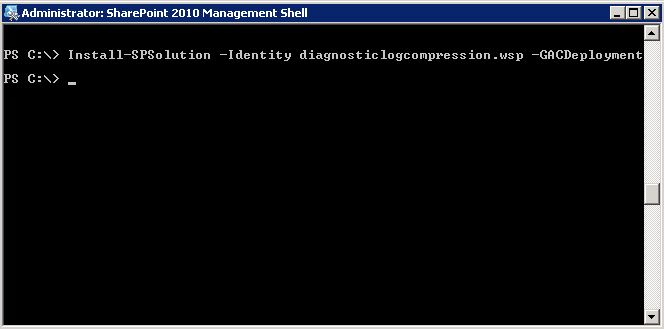
  3. Deploy SolutionInstall-SPSolution -Identity diagnosticlogcompression.wsp –GACDeployment
  4. Enable Feature for Central Administration application

Enable-SPFeature -Identity 0ed55cf5-5322-44bb-b5bf-9126130f7d38 -url <Your Central administration url and port>

  1. Restart Sharepoint Timer Servicenet stop sptimerv4
    net start sptimerv4


Install via stsadm tool

1. Download Diagnostic Log Compression from dlc.codeplex.com and Copy wsp file to c:\

2. Add Solution to solution store

stsadm -o addsolution -filename c:\DiagnosticLogCompression.wsp

3. Deploy solution

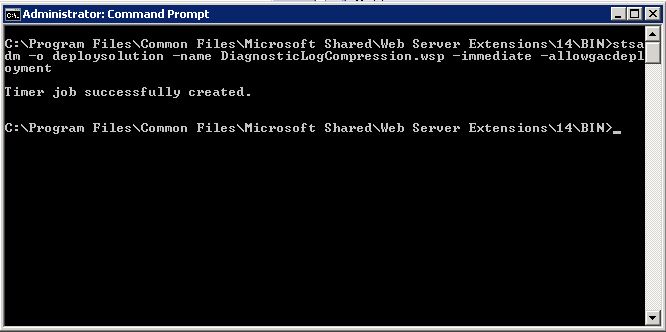
stsadm -o deploysolution -name DiagnosticLogCompression.wsp -immediate –allowgacdeployment

4. Execute Admin Service jobs

stsadm -o execadmsvcjobs

5. Enable Diagnostic Log Compression Feature

stsadm -o activatefeature -id 0ed55cf5-5322-44bb-b5bf-9126130f7d38 -url

6. Restart Sharepoint Timer Service

net stop sptimerv4
net start sptimerv4

  Cheers 🙂

Sharepoint 2010 Diagnostic Log Compression Tool

Hi everyone,

Have you ever  need to save sharepoint diagnostic log files ( uls logs) to another location for some reason security,backup, low storage capacity etc. If you enabled verbose mode than your log files could much storage problem . Sometimes one file getting bigger of GB’s.

This sharepoint extention helps you to compress,copy or move sharepoint uls log files to another location with a scheduled time for backup purpose.

Features
– Compression of uls log files using Gzip approximitly %80 compression ratio.
– Multiple Server Support , Running on selected servers option
– Scheduling operations.
– Copy or Move Compressed/Uncompressed Log files to another network location.
– Configuration via Central Administration.

You can download from codeplex.com
http://dlc.codeplex.com

.

Sharepoint 2010 User Profile Syncronization Services can not syncronize user domain alias information correctly

If you have already running UPA and have correct sync connection than after changed NetBIOSDomainNamesEnabled true and already get full import but domain names still FQDN name instead of Netbios names.
(not any CU loaded)

Solution:
1) Check AD Replication Directory Changes Permission is set correctly .
see article:

Checking Replication Directory Changes for account by PowerShell

2) Clear all syncronization connections.

3) Clear all imported users
see article:

Sharepoint 2010 Delete all imported profile users by PowerShell


4) Set NetBIOSDomainNamesEnabled true of your User Profile Service Application

$upsa = Get-SPServiceApplication –Id <Your UPSA id>
$upsa.NetBIOSDomainNamesEnabled=1
$upsa.Update()
# To get the GUID of the User Profile Service Application run Get-SPServiceApplication.

5) Reset OWSTimer and complete iisreset.

6) Recreate your synchronization configuration

7) Start Full Import.