How to send Real Meeting Requests from Sharepoint 2010 – Part4 Usage

How to send Real Meeting Requests from Sharepoint 2010 – Part4 Usage:

Here is the links for How to send Real Meeting Request From Sharepoint 2010 Series:
https://blog.bugrapostaci.com/2012/02/17/how-to-send-real-meeting-request-from-sharepoint-2010-part-1/
https://blog.bugrapostaci.com/2012/02/17/how-to-send-real-meeting-request-from-sharepoint-2010-part-2/
https://blog.bugrapostaci.com/2012/02/17/how-to-send-real-meeting-request-from-sharepoint-2010-part-3-deployment/

How to send Real Meeting Requests from Sharepoint 2010 – Part4 Usage

1) Open a sharepoint calendar

2) Add new Event
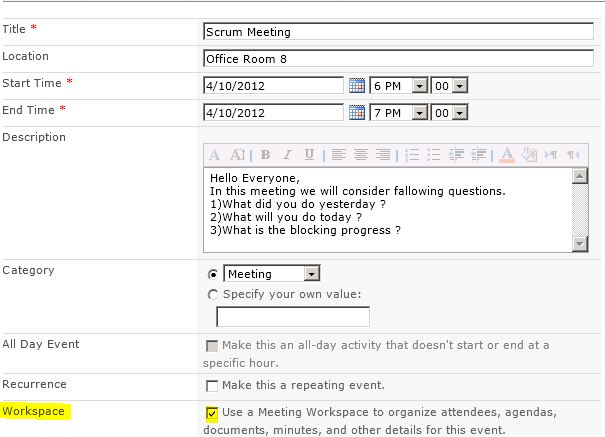
Meeting Requests can only be send through from a Meeting Workspace in this project.So you have to select checkbox of workspace.

3) Create a new Meeting Workspace or Select an existing Meeting WorkSpace
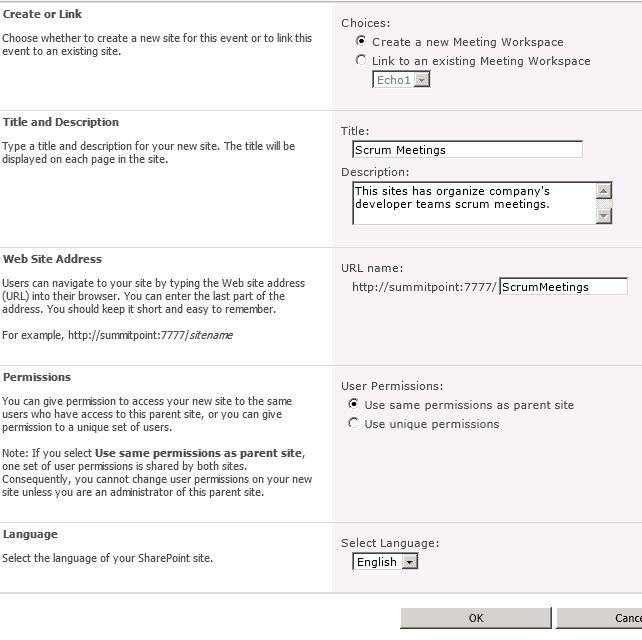
If you have already a created Meeting WorkSpace select that one.

4) The Meeting Workspace home page opens automatically.

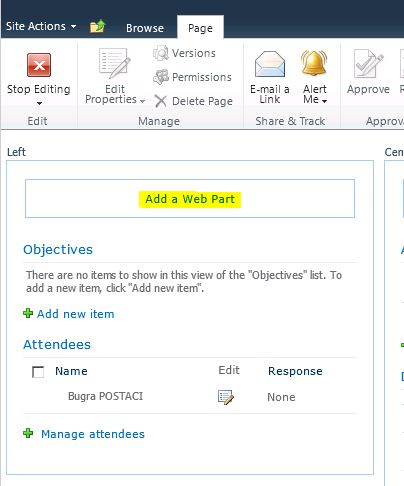
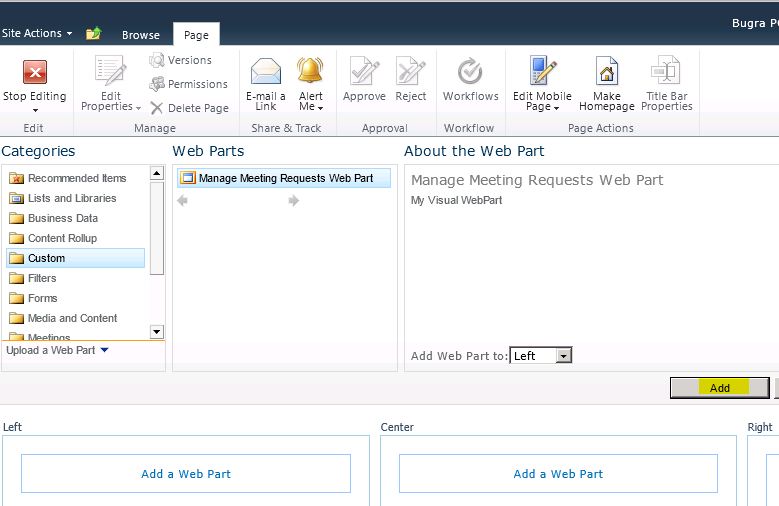
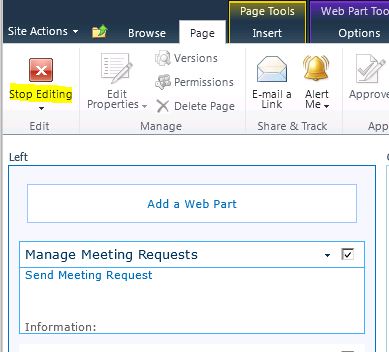
5) Add Manage Meeting Requests Web Part  to default page

6) Add needed attendess
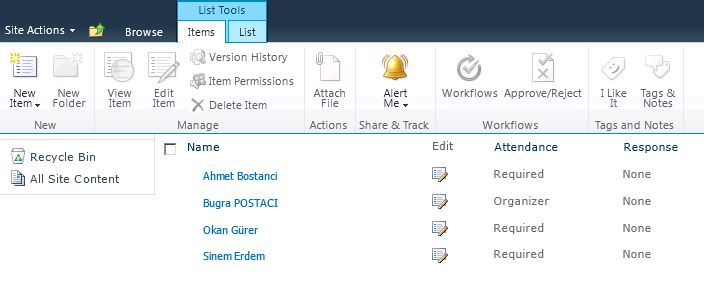
7)Return to home page of Meeting Site

8) Send a meeting Request form Manage Meeting Request Web Part

If you able to send a meeting request successfully the gui has changes and information message shown that confirm your Meeting Request has been sent successfully.
There is only 4 feature implemented in this project.

  • Send Meeting Request
  • ReSend Meeting Request
  • Refresh Attendees Status
  • Cancel Meeting

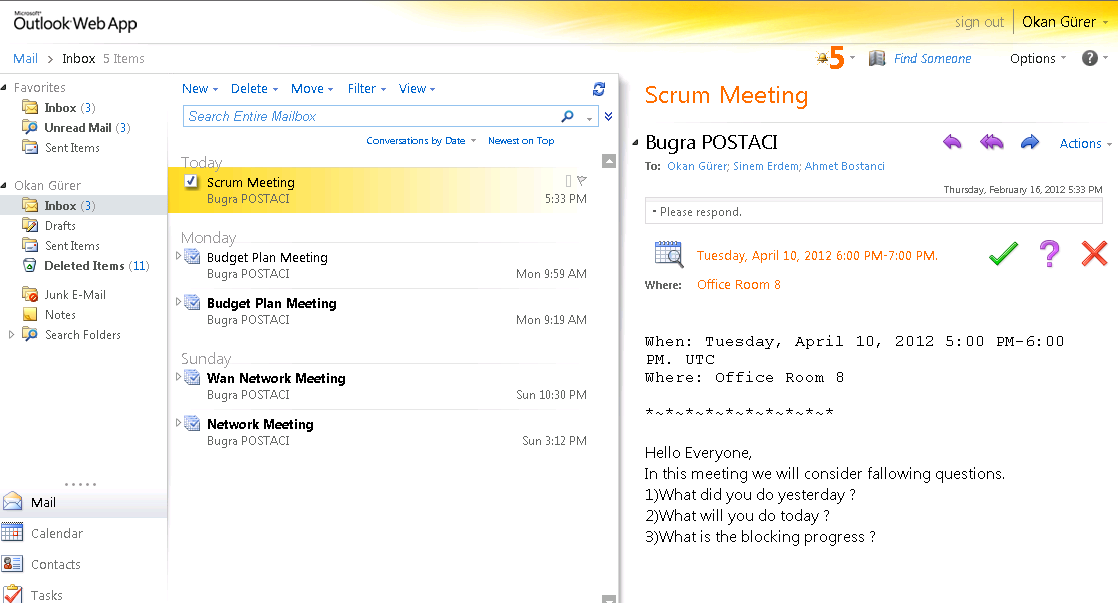
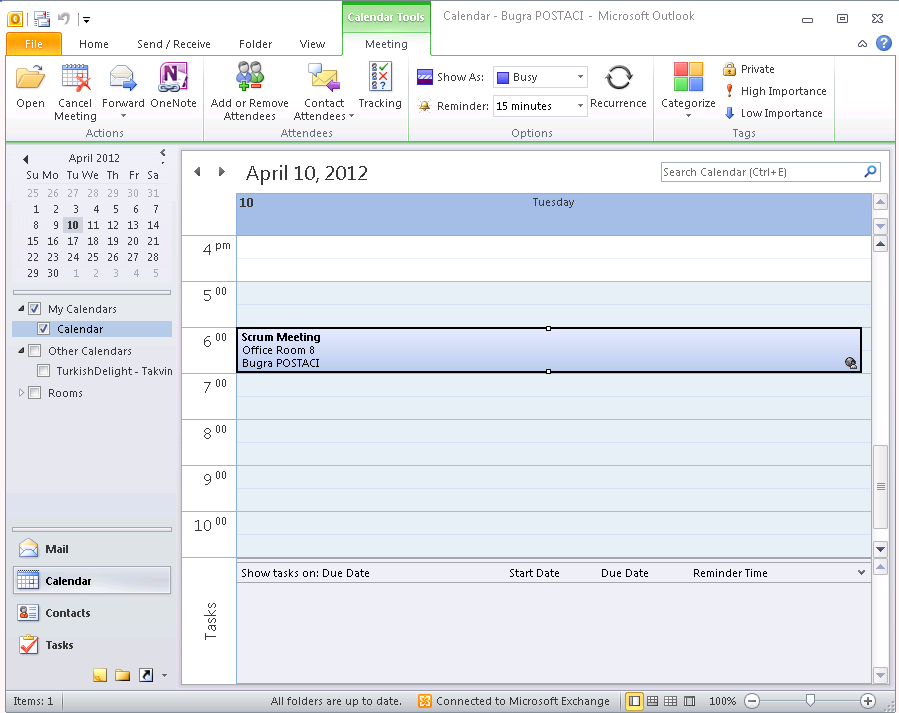
9) Check Your Outlook and Clients for confirmation .
Update for MyMasters Solution -16th Nov 2011

Hi Everyone recently i uploaded a new version (1.1) of MyMasters solution.

the solution now covering fallowing questions’ answers :

* How to deploy a custom wellcome page to Personal Site ?
* How to add custom webparts to a page ?
* How to use XsltListViewWebPart and add a document library as a webpart ?

You can download new version from CodePlex site of MyMasters solution:
http://mymasters.codeplex.com/

Please visit related post about MyMasters:
https://blog.bugrapostaci.com/2011/10/24/attach-custom-master-page-to-personal-site-with-featurestabling-for-sharepoint-2010/

Here is a code sample for above questions :
as you guess CreateWellcomePage function has been calling in Feature Reciever class of MyMasters Feature.

  1. private void CreateWellcomePage(SPFeatureReceiverProperties properties)
  2.         {
  3.             SPSite site = (SPSite)properties.Feature.Parent;
  4.             SPWeb web = site.OpenWeb();
  5.             PublishingSite pSite = new PublishingSite(site); //Get Publishing Site Object
  6.             SPContentType ctype = pSite.ContentTypes[“Welcome Page”]; //Get builtin “Wellcome Page” content type
  7.             PageLayoutCollection pageLayouts = pSite.GetPageLayouts(ctype, true); //Get builtin pagelayouts for this content type
  8.             PageLayout pageLayout = pageLayouts[0]; //Select first one which is BlankWebPartPage pagelayout
  9.             PublishingWeb pWeb = PublishingWeb.GetPublishingWeb(web); //Get Publishing Web.
  10.             PublishingPageCollection pPages = pWeb.GetPublishingPages(); // Get Page Collection
  11.             //TempFile for changing default page
  12.             string tempFileName = “TempFileForChangeWellcomePage.aspx”;
  13.             PublishingPage tempPage = null;
  14.             try
  15.             {
  16.                 //Get if there is an existing wellcome.aspx
  17.                 PublishingPage pPageExist = pPages[pWeb.Url + “/Pages/Wellcome.aspx”];
  18.                 if (pPageExist != null)
  19.                 {
  20.                     //Check wellcome.aspx is default page
  21.                     if (pWeb.DefaultPage.UniqueId == pPageExist.ListItem.File.UniqueId)
  22.                     {
  23.                         //if it is a default page we have to create a template page because the default page is not deleted.
  24.                         //Create a temporary page
  25.                         tempPage = pPages.Add(tempFileName, pageLayout);
  26.                         tempPage.ListItem.File.CheckIn(“Chk”);
  27.                         tempPage.ListItem.File.Publish(“Pub”);
  28.                         //Set this temporary file as default page so we can able to delete existing wellcome.aspx
  29.                         pWeb.DefaultPage = tempPage.ListItem.File;
  30.                         pWeb.Update();
  31.                     }
  32.                     //Delete Existing Wellcome.aspx
  33.                     if (pPageExist.ListItem.File.CheckedOutByUser != null)
  34.                     {
  35.                         pPageExist.ListItem.File.UndoCheckOut();
  36.                     }
  37.                     pPageExist.CheckOut();
  38.                     pPageExist.ListItem.Delete();
  39.                     pWeb.Update();
  40.                 }
  41.             }
  42.             catch(Exception ex)
  43.             {
  44.             }
  45.             //Create a new Wellcome.aspx file
  46.             PublishingPage pPage = pPages.Add(“Wellcome.aspx”, pageLayout);
  47.             SPListItem newpage = pPage.ListItem;
  48.             newpage[“Title”] = “Wellcome to my personal site”;
  49.             //Add need webparts to page.
  50.             using (SPLimitedWebPartManager wpMgr = web.GetLimitedWebPartManager(pPage.Url, PersonalizationScope.Shared))
  51.             {
  52.                 //Get WebPart Catalog
  53.                 SPList webPartCatalog = web.GetCatalog(SPListTemplateType.WebPartCatalog);
  54.                 foreach (SPListItem item in webPartCatalog.Items)
  55.                 {
  56.                     if (item.DisplayName == “LatestBlogPostsPublic”)
  57.                     {
  58.                         string fileName = string.Format(“{0}/{1}”, item.Web.Url, item.File.Url);
  59.                         XmlTextReader reader = new XmlTextReader(new StringReader(item.Web.GetFileAsString(fileName)));
  60.                         string error;
  61.                         System.Web.UI.WebControls.WebParts.WebPart wx = wpMgr.ImportWebPart(reader, out error);
  62.                         wpMgr.AddWebPart(wx, “Header”, Convert.ToInt32(0));
  63.                     }
  64.                 }
  65.                 //Add existing Document Library views
  66.                 SPList SharedDocumentsList = web.Lists[“Shared Documents”];
  67.                 SPView SharedDocumentsListView = SharedDocumentsList.Views[0];
  68.                 SPList PersonalDocumentsList = web.Lists[“Personal Documents”];
  69.                 SPView PersonalDocumentsListView = PersonalDocumentsList.Views[0];
  70.                 XsltListViewWebPart wp = new XsltListViewWebPart();
  71.                 wp.ListId = SharedDocumentsList.ID;
  72.                 wp.Title = “Shared Documents”;
  73.                 wp.ChromeType = PartChromeType.TitleOnly;
  74.                 wp.ViewGuid = SharedDocumentsListView.ID.ToString();
  75.                 wp.XmlDefinition = SharedDocumentsListView.GetViewXml();
  76.                 wpMgr.AddWebPart(wp, “Header”, Convert.ToInt32(1));
  77.                 XsltListViewWebPart wp2 = new XsltListViewWebPart();
  78.                 wp2.ListId = PersonalDocumentsList.ID;
  79.                 wp2.Title = “Personal Documents”;
  80.                 wp2.ChromeType = PartChromeType.TitleOnly;
  81.                 wp2.ViewGuid = PersonalDocumentsListView.ID.ToString();
  82.                 wp2.XmlDefinition = PersonalDocumentsListView.GetViewXml();
  83.                 wpMgr.AddWebPart(wp2, “Header”, Convert.ToInt32(2));
  84.             }
  85.             newpage.File.CheckIn(“Administravily Check in”);
  86.             newpage.File.Publish(“Administravily Published”);
  87.             //set wellcome.aspx as default page.
  88.             pWeb.DefaultPage = newpage.File;
  89.             pWeb.Update();
  90.             //delete if tempfile is exists.
  91.             if (tempPage != null)
  92.             {
  93.                 tempPage.ListItem.Delete();
  94.             }
  95.             pWeb.Update();
  96.         }

how to remove unnecessery handler mappings from Sharepoint 2010 web application for security purpose

This article explains how to restrict or remove unnecessary handler mappings for  Microsoft SharePoint Foundation web application in the Integrated Request Pipeline of Internet Information Services (IIS) .

As you know Sharepoint has modifed the pipeline for more information about Why Sharepoint modifing the request pipeline please read this topic :
http://msdn.microsoft.com/en-us/library/ee537834.aspx

For a general web application you can modify pipleline using:

  • Pipeline Changes at the ASP.NET Framework Level: Sharepoint  does not change any thing for this level that mean sharepoint makes no changes to the machine.config file or the global web.config file.
  • Pipeline Changes at the IIS Configuration Level : The modifications on applicationhost.config file.This file is located in the %WinDir%\System32\inetsrv\config\ directory and it contains registrations of the IIS Web sites and application pools on the server, as well as some settings that apply to all Web applications on the Web server. The settings in applicationhost.config are primarily oriented to the parts of the pipeline that are contributed by IIS, whereas the machine.config and the global web.config files contain settings that are primarily oriented to the parts of the integrated request pipeline that are contributed by ASP.NET.
  • Pipeline Changes at the SharePoint Web Application Level: The modifications on web.config files.
  • Pipeline Changes at the Directory Level : The modifications on directory levels still using web.config files.Particular physical or virtual directories in an IIS Web site can also have their own web.config file to add new settings or override inherited settings. The new settings and overrides, of course, apply only to HTTP requests for resources located within the directory and its subdirectories.

Important ! :In this article scope of “Pipeline Changes at the IIS Configuration Level” so get backup your applicationhost.config file before do anything in %WinDir%\System32\inetsrv\config\

Bellowed configuration is for standart sharepoint web application so if you have some custom codes that need extra handler please add needed handlers to list.

For removing handler mappings

1) open your IIS console.
2) select your Sharepoint Web Application
3) Click Handler Mappings.

And Remove unneceserry handler mappings by selecting and clicking remove button on iis console.

 The handlers in  picture below are the needed ones so don’t delete them.

So sharepoint is not use any .net framework 4.0 components and the other iis default isapi extentions.
Always make a test that your site is working correctly. For testing use these starting points:

  • Test Pages
  • Test System Pages
  • Test File Upload
  • Test Search
  • Test Sharepoint Designer Connection
  • Add your custom test items.

see you next articles.

Sharepoint 2010 – Delete all users’ personel sites via powershell

#PowerShell Script - Delete All Users Personel Sites - SharePoint 2010
#The scripts is distributet "as-is." Use it on your own risk. The author give no warranties, guarantees or conditions.

#Add SharePoint PowerShell SnapIn if not already added
 if ((Get-PSSnapin "Microsoft.SharePoint.PowerShell" -ErrorAction SilentlyContinue) -eq $null) {
    Add-PSSnapin "Microsoft.SharePoint.PowerShell"
}
[Reflection.Assembly]::LoadWithPartialName("Microsoft.Office.Server")

$mysiteHostUrl = "http://my"
$mysite = Get-SPSite $mysiteHostUrl
$context = [Microsoft.Office.Server.ServerContext]::GetContext($mysite)

$upm =  New-Object Microsoft.Office.Server.UserProfiles.UserProfileManager($context)

$AllProfiles = $upm.GetEnumerator()

foreach($profile in $AllProfiles)
{
   $DisplayName = $profile.DisplayName
   $AccountName = $profile[[Microsoft.Office.Server.UserProfiles.PropertyConstants]::AccountName].Value  

   if($profile.PersonalSite -ne $Null)
   {

	   $profile.PersonalSite.Delete()
	   write-host $AccountName , " personel site deleted successfully"
   }
}
$mysite.Dispose();

Move Sharepoint 2010 server to another domain

If once you need to move your sharepoint server to another farm you have to know this is not an easy process. In this article i am telling you a way of doing migration via using domain trusts.

  1. Upgrade Current farm lastest SP (Service Pack 1) and lasted CU
    Sharepoint SP1 and June CU information
    http://blogs.msdn.com/b/joerg_sinemus/archive/2011/06/29/sharepoint-2010-sp1-and-post-sp1-june-2011-cu.aspx
    https://blog.bugrapostaci.com/2011/06/29/sharepoint-2010-service-pack-1-sp1-and-june-2011-cu-released/
  2. Estabilish two way domain trust between Domain A (old) and Domain B
    http://technet.microsoft.com/en-us/library/cc773178(WS.10).aspx
    http://technet.microsoft.com/en-us/library/cc816837(WS.10).aspx
    http://technet.microsoft.com/en-us/library/cc816590(WS.10).aspx
  3. Setup and Install new Sharepoint Server on Domain B and Upgrade this server lastest SP and Lastest CU
    Prepare to deploy software updates (SharePoint Server 2010)
    http://technet.microsoft.com/hi-in/library/ff806331(en-us).aspx
  4. Join new server to farm using configuration wizard.
  5. Migrate all roles and service applications to new server and stop the domain A server services.
    Server and Site Architecture
    http://msdn.microsoft.com/en-us/library/ms473633.aspx
    Service Applications and Topologies in SharePoint Server 2010
    http://technet.microsoft.com/en-us/sharepoint/ff686757
  6. Update all service accounts and farm admin account with new Domain users.
    Initial deployment administrative and service accounts
    http://technet.microsoft.com/en-us/library/ee662513.aspx
    http://blogs.msdn.com/b/russmax/archive/2010/01/08/changing-sharepoint-2010-service-accounts.aspx
  7. Migrate all other needed users and groups using stsadm.
    http://technet.microsoft.com/en-us/sharepoint/ee517214
    Verify that you meet the following minimum requirements: See Add-SPShellAdmin.
    On the Start menu, click All Programs.
    Click Microsoft SharePoint 2010 Products.
    Click SharePoint 2010 Management Shell.
    From the Windows PowerShell command prompt, type the following:
    $w = Get-SPWebApplication “http://<server>/&#8221;
    $w.MigrateUsers($True)
  8. Check if needed Equalize all custom solutions, and web.config files and make a complete test of your custom solutions
    http://technet.microsoft.com/en-us/library/cc262995.aspx
  9. Stop all services on Domain A sharepoint servers and test your all application for any problem .(broken links , content redirections, posible errors)
  10. If Everything is ok at step 9 .Disconnect old servers (domian A servers) from farm
  11. Stop All Sharepoint servers on Domian B
  12. Stop SQL Server and change domain of SQL Server .
  13. Start SQL server services.
  14. Start Sharepoint Servers.
  15. Remove Domain Trusts.

I hope this helps 🙂