Sharepoint set user or group to SPListItem

We are going to use a sharepoint web control to get user or groups  named “PeopleEditor” .For using these please fallow the instructions below.

Add fallowing code to top of your page:

<%@ Register Tagprefix="SharePointWebControls" Namespace="Microsoft.SharePoint.WebControls" Assembly="Microsoft.SharePoint, Version=12.0.0.0, Culture=neutral, PublicKeyToken=71e9bce111e9429c" %>

Add fallowing control to your page front for get users or groups:

Note: If  you want to set or retrieve the account types that are associated with the control use attribute “SelectionSet”
and enums are:

  • User = single user
  • DL = AD distribution list
  • SecGroup = AD security group
  • SPGroup = Sharepoint group

<SharePointWebControls:PeopleEditor runat=”server” ID=”txtScope” MultiSelect=”false” MaximumEntities=”1″ ValidatorEnabled=”true” SelectionSet=”User” Width=”300px”></SharePointWebControls:PeopleEditor>

Add fallowing to your page behind:

using Microsoft.SharePoint.WebControls;
public SPFieldUserValueCollection GetSelectedUsers(PeopleEditor editor)
{
       string selectedUsers = editor.CommaSeparatedAccounts;
       // commaseparatedaccounts returns entries that are comma separated. we want to split those up
       char[] splitter = { ',' };
       string[] splitPPData = selectedUsers.Split(splitter);
       // this collection will store the user values from the people editor which we'll eventually use
       // to populate the field in the list
       SPFieldUserValueCollection values = new SPFieldUserValueCollection();
       // for each item in our array, create a new sp user object given the loginname and add to our collection
       for (int i = 0; i < splitPPData.Length; i++)
            {
                string loginName = splitPPData[i];
                if (!string.IsNullOrEmpty(loginName))
                {
                    SPUser user = SPContext.Current.Web.SiteUsers[loginName];
                    SPFieldUserValue fuv = new SPFieldUserValue(SPContext.Current.Web, user.ID, user.LoginName);
                    values.Add(fuv);
                }
            }
            return values;
        }
}

And now i describe add to listitem and update:

SPList list = SPContext.Current.Web.Lists[APPLIB];
SPListItem item = list.Items.Add();
item["ProgramAdmin"] = GetSelectedUsers(txtScope);
item.Update();

That’s all.
Sharepoint Exit Edit Mode programmatically

Sharepoint Tips & Tricks: Sharepoint exit edit mode programmatically.

We can do it with redirect to same page.

“Microsoft.SharePoint.Utilities” Namespace has a static class named SPUtility.

Example:

SPUtility.Redirect(SPContext.Current.ListItem.File.ServerRelativeUrl , SPRedirectFlags.Default, this.Context);

Easy isn’t it…

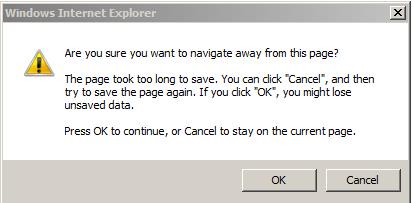
The page took too long to save…

See my post about:

Saving Page Content Sharepoint with IE8 cause annoying delay:

https://blog.bugrapostaci.com/2010/03/03/saving-page-content-sharepoint-with-ie8-cause-annoying-delay/

See you next article…

Saving Page Content Sharepoint with IE8 cause annoying delay

This is very annoying problem when you are programming with IE8 and using sharepoint .We are working with custom layout pages coding and this problems occured and waste our valuable time.

Symptom

When navigating away from a publishing page that is in edit mode the browser displays “Saving Page Content…” in the status bar which can take up some time (about 15 sec)  to complete before asking for confirmation to not save the page.There were no such error with either IE7 or FireFox.

Cause

SBN_CallBackHandler() client function of SaveBeforeNavigationControl is not called as it supposed to. It looks like the implementation of XMLHttpRequest object in IE8 is somehow different from the previous release

Solution: There are three different solution

1) Change IE8 configuration parameter

Click -> tools -> Internet Options -> Advanced (tab)  and uncheck

Enable native XMLHTTP support (checked by default)

(This solution not worked with me but some blogs say thats ok )

2) Edit
\Program Files\Common Files\Microsoft Shared\web server extensions\12\TEMPLATE\CONTROLTEMPLATES\PublishingConsole.ascx
and remove this component.
<PublishingWebControls:SaveBeforeNavigationControl id=”sbn1″ runat=”server”>
< / PublishingWebControls:SaveBeforeNavigationControl>
And also did not work for me !!

3) Add javascript to your page:

<script type=”text/javascript”>
_spBodyOnLoadFunctionNames.push(“UnloadHandler”);
function UnloadHandler()
{
document.body.onUnload = “”;
window.onbeforeunload=””;
}
</script>
Thats all folks…

Ninject with Sharepoint 2

In first acticle we talk about how we configure our Ninject with Sharepoint .Now there are two issue one of them is our ninject dlls permissions and the your assemblies that using ninject should allow partially trust callers.
https://blog.bugrapostaci.com/2010/02/23/ninject-with-sharepoint/

When you configure your ninject dll to sharepoint you probably encounter with permission denied errors . That is normal beacuse our custom Ninject Library is using Reflection and Sharepoint libraries and you have to define CAS for this libraries .

Setup your CAS

I’m using for deployment  WSPBuilder tool and i use it with  a customCAS file.There are two CAS permission as important

  • Microsoft.SharePoint.Security.SharePointPermission
  • System.Security.Permissions.ReflectionPermission

For deployment batch file contains that:

WSPBuilder.exe -WSPName Ninject.Deploy.wsp -CustomCAS CustomCAS.txt -SolutionID [Your Solution ID]

And you should copy CustomCAS.txt to same folder of WspBuilder.exe that contains

<IPermission class=”Microsoft.SharePoint.Security.SharePointPermission, Microsoft.SharePoint.Security, Version=12.0.0.0, Culture=neutral, PublicKeyToken=71e9bce111e9429c” version=”1″ ObjectModel=”True” UnsafeSaveOnGet=”True” Unrestricted=”True”  /  >

<IPermission class=”System.Security.Permissions.ReflectionPermission, mscorlib, Version=2.0.0.0, Culture=neutral, PublicKeyToken=b77a5c561934e089″ version=”1″ Flags=”3″ Unrestricted=”True” /  >

For more information WSPBuilder with custom CAS there is a simple post here:
http://www.novolocus.com/2009/08/13/wspbuilder-and-cas-policies/
For more info Microsoft Windows SharePoint Services and Code Access Security is Msdn
http://msdn.microsoft.com/en-us/library/dd583158(office.11).aspx

Allow Partially Trusted Callers

There is another job about your  class or page assemblies that using ninject should be contains 
[assembly: AllowPartiallyTrustedCallers()]
attribute in your AssemblyInfo.cs file . (You should add refrence of “using System.Security;” namespace)

After build you can craete a setup with Sharepoint Solution Installer using your wsp file deploy without any further error.

Happy codding…