Good Tools for Fixing Missing Features on Sharepoint

Some scenarios removing a feature unproperly or after migration your sharepoint to upper version  or in a development envoriment adding removing solutions with multiple times cause  getting several kind of feature errors like “Failed to find the XML file at location ’12\Template\Features\{feature name}\feature.xml’

Here is a very good article about this problem and solution.
http://blogs.msdn.com/b/tehnoonr/archive/2009/02/15/resolving-the-error-failed-to-find-the-xml-file-at-location-12-template-features-feature-name-feature-xml.aspx

 You may need belowed tools for fixing that problem. (Some tools are using  just stsadm at background but giving you a visual form experience.)

Wss Remove Feature From Tool
http://archive.msdn.microsoft.com/WssRemoveFeatureFrom
In some situation the STSADM command STSADM.EXE -o deactivatefeature is not able to deactivate a feature either on site collection or on site level.
This can (e.g.) happen if the feature definition for the feature that has to be removed is not installed in the farm.
This tool allows to remove the feature from the site or site collection completly.
Usage:
WssRemoveFeatureFromSite -scope (site|sitecollection) -url <url-to-site> -featureid <featureid> -force

Wss Analyze Features  Tool
http://archive.msdn.microsoft.com/WssAnalyzeFeatures
This tool allows to verify if the feature definition files for all installed features are present on the file system. Also allows to verify if the features used in site collections an sites are installed on the server.
In addition it can create a checklist file which can be used to verify if a server has all features installed required to act as destination for a content deployment job of an existing sitecollection.
Usage:
WssAnalyzeFeatures -url http://server:port
This command will verify all features on the server and in the site collection.
It will create two files:
– ProblemFeatures.txt outlining all identified problems.
– ContentDeploymentFeatures.txt this is the created checklistfile. It will contain all features that have to exist on the target to be able to act as target for a content deployment of the site collection.
WssAnalyzeFeatuers -verify ContentDeploymentFeatures.txt
this command will verify the features installed on the server against the features listed in the ContentDeploymentFeatures.txt checklistfile which was created on the source server.

SharePoint Feature Administration and Clean Up Tool
http://featureadmin.codeplex.com
Find faulty FeatureDefinitions and cleanly uninstall them.
Find Feature remainders in Sites, SiteCollections, WebApps and in the Farm, from e.g. forcefully uninstalled Features from farm without deactivating them before, causing errors.
Also, de-/activate Features Farm wide.

Faulty Feature Tool v2
http://www.moss2007.be/blogs/vandest/Documents/FaultyFeatureTool_EXE.zip

 .

How to fix 64bit ACL limit exceeded problem on Sharepoint.

In many cases getting “The Parameter is incorrect” error when searching crawl logs for defining why my search is not working or one site is not to be crawled.This is one specific error that addres us to  64 kb size limit of an Access Control List (ACL). Microsoft says : “This behavior occurs if the size of the access control list (ACL) is larger than 64 kilobytes (KB). The maximum buffer size of the InitializeAcl function is 64 KB. Therefore, the maximum size of an ACL in Windows, including the access control entries (ACEs) that are contained in the ACL, is 64 KB.” http://support.microsoft.com/kb/885482

Sharepoint uses ACL on background for securty issues. And this limitation is not actually a sharepoint limit .It is an operating system limit. If the limit is exceeded , calculation of security principals is not working and causes anomalies. One of them is unable to crawl and getting “The Parameter is incorrect” error on crawl logs.

What is the boundries and Limits

For Moss 2007 Security Principal Limit is Approximately 2,000 per ACL (Access Control List) on any securable object (scope)
The total size of the ACL on scopes can be no larger than 64kb. Because each security principal is approximately 32 bytes in size, there can be no more than approximately 2,000 security principals or less for each scope.  If this limit is reached, indexing of items in that scope, and all items below that scope, to fail.
Also, because SharePoint Groups are expanded during the indexing process, having more than 2,000 users or Directory Groups in a SharePoint group and using that group for securing scopes may cause indexing of items secured with these groups, and all items below them, to fail.
This limit only occurs when Windows Integrated Authentication is utilized.”
http://technet.microsoft.com/en-us/library/cc262787(office.12).aspx

For Sharepoint 2010 you should consider belowed two limit definition.  

1)”Security Scope: The maximum number of unique security scopes set for a list should not exceed 1,000.
A scope is the security boundary for a securable object and any of its children that do not have a separate security boundary defined. A scope contains an Access Control List (ACL), but unlike NTFS ACLs, a scope can include security principals that are specific to SharePoint Server. The members of an ACL for a scope can include Windows users, user accounts other than Windows users (such as forms-based accounts), Active Directory groups, or SharePoint groups.”  http://technet.microsoft.com/en-us/library/cc262787.aspx.

It is a little confusing.For both version of sharepoint the rule is same don’t exceed 64 Kb limit. For Sharepoint 2010 “exceed 1000 ACE” is just a threshold. Depending of ACE’s size there isnt any strict count limit . It should be between 1820 – 2000 ACEs.

“Except for the 64 KB limit on the ACL, there is no hard-coded limit for the number of users and groups to whom you can grant access to the portal site. You can add as many users and groups to a portal site as you want until the 64 KB limit of the ACL is reached. Because the sizes of individual ACEs vary, the total number of ACEs that can be put in an ACL also varies. Therefore, the exact number of groups and users who you can add to the portal site cannot be determined from the 64 KB limit of the ACL. To avoid this issue, we recommend that you do not add more than 1,000 users and groups to your portal site. ”
http://support.microsoft.com/kb/885482

Ok . I assume that you understand the ACL and limits . now we return our main issue how to fix that problem. 
Where do we start : Determining which scopes can cause the problem.

Important !  Do not change sharepoint database ! Application of any schema change to the SharePoint database, except as part of a Microsoft-supplied service pack or hot fix, will make the SharePoint environment unsupportable. This type of change should never be applied.

Using this query you can identify the amount of security principals (ACEs) per scope (ACL):

select COUNT(ra.PrincipalId) as [Count],p.ScopeUrl
from RoleAssignment ra with(nolock)
join Perms p with(nolock) on p.SiteId = ra.SiteId and p.ScopeId = ra.ScopeId
group by p.ScopeUrl
order by [Count] desc

As you see in the results that the scope of “planing” contains 370 principals. This can be groups  or directly added users to that scope.
We could not say here if this is exceeding the 64kb ACL Windows Limit.
Look at these scenarios:

               (1) If there are 369 directly added users and one SharePoint group which contains 5.000 users than you would definitely exceed the total limit of that scope! (total principal count would be 5.369!)

               (2) If there are 369 directly added users and one SharePoint group containing an AD group with 400.000 users than you don’t exceed the total limit of that scope! (total principal count would be only 370!)

In general: For each site, or list, or list-item for which you break the permission inheritance from the parent site you will get a new scope and It will use its own ACL.

Using the following query you can identify how many users are in your available SharePoint groups:

select COUNT(m.MemberId) as [Count], g.Title as [Group-Title]
from GroupMembership m with(nolock)
join Groups g with(nolock) on m.GroupId = g.ID and m.SiteId = g.SiteId
group by g.Title
order by [Count] desc
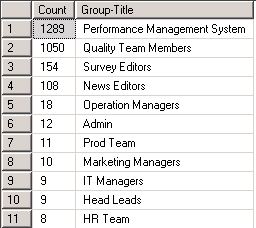
there are two sharepoint group that are in our interest.
1289 Performace Management System.
1050 Quality Team Members .

Using one of these group on any of his sites (= ScopeUrl) can cause the crawl error “The parameter is incorrect” which the customer reported for the site.

Lets consider that we add one of these big groups  (Performance Management System) to an scope for example Operations (280) .The group counts as one principal so there are still 279 principals left or direct.
this mean 279 + 1289 = 1568 principals . it is so close the 1820-2000 limit. Think about a worst scenario to add another group to one of left 279 slot. you will exceed the limit with a big possibility.

So for workaround:
1) Define your big sharepoint groups.
2) Create a AD security group for each one
3) Move users sharepoint group to AD group.
4) Add this ad group to your Sharepoint Group instead of adding user one by one.
Resources:
http://support.microsoft.com/kb/885482
http://technet.microsoft.com/en-us/library/cc781716(WS.10).aspx
http://blogs.msdn.com/b/mattlind/archive/2007/11/02/sharepoint-indexing-limited-by-64-kb-acl-limit.aspx
http://blogs.msdn.com/b/arvind7in/archive/2010/05/26/what-is-64k-acl-limit.aspx

And Special thanks to Holger Lutz for these valuable informations .

See you in next articles.

How to enable Query Latency Trend report for Sharepoint 2010

Sharepoint Server 2010 has contains builting Search administration reports. You can find them via
Central Administration -> Administrative Report Library -> Search Administration reports.

One of the reports that is very useful is the Query Latency Trend chart. This does not work out of the box because verbose query monitoring is disabled.

To enable the Query Latency Trend report, you must run the following Windows PowerShell cmdlets:

$app = Get-SPEnterpriseSearchServiceApplication “<application name>”
$app = Set-SPEnterpriseSearchServiceApplication -VerboseQueryMonitoring “True”
$app = Get-SPEnterpriseSearchServiceApplication “<application name>”
$app.Update()

Example:

$sar = Get-SPEnterpriseSearchServiceApplication
$sar.VerboseQueryMonitoring = $true
$sar.Update()
Resource:
http://technet.microsoft.com/en-us/library/ee808861.aspx

Access Violation error on Sharepoint 2010 OOB components

If you are facing Access Violation error with newly upgraded Sharepoint 2010 server on common components like randomly calender view,document lists, etc. at undeterministic times.You may interested with this article.

Here is a sample error in ULS log:
System.AccessViolationException: Attempted to read or write protected memory. This is often an indication that other memory is corrupt.    at Microsoft.SharePoint.WebControls.SPCalendarTabs.CreateChildControls()     at System.Web.UI.Control.EnsureChildControls()     at System.Web.UI.Control.PreRenderRecursiveInternal()     at System.Web.UI.Control.PreRenderRecursiveInternal()     at System.Web.UI.Control.PreRenderRecursiveInternal()     at System.Web.UI.Control.PreRenderRecursiveInternal()     at System.Web.UI.Control.PreRenderRecursiveInternal()     at System.Web.UI.Control.PreRenderRecursiveInternal()     at System.Web.UI.Control.PreRenderRecursiveInternal()     at System.Web.UI.Control.PreRenderRecursiveInternal()     at System.Web.UI.Control.PreRenderRecursiveInternal()     at System.W…       a45ffc85-760b-4b92-8dc9-6d6a8d3e16f9

and Event log:
Event code :3005
Exception type: AccessViolationException
Exception message: Attempted to read or write protected memory. This is often an indication that other memory is corrupt.

Cause:
This problem occurs because the values of the GC pointers are incorrect.

Solution:
There is a hotfix published by Microsoft for .net framework.
FIX: An access violation occurs when you pass structs as parameters through remoting or reflection in 64-bit applications in the .NET Framework 3.5 SP1 or the .NET Framework 2.0 SP2
http://support.microsoft.com/kb/974168/en-us

Before patching the hotfix please check your installed .net frameworks.
You must have .NET Framework 3.5 SP1 or .NET Framework 2.0 SP2 installed to apply this hotfix.

Check this article for determine  which versions and service pack levels of the Microsoft .NET Framework are installed
http://msdn.microsoft.com/en-us/kb/kbarticle.aspx?id=318785
You don’t have to restart the computer after you apply the hotfix if no relative .NET Framework instance is in use.
Apply this hotfix to your sharepoint wfe,app servers one by one. After patched you should better to execute an iisreset.

End of article.

Recursive Triggers on SQL Server and User Profile Service Problem

Recently Microsoft has published a “FAST PUBLISH” article about User Profile Application service starting problem with FIM Syncronization service.In KB defined problem is caused by The ‘Recursive Triggers Enabled’ property for the Model database is set to ‘True’ in the SQL instance. And the error is in your application log

The server encountered an unexpected error and stopped.
“ERR: MMS(6016): sql.cpp(5580): Query (update [mms_run_history] set [is_run_complete] = 1,[run_result] = N’stopped-server’,[end_date] = <Date & Time> where ([is_run_complete] = 0)) performed with error
ERR: MMS(6016): sql.cpp(5633): Maximum stored procedure, function, trigger, or view nesting level exceeded (limit 32).
….

What is a Recursive Triggers ?
A requirsive trigger is a trigger that fired by the other triggers or intreacting object that fire the trigger when executed recursively.

SQL Server also allows for recursive invocation of triggers when the RECURSIVE_TRIGGERS setting is enabled using ALTER DATABASE.

Recursive triggers enable the following types of recursion to occur:

  • Indirect recursion
    With indirect recursion, an application updates table T1. This fires trigger TR1, updating table T2. In this scenario, trigger T2 then fires and updates table T1.
  • Direct recursion
    With direct recursion, the application updates table T1. This fires trigger TR1, updating table T1. Because table T1 was updated, trigger TR1 fires again, and so on.

The following example uses both indirect and direct trigger recursion Assume that two update triggers, TR1 and TR2, are defined on table T1. Trigger TR1 updates table T1 recursively. An UPDATE statement executes each TR1 and TR2 one time. Additionally, the execution of TR1 triggers the execution of TR1 (recursively) and TR2. The inserted and deleted tables for a specific trigger contain rows that correspond only to the UPDATE statement that invoked the trigger.

Note:The previous behavior occurs only if the RECURSIVE_TRIGGERS setting is enabled by using ALTER DATABASE. There is no defined order in which multiple triggers defined for a specific event are executed. Each trigger should be self-contained.

Disabling the RECURSIVE_TRIGGERS setting only prevents direct recursions. To disable indirect recursion also, set the nested triggers server option to 0 by using sp_configure.

If any one of the triggers performs a ROLLBACK TRANSACTION, regardless of the nesting level, no more triggers are executed.

How to change “Recursive Triggers Enabled” property to false ?

From the SQL Server Management Studio, expand ‘System Databases’ > Right-click ‘Model’ | Properties | Options | under Miscellaneous section, set ‘Recursive Triggers Enabled’ property to ‘False’.

or.

The recursive trigger setting works on a database level . For checking the status of the recursive setting, use this command:

 EXEC sp_dboption '<name of db>', 'recursive triggers' -

for enabling Recusive Triggers:

 EXEC sp_dboption '<name of db>', 'recursive triggers', 'true' 

for disabling Recursive Triggers:

 EXEC sp_dboption '<name of db>', 'recursive triggers', 'false' 

For our senario use like this:

EXEC sp_dboption 'Model', 'recursive triggers', 'false' 

Resources:
http://msdn.microsoft.com/en-us/library/ms189799.aspx
http://support.microsoft.com/kb/2579951