How to rename Sharepoint database server

In some cases User Profile service is in “starting” mode but not started after a while getting “stopped” . one of the cause this situation is Sharepoint server name is using an ip address instead of using netbios name. You can check if from Central Administration -> Servers in farm section.

How can we change the ip address of SQL server to netbios name? Answer is simple use stsadm.
Run the following command to rename the server from IP address to netbios name sucessfully:

Stsadm -o renameserver -oldservername <ipaddress> -newservername <netbios name of the sql server>

Example: Stsadm -o renameserver -oldservername 192.168.10.2 -newservername POSTSQL

Now you can try starting the User Profile Synchronization Service. It should start successfully, unless there is some other User Profile Sync Service related issue.

..


Moss 2007 – Troubleshooting incoming email problems

Windows SharePoint Services 3.0 uses e-mail handlers to route incoming e-mail from virtually any e-mail client to a list in your SharePoint site. Each e-mail-enabled list is associated with a unique e-mail address, and each e-mail handler is associated with a particular list type.

For troubleshooting incoming e-mails

1) Check Central Administration ->  Operations -> Incoming E-Mail Settings  is correctly configured.

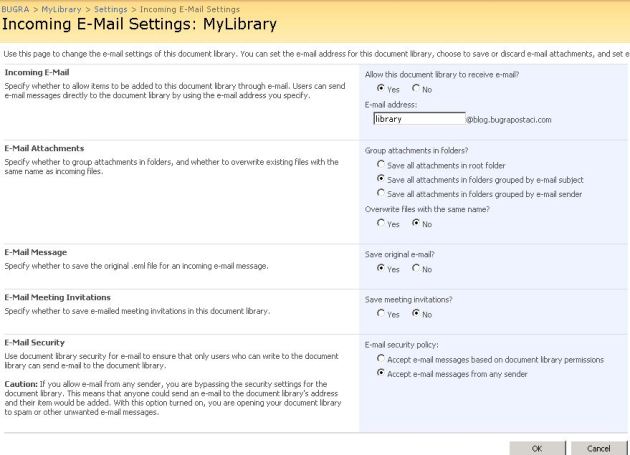
2) Check your library – Settings-> Incoming E-mail settings is correctly configured.

If you correctly enable Incoming emails settings, you should have also an installed smtp server feature (for Windows server 2008 r2)
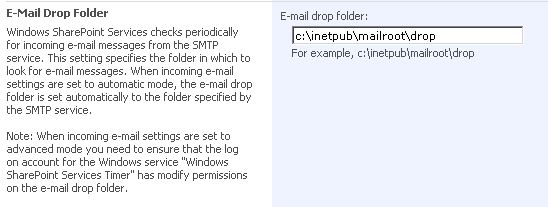
At this point i want to tell about the process of an incoming email distribution. When you send an email to a sharepoint list first your mail is delivered by your mail server and pass through the your sharepoint machine smtp server. It stored c:\inetpub\mailroot\drop folder with a file format of eml. The timer job of “Windows SharePoint Services Incoming E-Mail” is monitoring your mailroot\drop folder and when it find an email it process this mail and deliver the attachments to destination document library.

3) Check your Mailroot/drop folders stores eml files.

Incoming e-mail uses the Microsoft SharePoint Directory Management Service to connect SharePoint sites to the directory services used by your organization. If you enable the Microsoft SharePoint Directory Management Service, users can create and manage distribution groups from SharePoint sites. SharePoint lists that use e-mail can then be found in directory services, such as the Address Book. You must also select which distribution group requests from SharePoint lists require approval. The Microsoft SharePoint Directory Management Service can be installed on a server in the farm, or you can use a remote Microsoft SharePoint Directory Management Service.

4) If you are using Microsoft SharePoint Directory Management Service  Check Microsoft SharePoint Directory Management Service is running.

5) Check your sharepoint timer service identity has correct rights on mailroot folders. (you can check it from services.msc)

6) Trace the log messages using ULSViewer program with a filter of “category equals E-Mail”

For more information of Configuring Incoming E-Mail Settings:
http://technet.microsoft.com/en-us/library/cc287879(office.12).aspx


Sharepoint 2010 Misconception with RBS

After Sharepoint 2010 sp1 is released , some new features and improvements has been spreading in several blogs.And one of the most interested the new content database limits. In SP1 , by defining specific requirements for large data storage in SharePoint, Microsoft is able to increase the supported limits for data storage in SharePoint.
Sotware boundaries and limits and the primary changes are:

  1. For a SharePoint content database up to 200 GB there are no special requirements and this limit is included for consistency.
  2. For a SharePoint content database up to 4 TB you need to additionally plan for the following two requirements:
    • Requires disk sub-system performance of 0.25 IOPS per GB, 2 IOPS per GB is recommended for optimal performance.
    • Requires the customer to have plans for high availability, disaster recovery, future capacity, and performance testing.
    • And you need to review additional considerations in the TechNet Boundaries and Limits article.
  3. For a SharePoint content database over 4TB specifically for a Document Archive scenario you are required to additionally plan for the following:
    • SharePoint sites must be based on Document Center or Records Center site templates and must be an archive scenario where less than 5% of content is actively read from each month and less than 1% of content is actively written to.
    • Do not use alerts, workflows, link fix-ups, or item level security on any SharePoint objects in the content database. Note: document archive content databases can be the recipient of documents as a result of Content Routing workflow.
  4. Other specific limits changes being made at the same time:
    • A new limit of 60million items in any one SharePoint content database
    • The specific 5 TB limit per SQL Server instance has been removed.  Instead you should work with a SQL Server professional to plan for database storage.

 Also these new extended limitation is not our artile issue if you need more info see:
http://technet.microsoft.com/en-us/library/cc262787.aspx

And also RBS has some improvements:
The Microsoft SQL Server FILESTREAM RBS provider is now supported allowing for iSCSI connections to lower cost NAS storage. The SQL Server RBS provider is one option for RBS use with SharePoint and there are a number of ISV’s who also have RBS providers.

What about RBS misconception: Misconception is that RBS can provide extra database size limit ? Answer is “No”:

First of all Microsoft Says :
“We are clarifying that Remote Blob Storage (RBS) does not offer a way to increase the SharePoint content database size limits. The content database supported size limits apply to the sum of data stored in SQL Server plus data stored outside of SQL Server using an RBS provider”

Even if you use RBS or not , Sharepoint boundries is strict and you should not able to change it. And this is not only just Content DB size limit. it is also valid for all Sharepoint Limitation,  including Maximum document size limit of 2 GB for one file.

See you in next article…


Sharepoint 2010 – Basic Authentication and Php .net web service connection.

A few days ago i have faced a problem that an application which coded with php try to connect sharepoint web services. And it didnt not succeed because of authentication of sharepoint system was windows authentication. PHP application support basic authentication so sharepoint does also. But the problem is when change authentication to basic or enable basic authenticaition for production site cause a security risk . So  SSL should be use but in our case it is one of out of issue.

so what we did , extending current site to new web application from Central Administration and enable basic authentication for extended site. Secure this extended site for specific application server that running php via Firewall rules and voila . Also suggested for external connection for this site using vpn or also able to use ssl if they able to change their code for it.

For Enabling Basic Authentication fallowing defined above senario :

1)  Extend your sharepoint site from Central Administration .

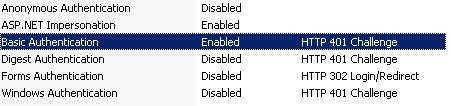
2) Enable basic authentication from IIS management console for extend web application. 

3) Select Authentication Provider for your newly extended site.

4) Enable Basic Authentication from configuration.


its done 🙂

Moss 2007 web enabled Infopath form timeout troubleshooting

This is an old problem but lastly i handle a case and fallowed below troubleshooting.

1) Check the InfoPath service timeout configuration. Central Administration -> (InforPath Form Services Section) Configure Infopath forms service.
Check “Data Connection Timeouts” as milliseconds.

Check “Form Session State” Active session should be terminated after option

2) Check your web application timeouts from IIS by open IIS mmc and right click your sharepoint site.

3) Check your sharepoint web.config file for HttpRuntime.executionTimeout value :

<httpruntime maxRequestLength=”51200″ executionTimeout=”7200” />

Optional Int32 attribute.
Specifies the maximum number of seconds that a request is allowed to execute before being automatically shut down by ASP.NET.This time-out applies only if the debug attribute in the compilation element is False. If the debug attribute is True, to help avoiding application shut-down while you are debugging, do not set this time-out to a large value.The default is 110. In the .NET Framework 1.0 and 1.1, the default is 90 seconds.