Good Tools for Fixing Missing Features on Sharepoint

Some scenarios removing a feature unproperly or after migration your sharepoint to upper version  or in a development envoriment adding removing solutions with multiple times cause  getting several kind of feature errors like “Failed to find the XML file at location ’12\Template\Features\{feature name}\feature.xml’

Here is a very good article about this problem and solution.
http://blogs.msdn.com/b/tehnoonr/archive/2009/02/15/resolving-the-error-failed-to-find-the-xml-file-at-location-12-template-features-feature-name-feature-xml.aspx

 You may need belowed tools for fixing that problem. (Some tools are using  just stsadm at background but giving you a visual form experience.)

Wss Remove Feature From Tool
http://archive.msdn.microsoft.com/WssRemoveFeatureFrom
In some situation the STSADM command STSADM.EXE -o deactivatefeature is not able to deactivate a feature either on site collection or on site level.
This can (e.g.) happen if the feature definition for the feature that has to be removed is not installed in the farm.
This tool allows to remove the feature from the site or site collection completly.
Usage:
WssRemoveFeatureFromSite -scope (site|sitecollection) -url <url-to-site> -featureid <featureid> -force

Wss Analyze Features  Tool
http://archive.msdn.microsoft.com/WssAnalyzeFeatures
This tool allows to verify if the feature definition files for all installed features are present on the file system. Also allows to verify if the features used in site collections an sites are installed on the server.
In addition it can create a checklist file which can be used to verify if a server has all features installed required to act as destination for a content deployment job of an existing sitecollection.
Usage:
WssAnalyzeFeatures -url http://server:port
This command will verify all features on the server and in the site collection.
It will create two files:
– ProblemFeatures.txt outlining all identified problems.
– ContentDeploymentFeatures.txt this is the created checklistfile. It will contain all features that have to exist on the target to be able to act as target for a content deployment of the site collection.
WssAnalyzeFeatuers -verify ContentDeploymentFeatures.txt
this command will verify the features installed on the server against the features listed in the ContentDeploymentFeatures.txt checklistfile which was created on the source server.

SharePoint Feature Administration and Clean Up Tool
http://featureadmin.codeplex.com
Find faulty FeatureDefinitions and cleanly uninstall them.
Find Feature remainders in Sites, SiteCollections, WebApps and in the Farm, from e.g. forcefully uninstalled Features from farm without deactivating them before, causing errors.
Also, de-/activate Features Farm wide.

Faulty Feature Tool v2
http://www.moss2007.be/blogs/vandest/Documents/FaultyFeatureTool_EXE.zip

 .

Sharepoint 2010 – Basic Authentication and Php .net web service connection.

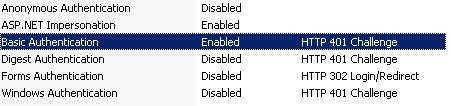
A few days ago i have faced a problem that an application which coded with php try to connect sharepoint web services. And it didnt not succeed because of authentication of sharepoint system was windows authentication. PHP application support basic authentication so sharepoint does also. But the problem is when change authentication to basic or enable basic authenticaition for production site cause a security risk . So  SSL should be use but in our case it is one of out of issue.

so what we did , extending current site to new web application from Central Administration and enable basic authentication for extended site. Secure this extended site for specific application server that running php via Firewall rules and voila . Also suggested for external connection for this site using vpn or also able to use ssl if they able to change their code for it.

For Enabling Basic Authentication fallowing defined above senario :

1)  Extend your sharepoint site from Central Administration .

2) Enable basic authentication from IIS management console for extend web application. 

3) Select Authentication Provider for your newly extended site.

4) Enable Basic Authentication from configuration.


its done 🙂

Multiple application pool identity senario when using NLB with kerberos auth for Sharepoint

First of all i assume that your farm is running behind a NLB cluster and configured using kerberos authentication successfully.

Here is the scenario:

Sharepoint 2010 WFE1 :
->IP: 192.168.10.5  FQDN : wfeserver1.contoso.com  , Windows 2008 server SP2 x64 , IIS 7.0

Sharepoint 2010 WFE2:
->IP: 192.168.10.7  FQDN : wfeserver2.contoso.com , Windows 2008 server SP2 x64 , IIS 7.0

NLB:
NLB Cluster IP : 192.168.10.200   FQDN: nlb1.contoso.com

We have 2 sharepoint application running on port 80:
App1: already configured using Kerberos Auth  :
Host Header : http://istanbul.contoso.com  AppPool account : Contoso\bugra

App2 : is using NTLM (just now)
Host Header : http://ankara.contoso.com  AppPool account Contoso\postman

In order for Kerberos authentication to work we configured:
When you run IIS in a clustered environment or in a load-balanced environment, you access applications by using the cluster name instead of by using a node name. This scenario includes network load balancing. In cluster technology, a node refers to one computer that is a member of the cluster. To use Kerberos as the authentication protocol in this scenario, the application pool identity on each IIS node must be configured to use the same domain user account. To configure each IIS node to use the same domain user account, use the following command:
Setspn –A HTTP/CLUSTER_NAME domain\username
http://support.microsoft.com/kb/929650

(Note: I could able to manage kerberos authentication without defining any SPN to NLB cluster on Windows Server 2008 R2. )

Defined SPN’s:

According to  KB  : SPN for the NLB cluster name: ***
SetSPN -A HTTP/nlb1.contoso.com     Contoso\bugra
SetSPN -A HTTP/nlb1     Contoso\bugra

SPN for the cluster node:
SetSPN -A HTTP/istanbul.contoso.com    Contoso\bugra
SetSPN -A HTTP/istanbul    Contoso\bugra

What happens if I want to configure an additional web application “ankara.contoso.com” , running under a different application pool “Contoso\postman”  also running Kerberos authentication ?

What about the NLB SPNs – they have a different account. This should be a problem of a duplicate SPN for NLB .Sure it is not able to do it like this way.

Solution:
1) Create another DNS A record on NLB Cluster ip:
ex:  host  A  newnlbrecord.contoso.com 192.168.10.200

2) Create SPN for this FQDN:
SetSPN -A HTTP/newnlbrecord.contoso.com     Contoso\postman
SetSPN -A HTTP/newnlbrecord Contoso\postman

And dont forget to create for your app:
SetSPN -A HTTP/ankara.contoso.com    Contoso\postman
SetSPN -A HTTP/ankara Contoso\postman

end of article.

TroubleShooting with Sharepoint 2010 Diagnostic Log Compression (DLC) v1.0

Here is the checklist.

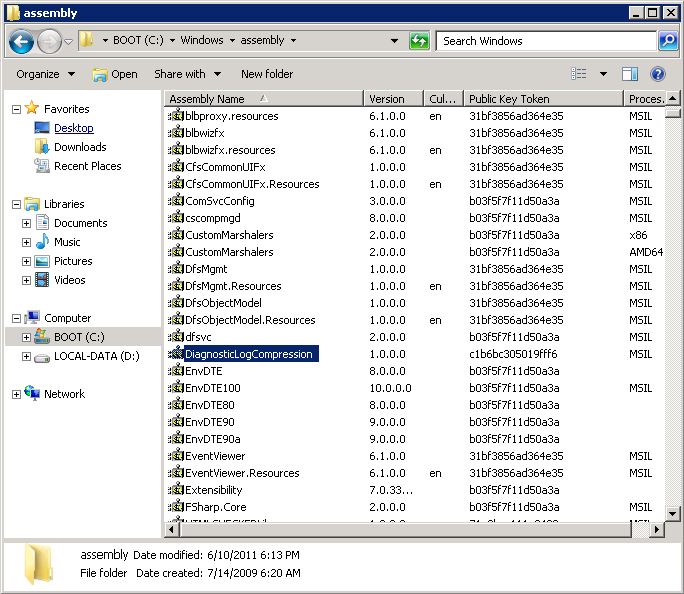
1)      Check all WFE and APP servers gac folder that the assambly file of DLC named “DiagnosticLogCompression.dll” has registered.

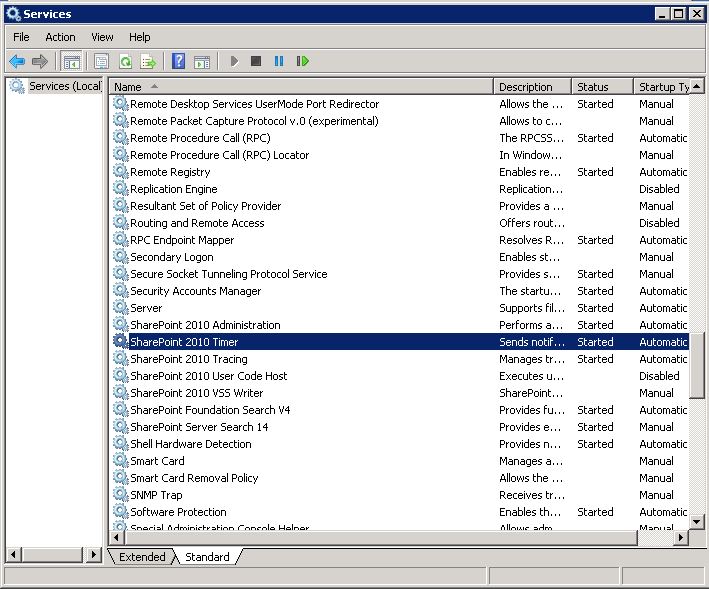
2)      Check Sharepoint Timer Job Service is running and has correct account on every WFE and APP Servers.

3)      Check Diagnostic Log Compression feature is installed and enabled on Sharepoint Central Administration Application

CA-> Site Settings -> Manage Site Features  and check Diagnostic Log Compression Feature is activated.

4)      Check Sharepoint Timer Job Service Identity has enough rights to read/write to destination folder for log copy/move operations.

5)      If you are using UNC path check from every WFE and APP server havent any connection problem to reach defined UNC.

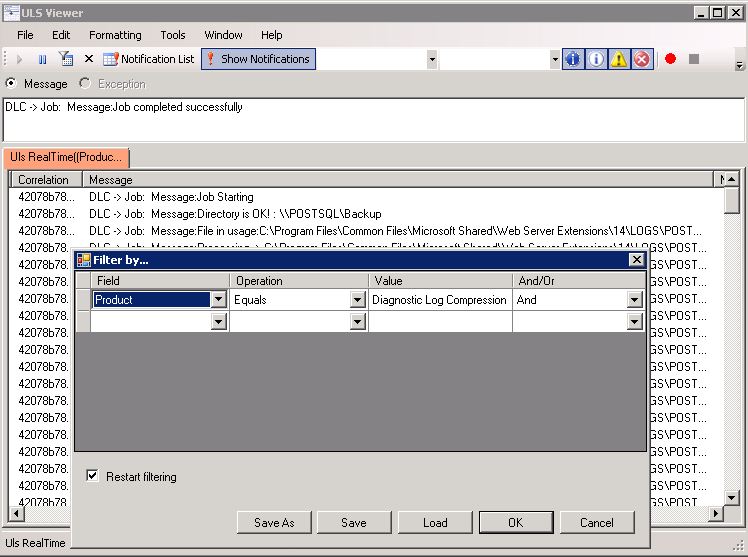
6)      Monitor from ULS Log via ULS viewer that Compression job is running as expected.

You can download ULS Viewer from this link : http://archive.msdn.microsoft.com/ULSViewer

Job Starting Message:

DLC -> Job:  Message:Job Starting

Directory Check Message:
DLC -> Job:  Message:Directory is OK! :   \\YOUR_NETWORK_PATH

The Log file is inuse message:

DLC -> Job:  Message:File in usage:C:\Program Files\Common Files\Microsoft Shared\Web Server
Extensions\14\LOGS\POSTPOINT2010-20110610-1927.log

Several processed log file message:

DLC -> Job:  Message:Processing -> C:\Program Files\Common Files\Microsoft Shared\Web Server Extensions\14\LOGS\POSTPOINT2010-20110606-1744.log


Finish message:

DLC -> Job:  Message:Job completed successfully

7)      If you do any update or manuel installation don’t forget to reset Sharepoint Timer job Service on updated server. For example getting Error of in ULS Log:

06/10/2011 19:36:03.45               OWSTIMER.EXE (0x21BC)             0x2018  SharePoint Foundation               Topology            umbo    High       The type DiagnosticLogsHelper.JobLogCompress, DiagnosticLogCompression, Version=1.0.0.0, Culture=neutral, PublicKeyToken=c1b6bc305019fff6 could not be found in its specified assembly.  Scanning all assemblies that have been loaded in the current app domain.      

end of list.

Configuration of Sharepoint 2010 Diagnostic Log Compression (DLC) v1.0

Server Selection

You can select by checking  required servers from checklist for operations.DLC creates one timer job per selected server.

Move Folder

Define a network path or local path for move/copy your log files.You have three options

  • No Action : Log files can not copy/or move to another path but if compression is active the file which has “log” extention has to be compressed in default sharepoint log folder.
  • Copy Action: If this option is selected than the Compressed Log files or Log files are copied to defined path.
  • Move Action : if this option is selected than the compressed log files or log files moved to the defined path.

IMPORTANT :  Don’t forget to check your folder permissions that Sharepoint timer service account on each server has read/write rights to this folder for prevent an unnecessary access denied error.

Log Options

Compress Log Files: If this check is selected every file in default sharepoint log path will be compressed. And the orginal log file will be deleted. If move action is set to copy or move option this compressed file be copied or be moved defined path.

IMPORTANT: By default original log files will be deleted in compression mode.

Don’t Delete Orginal Log Files : If this check is selected even if compression option is selected original log files will not be deleted. Compressed file will be created in same folder. Even if move action is set copy or move option orginal log files can not be copied or moved to defined path.

Timer Job Schedule: when dlc configuration is completed it creates a timer job for each selected server. ( If timer job already exists it updates)  You  can configure for a schedule these timer jobs according to your envoriment.
there are tree option for timer job avaible Daily,WeeklyMonthly.

Quick FAQ : What happen if i set compression mode to false than set move option and  “Don’t Delete Orginal Log Files” option true ? Answer is simple : instead of moving it just copies orginal log files not delete them.

Quick FAQ: Could i set different schedules to specific servers ? Answer: no.

.