Sharepoint 2010 Februrary 2012 Cumulative Update has been released.

Hello Everyone,

Sharepoint 2010 Februrary 2012 Cumulative Update has been released. You can get more information from Joerg’s blog.
http://blogs.msdn.com/b/joerg_sinemus/archive/2012/03/07/sharepoint-2010-and-february-2012-cu.aspx

Sending meeting request form Sharepoint – Simple Meeting Request Project

Hello Everyone,

I have published more simple project for sending meeting request in codeplex.

Project Description: In this sample project you can able to send real meeting request form Sharepoint using EWS Managed Api 1.1 You can find answers for fallowing topics in this sample project :

How to use Exchange Web Services (EWS) Managed Api in Sharepoint.
How to use EWS Impersonation
How to manage EWS Appointment object
How to create a list definition with Content Approval
How to create a list definition with Custom Content Type
How to add/remove event recievers to specific list
How to use custom actions to add list settings page
How to use ULS Logging Service
How to use ElevetedPriviledges in Sharepoint Object Model.

Prerequisites:
*SharePoint 2010
*Exchange Server 2010
*Exchange Web Services (EWS) Managed Api v1.1
*Visual Studio 2010

For Download Project Source and WSP file

http://spssampleprojects.codeplex.com/releases/view/83437

Misunderstanding when upgrade Sharepoint Server 2010 SP1 with Language Service Packs KB2460059 vs KB2460056

As you know we have installation setup for language pack 2010 Service Pack 1

1) Service Pack 1 for Microsoft SharePoint Foundation (MSF) 2010 Language Pack (KB2460059)
http://www.microsoft.com/download/en/details.aspx?id=26629

2) Service Pack 1 for Microsoft SharePoint  Server (SPS) Language Pack 2010 (KB2460056)
http://www.microsoft.com/download/en/details.aspx?id=26621

Some of the articles in internet tell us install MSF Language service pack1 first KB2460059 and than install KB2460056 after.
THAT IS NOT CORRECT !!!
If you fallow this order  ,you can easily detect that you can not able install KB2460056  after KB2460059 .

First of all the KB2460056 contains all packs for KB2460059.

That’s why if you have Sharepoint Server 2010 you should install only  Service Pack 1 for Service Pack 1 for Server Language Pack 2010 (KB2460056) or
if you have Sharepoint Foundation 2010 you should install only  Service Pack 1 for Microsoft SharePoint Foundation 2010 Language Pack (KB2460059)

For prove this i have download Turkish SPS and MSF Language Service Pack1 and extract the packages and compre them.

Service Pack 1 for Microsoft SharePoint Foundation (MSF) 2010 Language Pack (KB2460059)
spflanguagepack2010sp1-kb2460059-x64-fullfile-tr-tr.exe

Service Pack 1 for Microsoft SharePoint  Server (SPS) Language Pack 2010 (KB2460056)
serverlanguagepack2010sp1-kb2460056-x64-fullfile-tr-tr.exe


How to send Real Meeting Requests from Sharepoint 2010 – Part4 Usage

How to send Real Meeting Requests from Sharepoint 2010 – Part4 Usage:

Here is the links for How to send Real Meeting Request From Sharepoint 2010 Series:
https://blog.bugrapostaci.com/2012/02/17/how-to-send-real-meeting-request-from-sharepoint-2010-part-1/
https://blog.bugrapostaci.com/2012/02/17/how-to-send-real-meeting-request-from-sharepoint-2010-part-2/
https://blog.bugrapostaci.com/2012/02/17/how-to-send-real-meeting-request-from-sharepoint-2010-part-3-deployment/

How to send Real Meeting Requests from Sharepoint 2010 – Part4 Usage

1) Open a sharepoint calendar

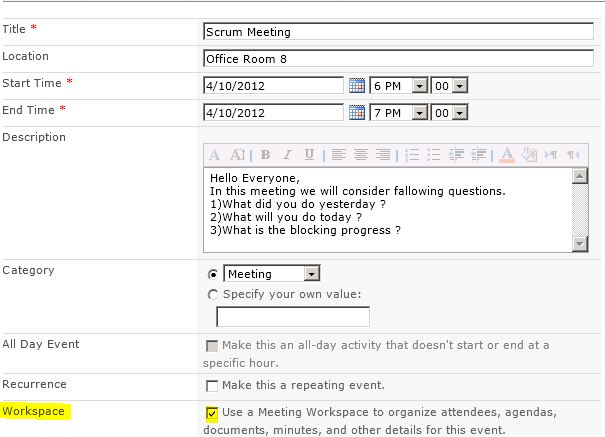
2) Add new Event

Meeting Requests can only be send through from a Meeting Workspace in this project.So you have to select checkbox of workspace.

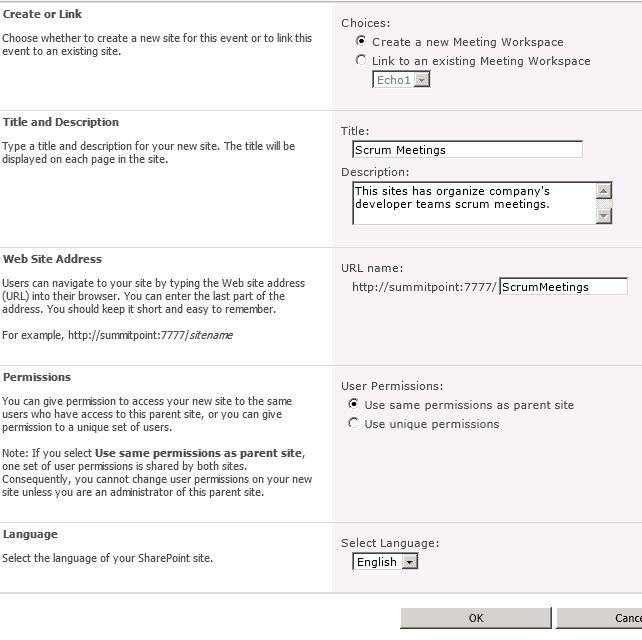
3) Create a new Meeting Workspace or Select an existing Meeting WorkSpace

If you have already a created Meeting WorkSpace select that one.

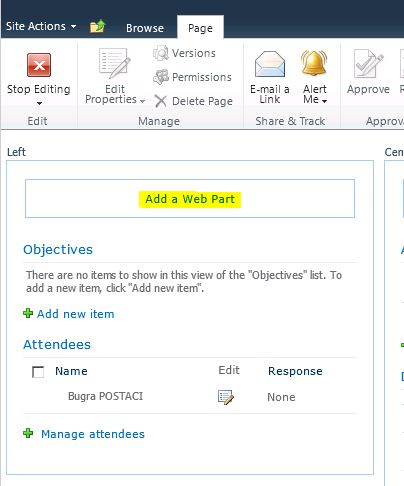
4) The Meeting Workspace home page opens automatically.

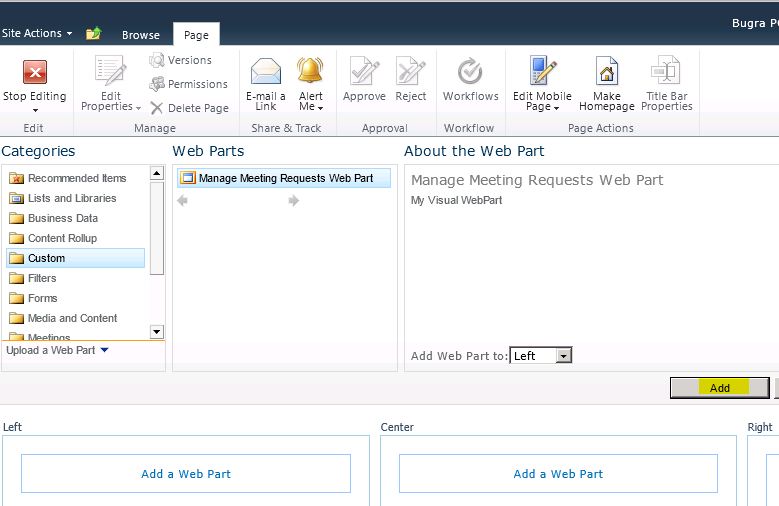
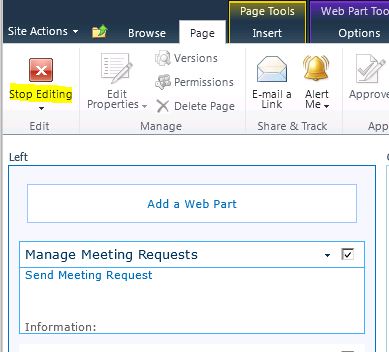
5) Add Manage Meeting Requests Web Part  to default page

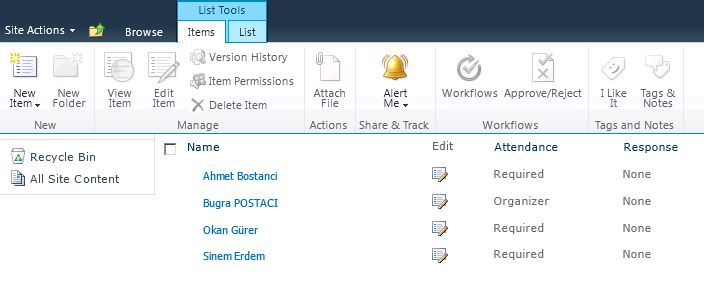
6) Add needed attendess

7)Return to home page of Meeting Site

8) Send a meeting Request form Manage Meeting Request Web Part

If you able to send a meeting request successfully the gui has changes and information message shown that confirm your Meeting Request has been sent successfully.
There is only 4 feature implemented in this project.

  • Send Meeting Request
  • ReSend Meeting Request
  • Refresh Attendees Status
  • Cancel Meeting

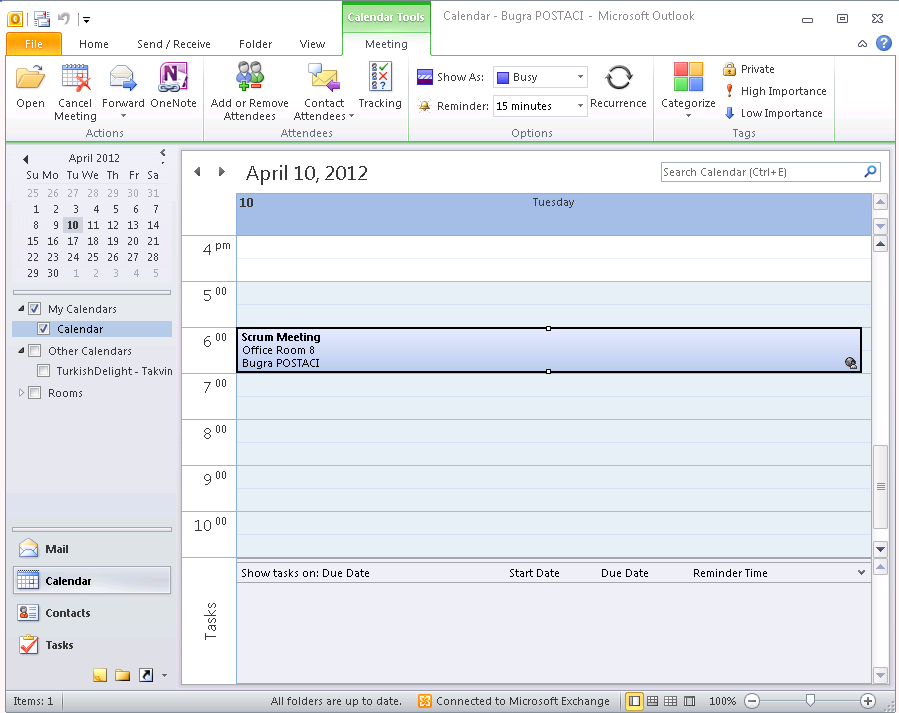
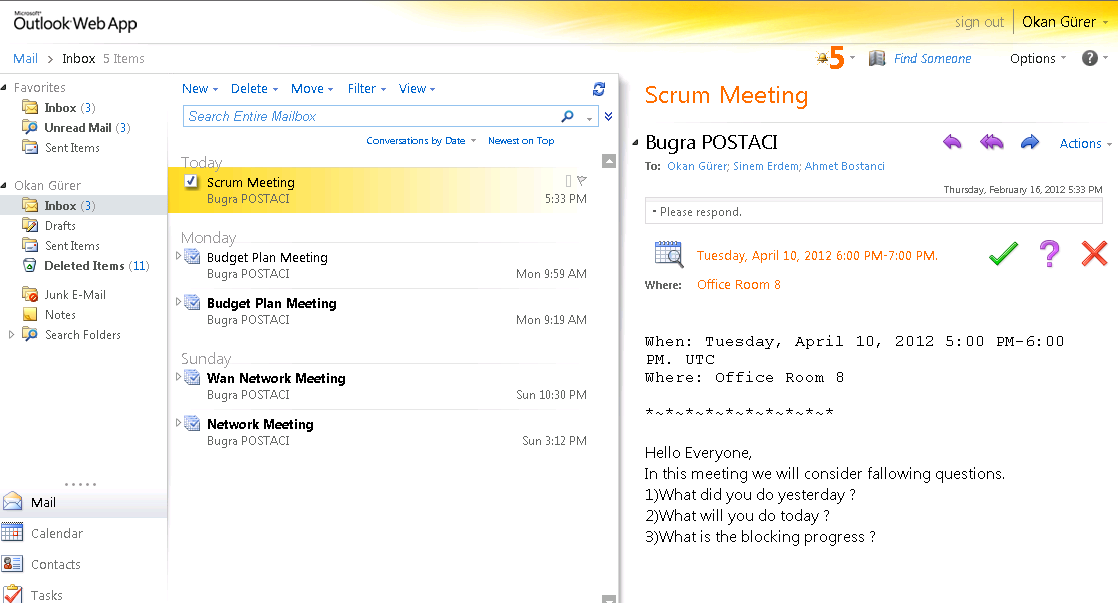
9) Check Your Outlook and Clients for confirmation .

How to send Real Meeting Request from Sharepoint 2010 – Part 3 Deployment

How to send Real Meeting Request from Sharepoint 2010 Series:

https://blog.bugrapostaci.com/2012/02/17/how-to-send-real-meeting-request-from-sharepoint-2010-part-1/
https://blog.bugrapostaci.com/2012/02/17/how-to-send-real-meeting-request-from-sharepoint-2010-part-2/

How to send Real Meeting Request from Sharepoint 2010 – Part 3 Deployment


https://blog.bugrapostaci.com/2012/02/17/how-to-send-real-meeting-requests-from-sharepoint-2010-part4-usage/

How to Deploy our sample project to sharepoint.

1) Download Meeting Request project WSP file from
http://spssampleprojects.codeplex.com/releases/view/82359
And copy SendMeetingRequestProg.wsp file to your c: drive

2) Open a Sharepoint Management Shell

3) Type and rın fallowing command
Add-SPSolution -LiteralPath c:\SendMeetingRequestProj.wsp

4) Type and rın fallowing command
Install-SPSolution -identity SendMeetingRequestProj.wsp -WebApplication <your web site url> -GACDeployment
Example:
Install-SPSolution -identity SendMeetingRequestProj.wsp -WebApplication http://blog.bugrapostaci.com -GACDeployment

5) Type and rın fallowing command
Enable-SPFeature -Identity f746829e-ca13-4bcd-86cc-90fd1cd0729c -url<your web site url>
Example:
Enable-SPFeature -Identity f746829e-ca13-4bcd-86cc-90fd1cd0729c -url http://blog.bugrapostaci.com

Our feature Id : is f746829e-ca13-4bcd-86cc-90fd1cd0729c but if dont know a features id you can find it with fallowing powershell command
Get-SPFeature

Our wsp files contains fallowing files.

PS : WSP Files contains Microsoft.Exchange.WebServices.dll file so you dont need to install EWS setup to your sharepoint servers .
When you deploy wsp file Microsoft.Exchange.WebServices.dll will be copied to your web applications folder .

Don’t forget to add web.config keys in <appSettings>

<add key=”ExchangeServiceURL” value=”https://exchange.blogbugrapostaci.com/EWS/Exchange.asmx&#8221; />
<add key=”ExchangeServiceUserName” value=”MeetingService” />
<add key=”ExchangeServicePassword” value=”the password is here” />
<add key=”ExchangeServiceDomain” value=”BLOG” />

And Be sure your Trust level is Full
<trust level=”Full” originUrl=”” />